
Chapter 5 · 5.4
Using multiple mailboxes
Do you have more than one mailbox, for example info@ and sales@? You can link a second mailbox in webmail and switch with one click. There are other ways too. Choose the one that suits you best.
Option 1: link another mailbox and switch
You link the second mailbox to an extra identity. You can then switch between your mailboxes in webmail without logging in again.

- Go to Settings, Identities and click Create at the top.
- Enter the Display Name and the Email address of the second mailbox, for example sales@yourdomain.com.
- Under Link another mailbox, turn on the Enabled switch (1). In Name in the switch menu, enter a short name, such as Sales.
- Under Incoming mail (IMAP), enter the server name of your package in Server name (2), for example linux2023.webawere.nl. You can find it in My WebOké with your package. See also Which server is my hosting package on?.
- Enter 993 in Port (3) and turn on Secure connection. With port 993 the connection uses SSL. With port 143 webmail uses STARTTLS.
- In Username, enter the full email address of the second mailbox, and in Password the password of that mailbox.
- Leave Folder delimiter empty. Webmail will then work it out for itself.
- Under Outgoing mail (SMTP), enter the same server name in Server name (4). In Port, choose 465 (SSL) or 587 (STARTTLS) and leave Login when sending set to Same as IMAP.
- Click Save.
Please note: you can only link mailboxes hosted at WebOké. A server from another provider, such as Gmail or Outlook.com, is not accepted.
Switching between your mailboxes
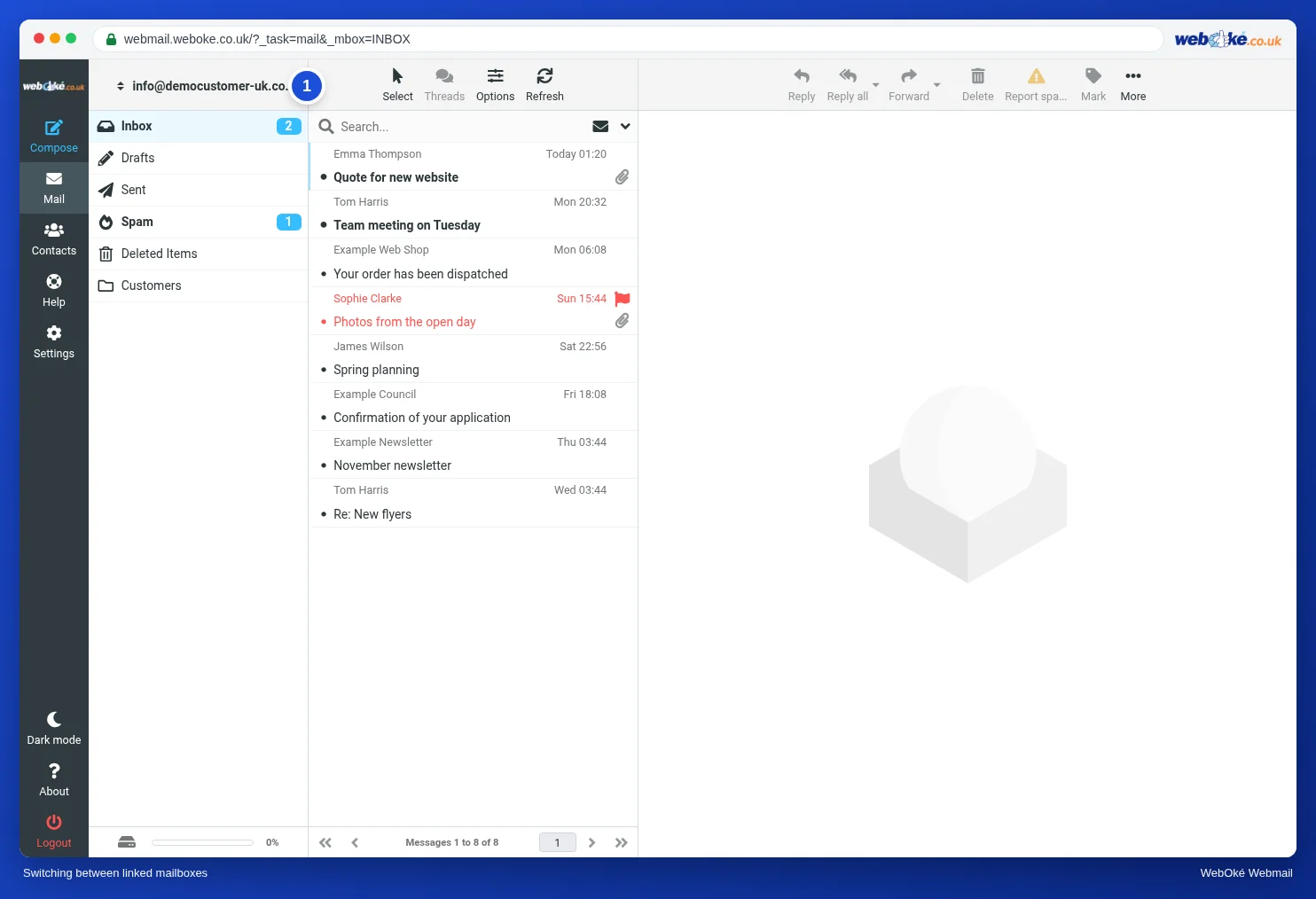
Your email address with two small arrows (1) now appears above your folders. Click it and choose the other mailbox.
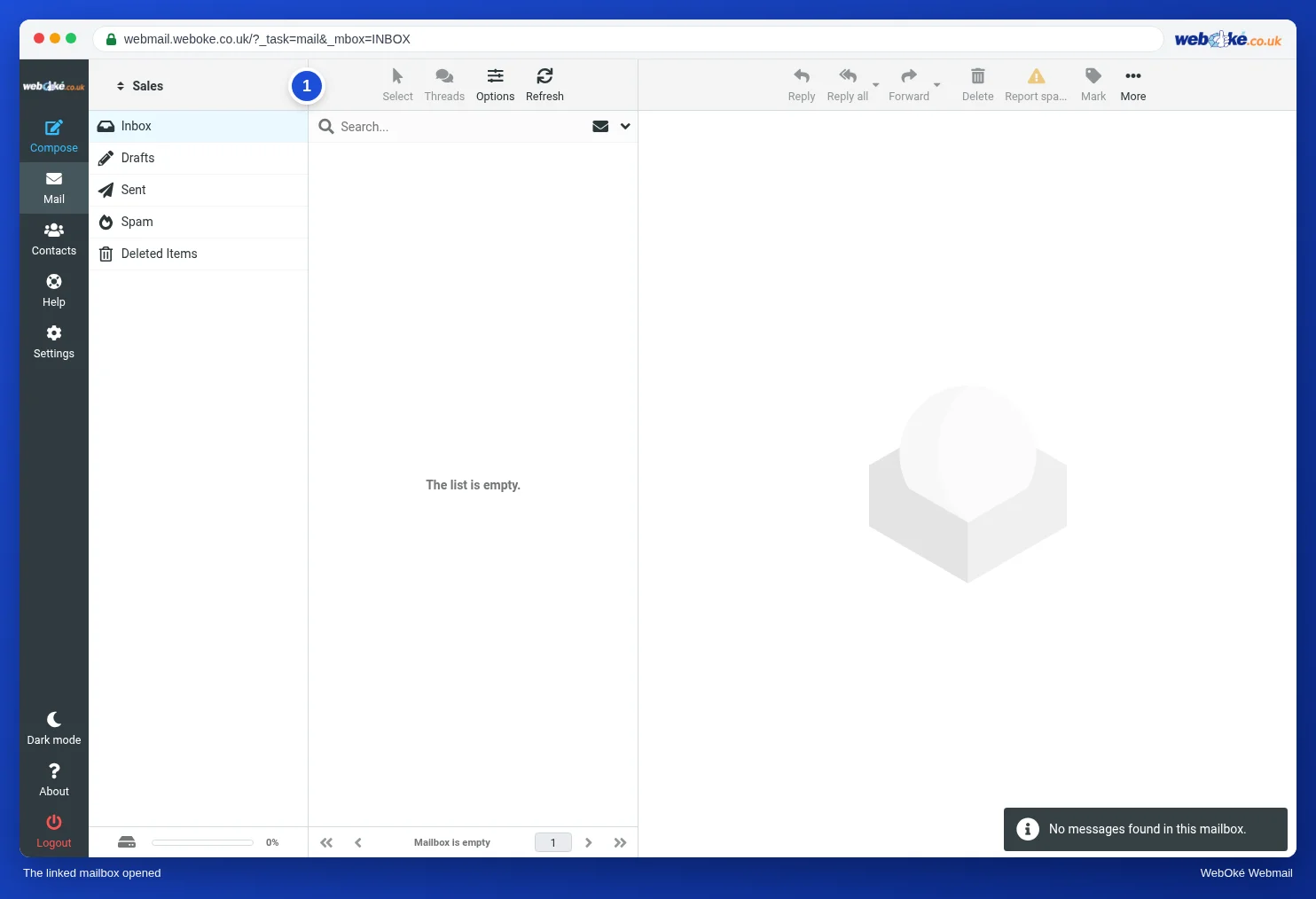
You now see the mail and folders of the other mailbox. At the top is the name you chose in Name in the switch menu (1). Any message you write now is sent from that mailbox. To go back to your own mailbox, use the same menu.
Tip: do you change the password of the linked mailbox later? Then update it in this identity as well. Otherwise switching will no longer work.
Option 2: forward mail to one mailbox
Does all the mail actually end up with the same person? Then make sales@ a forwarder to info@ instead of a separate mailbox. You read everything in one place, and you can still reply from sales@ with an extra identity. See Sending from a different address and Forwarders: forwarding mail to another address.
Option 3: two mailboxes side by side in your browser
Do you want two mailboxes open at the same time, each in its own window?
- Log in with the first mailbox in your normal browser window.
- Open a private window (in Chrome and Edge this is called incognito) with Ctrl+Shift+N, or in Firefox with Ctrl+Shift+P. On a Mac, use Cmd instead of Ctrl.
- Go to webmail.weboke.nl there and log in with the second mailbox.
A private window forgets your login when you close it.
Option 4: a mail program
Do you work with several mailboxes all day? Then a mail program is handy too. Outlook, Apple Mail and Thunderbird show several accounts at once. See Thunderbird for Thunderbird and Outlook for Windows (new and classic) for Outlook.
Tip: do you use webmail and a mail program side by side? That works fine. You see the same mail everywhere, because everything is stored on our server.