
Chapter 3 · 3.3
Flag, move and delete messages
Keep your mail organised by marking messages, moving them to a folder or deleting them.
Marking
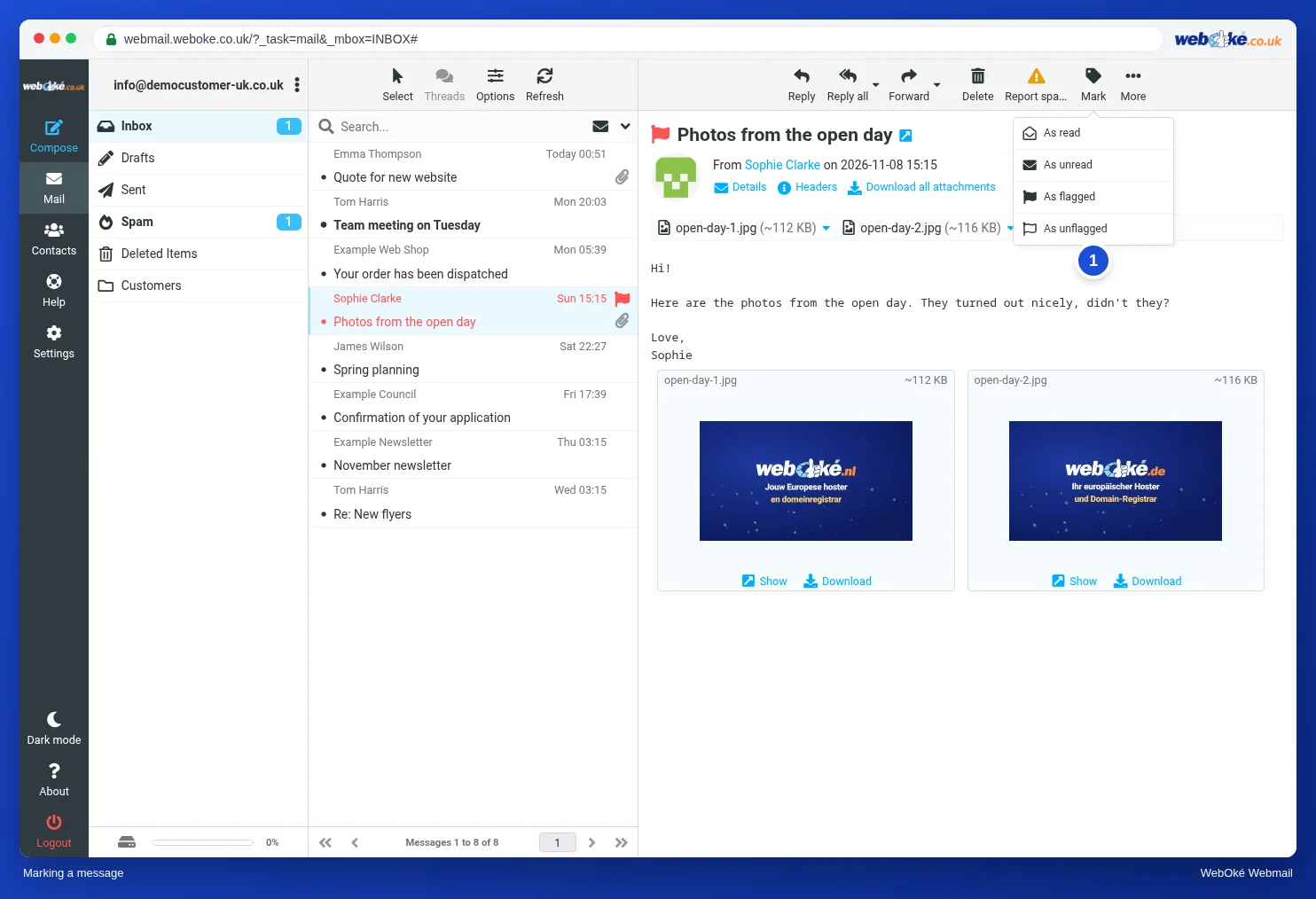
Click Mark (1) and choose:
- As read or As unread: handy if you want to look at a message again later.
- As flagged: the message gets a red flag and turns red in the list. This way you can see at a glance what still needs your attention. Choose As unflagged to remove the flag again.
Moving and copying
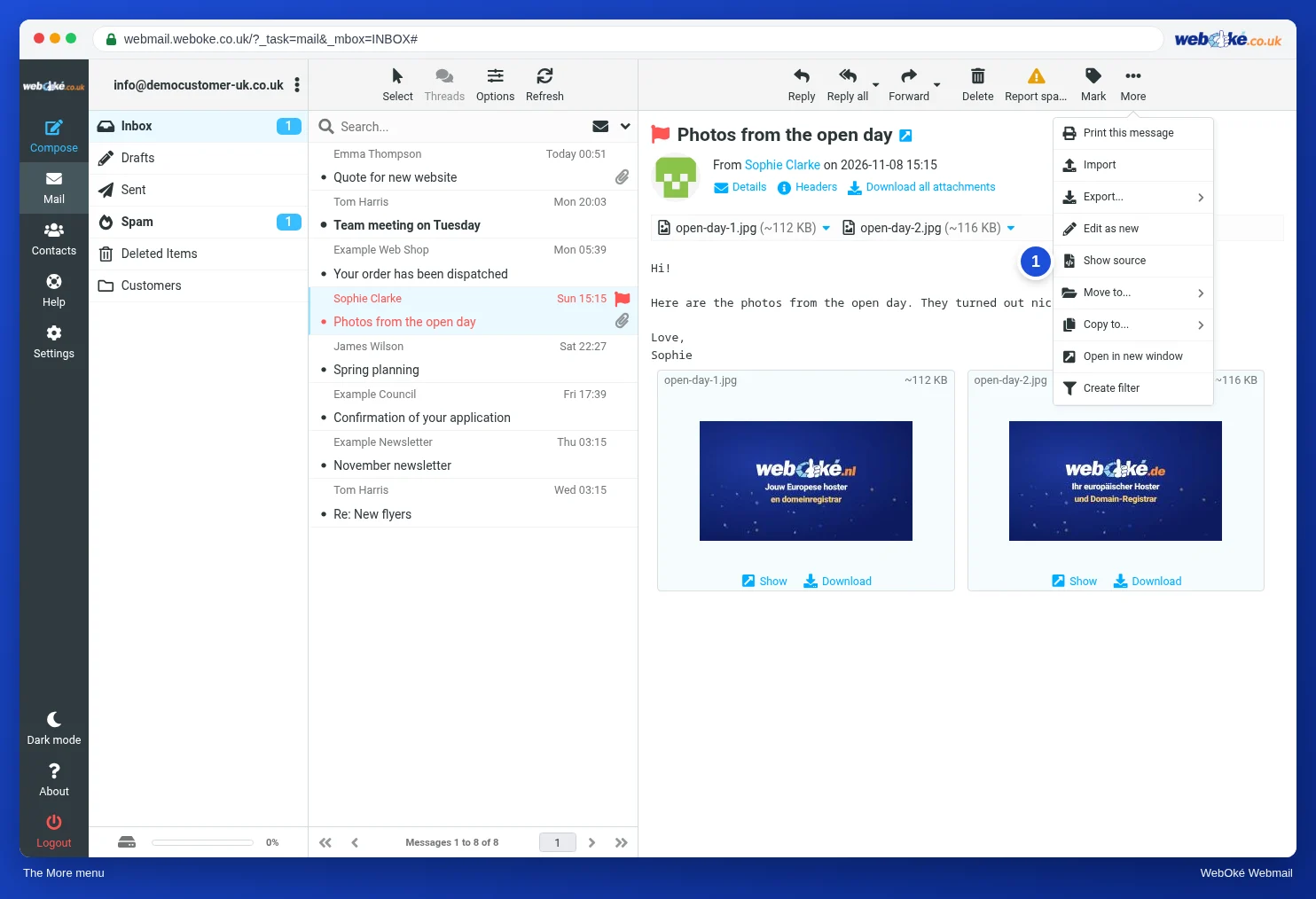
Drag a message to a folder in the folder list. Or click More (1) and choose Move to... or Copy to.... The More menu also contains Print this message, Show source, Open in new window and Create filter (see Creating a filter).
Deleting
Select one or more messages and click Delete, or press Delete. The message goes to Deleted Items. It is only gone for good once you empty that folder.
Here's how to empty it: click the Deleted Items folder, click the three dots next to your email address above the folders, and choose Empty.
Tip: deleted mail counts towards your mailbox storage until you empty the Deleted Items folder.
Deleted something by mistake?
- Is the message still in Deleted Items? Drag it back to the Inbox.
- Have you already emptied the folder? You may still be able to recover the message from the backup. See Restoring a mailbox or deleted emails from the backup.