
Chapter 2 · 2.3
Language, appearance and dark mode
You can choose the language of the webmail, the time zone and how the webmail looks.
Language and time zone
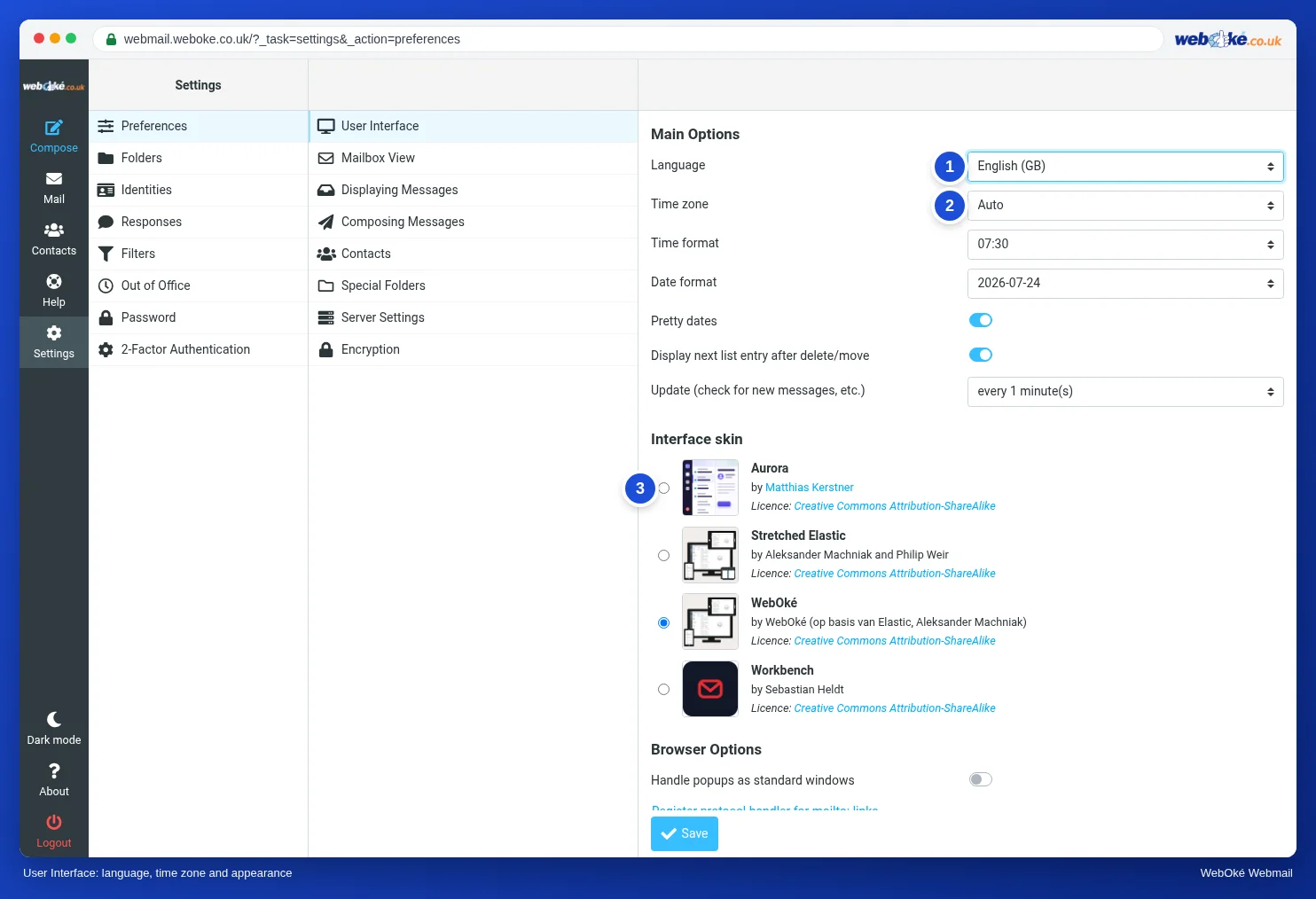
- Click Settings in the menu.
- Click Preferences and then User Interface.
- Choose your language under Language (1) and check the Time zone (2). With Auto, the webmail uses the time zone of your computer.
- Click Save at the bottom.
A different look
Under Interface skin (3) you choose how the webmail looks:
- WebOké: the default, with our logo.
- Stretched Elastic: the same layout, but wider, which is handy on a large screen.
- Aurora and Workbench: a different design.
Choose one and click Save. Don't like it? Simply choose WebOké again. Throughout this manual we use WebOké.
Dark mode
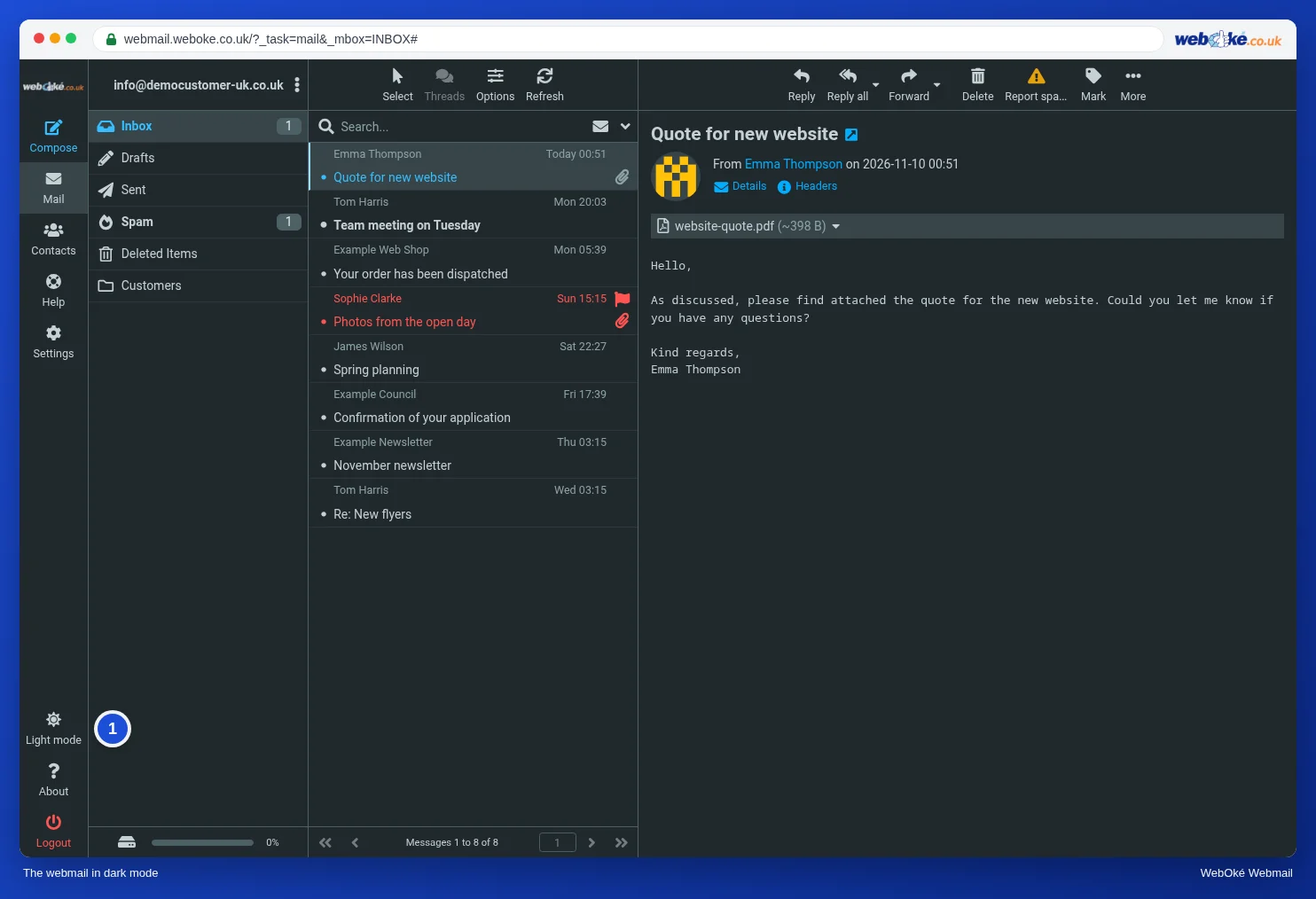
Click Dark mode at the bottom left of the menu. The webmail turns dark, which is easier on your eyes in a dark room. The same button is then called Light mode (1). Click it to switch back.