
Chapter 8 · 8.3
Importing and exporting contacts
Are you coming from another mailbox or another email program? You can bring your contacts with you using a file.
Import
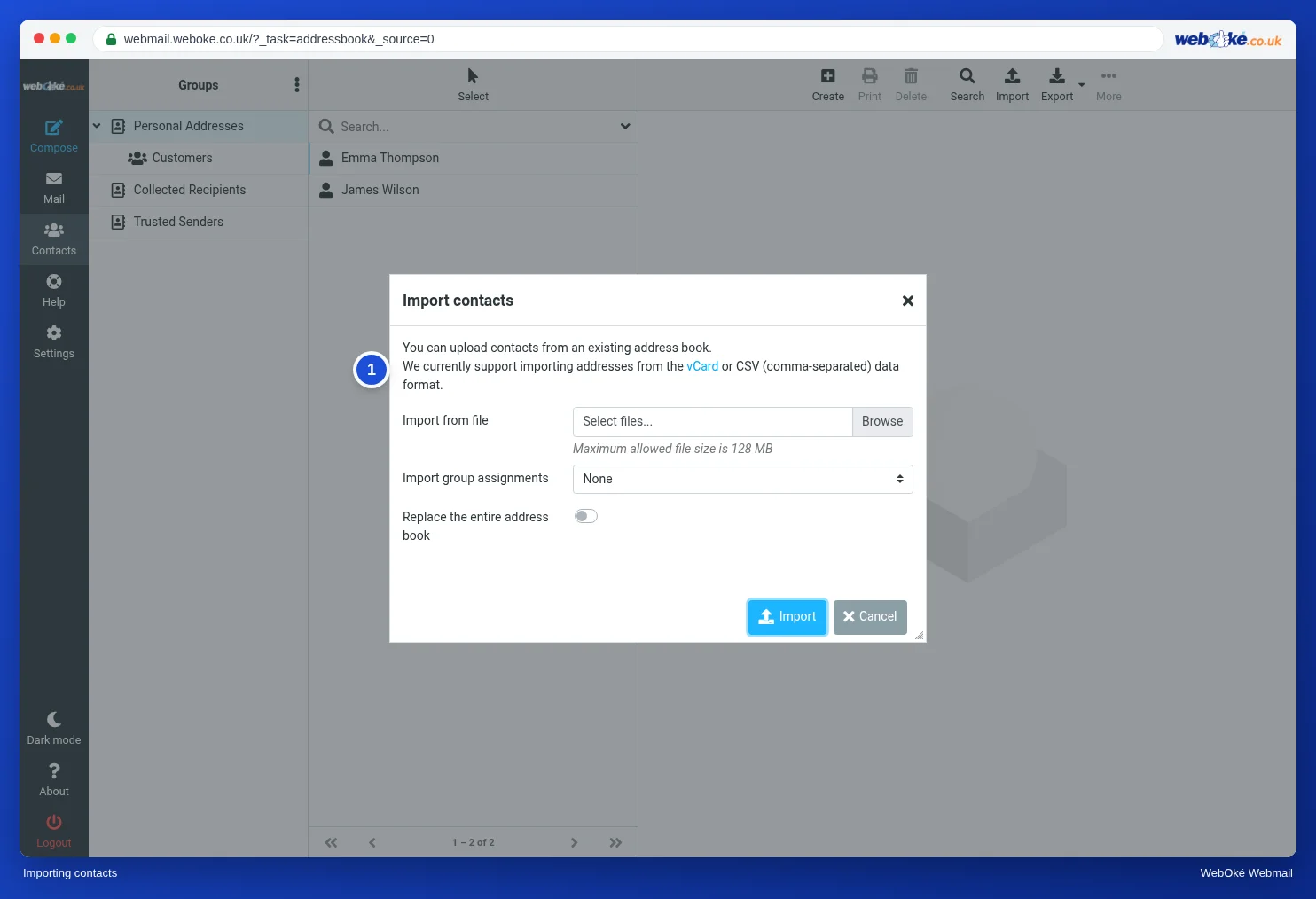
- First export your contacts from your old program as a vCard (.vcf) or CSV file. Google Contacts, Outlook and Apple Contacts can all do this.
- In the webmail, go to Contacts and click Import at the top.
- Choose the file at Import from file.
- At Import group assignments, choose whether the groups in the file should be included.
- Leave Replace the entire address book switched off, unless you really want to overwrite your current contacts.
- Click Import.
Export
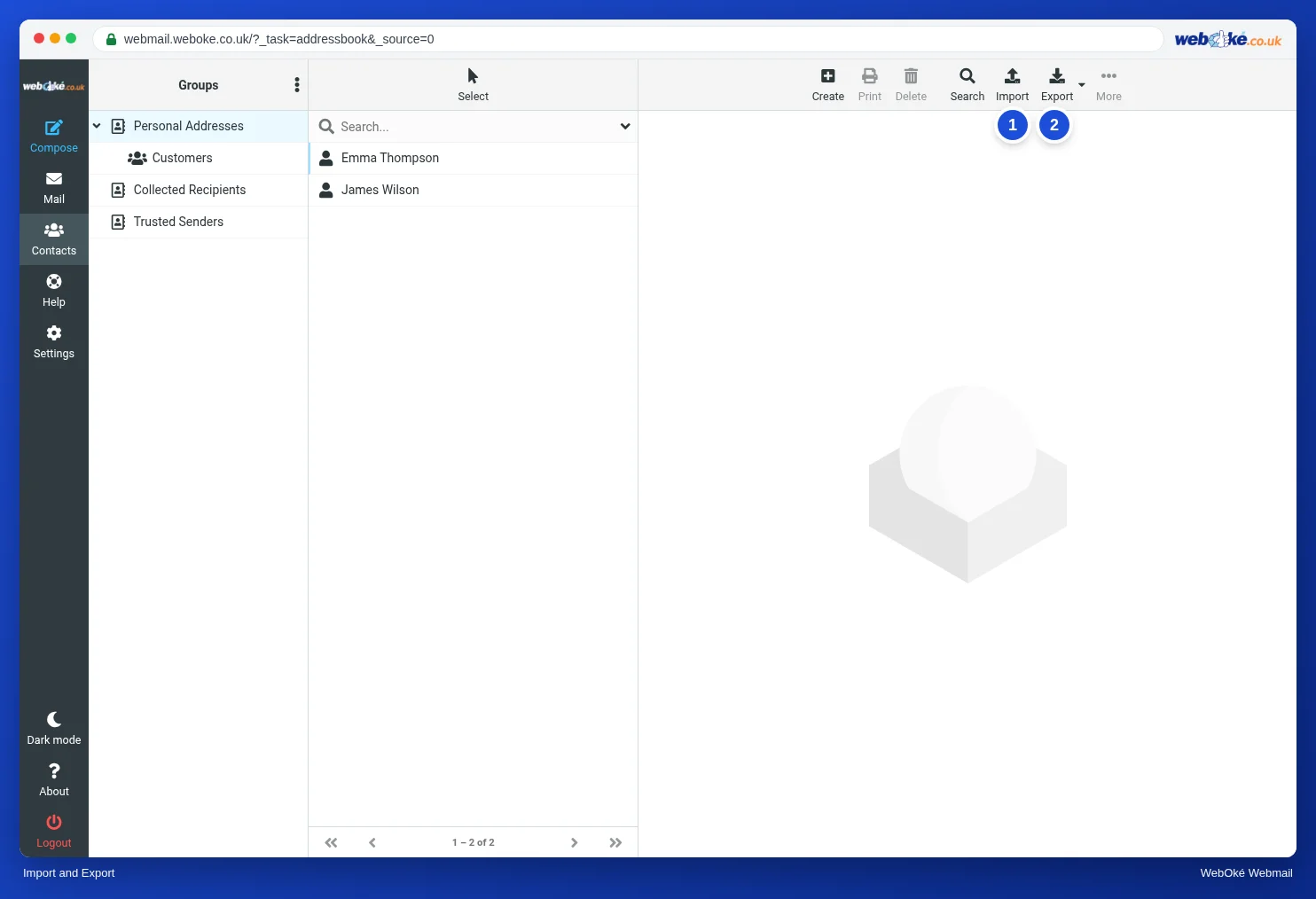
Click Export (2). You get a vCard file with all your contacts. Use the arrow next to it to export only the contacts you have selected.
You can import that file into almost any other program, or into Nextcloud Contacts.
Tip: moving your entire mailbox to WebOké? Then read Moving your email: the options. Contacts don't move automatically when your email is migrated, so bring them along with a file as described above.