
Chapter 10 · 10.1
The most important settings
In Settings you can set up the webmail the way you like it. Click Settings in the menu, then click Preferences. You'll see the sections below. Don't forget to click Save in each section.
| Section | What can you set there? |
|---|---|
| User Interface | Language, time zone, how the time and date are shown, how often the webmail checks for new mail, and the look of the webmail. See Language, appearance and dark mode. |
| Mailbox View | When a message counts as read, how many messages appear per page, and notifications for new mail. See A notification for new mail. |
| Displaying Messages | How you read messages: in a new window, with or without formatting, and whether remote images are loaded. |
| Composing Messages | Writing with or without formatting, how often a draft is saved, where your reply goes, the reminder for forgotten attachments and when your signature is added. |
| Contacts | How your address book works, for example whether the webmail automatically remembers the addresses you send mail to. |
| Special Folders | Which folder is used for Drafts, Sent, Spam, Trash and Archive. See Archiving messages. |
| Server Settings | Maintenance, such as emptying the trash when you log out. |
Remote images
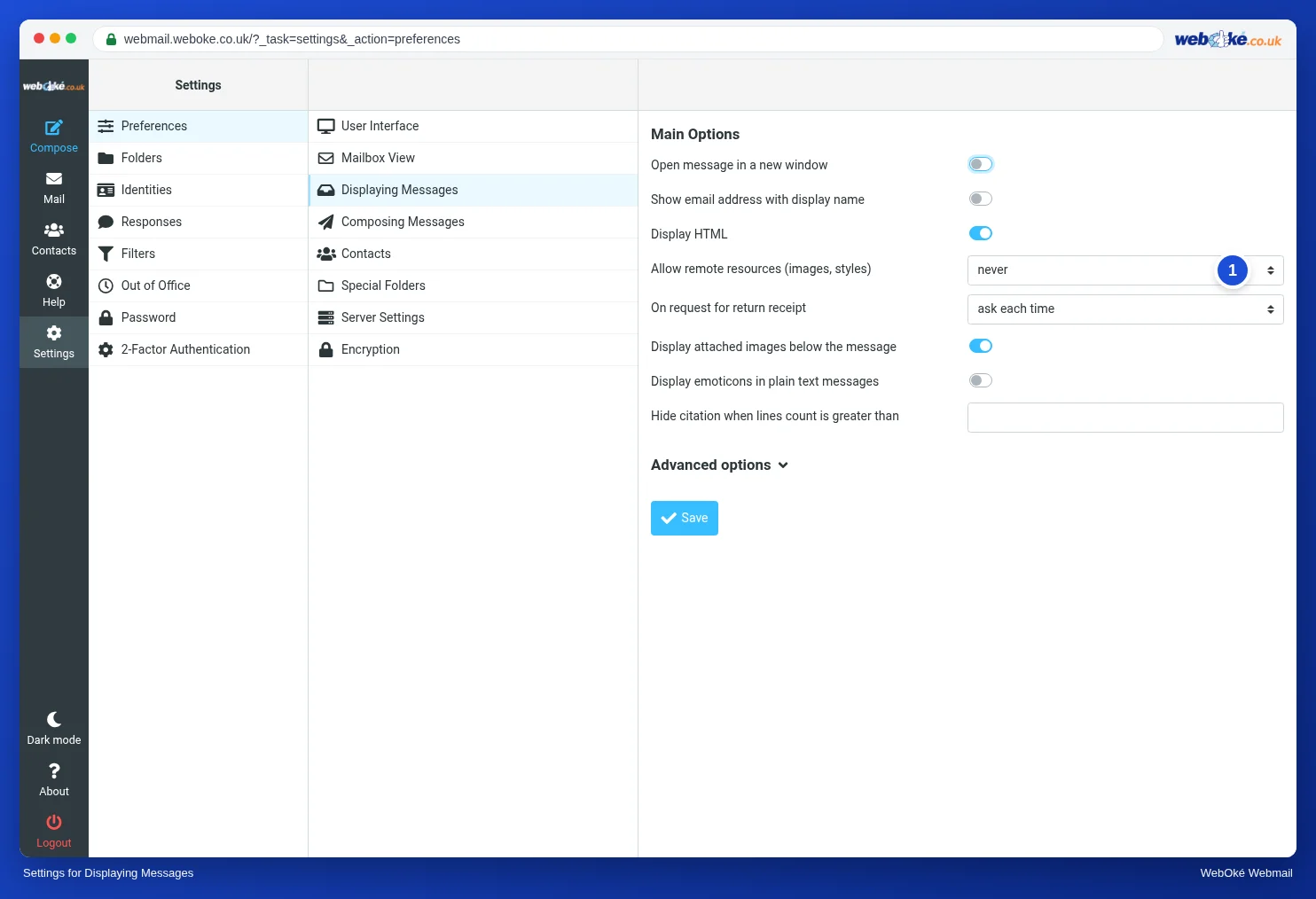
In Displaying Messages, use Allow remote resources (1) to choose when the webmail loads images from the internet. The default is never: you then click Allow for each message (see Reading a message). You can also choose senders from your contacts or your trusted senders. We don't recommend always allowing them, because senders can then see when you open their mail.
Emptying the trash automatically
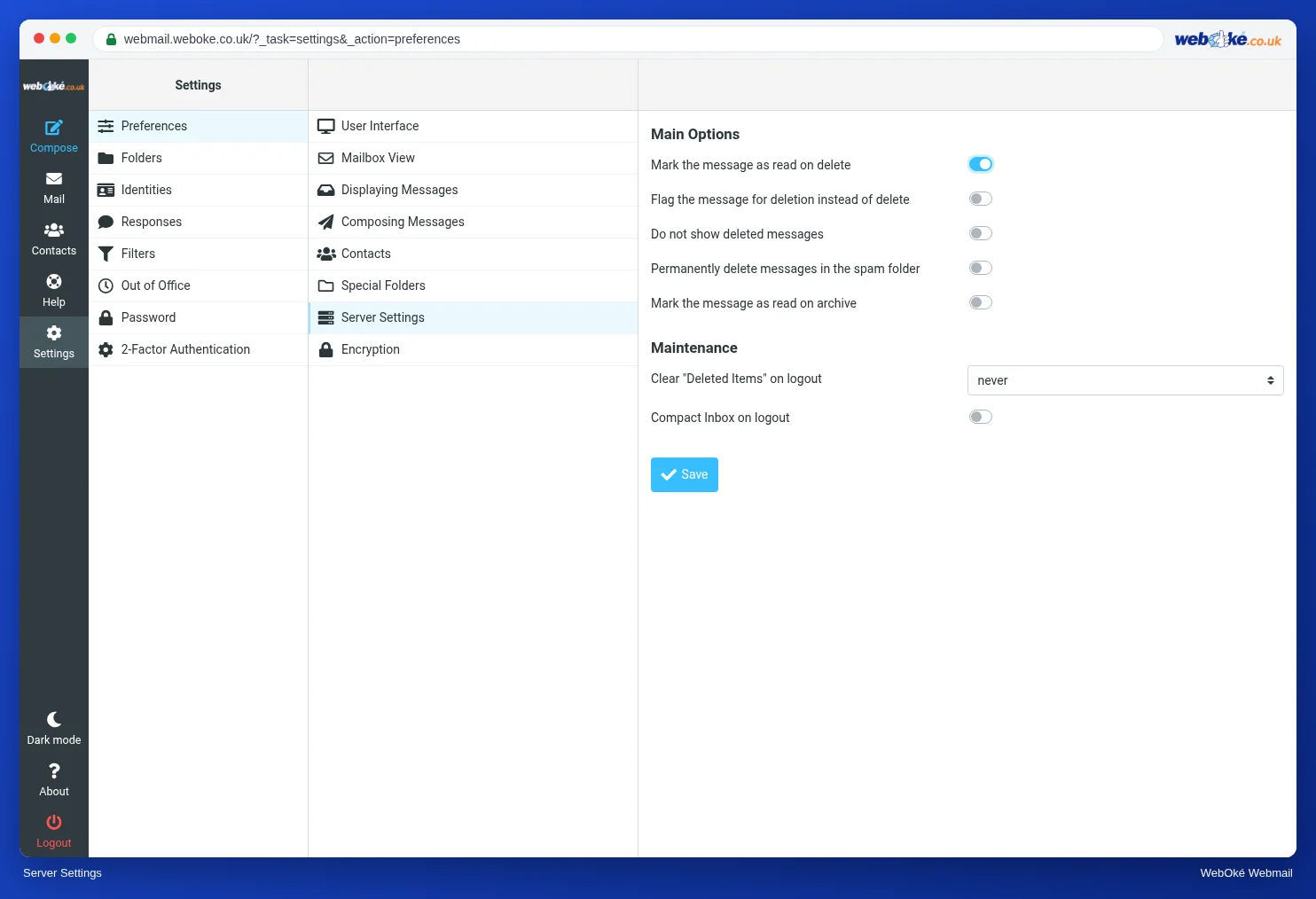
In Server Settings, under Maintenance, you choose whether the webmail empties the trash when you log out. This keeps your mailbox small automatically. Want to get rid of spam straight away? Then turn on Directly delete messages in Junk.
Tip: not sure about a setting? Then leave it as it is. The default works well for most people.