
Chapter 11 · 11.1
The spam folder and restoring good mail
Our mail servers block a lot of spam. Anything that still gets through is checked by the spam filter (SpamAssassin). Mail the filter considers spam goes into the Spam folder. You set how strict the filter is and what happens to spam in DirectAdmin. See Spam: how WebOké blocks it, and how to train and test the spam filter.
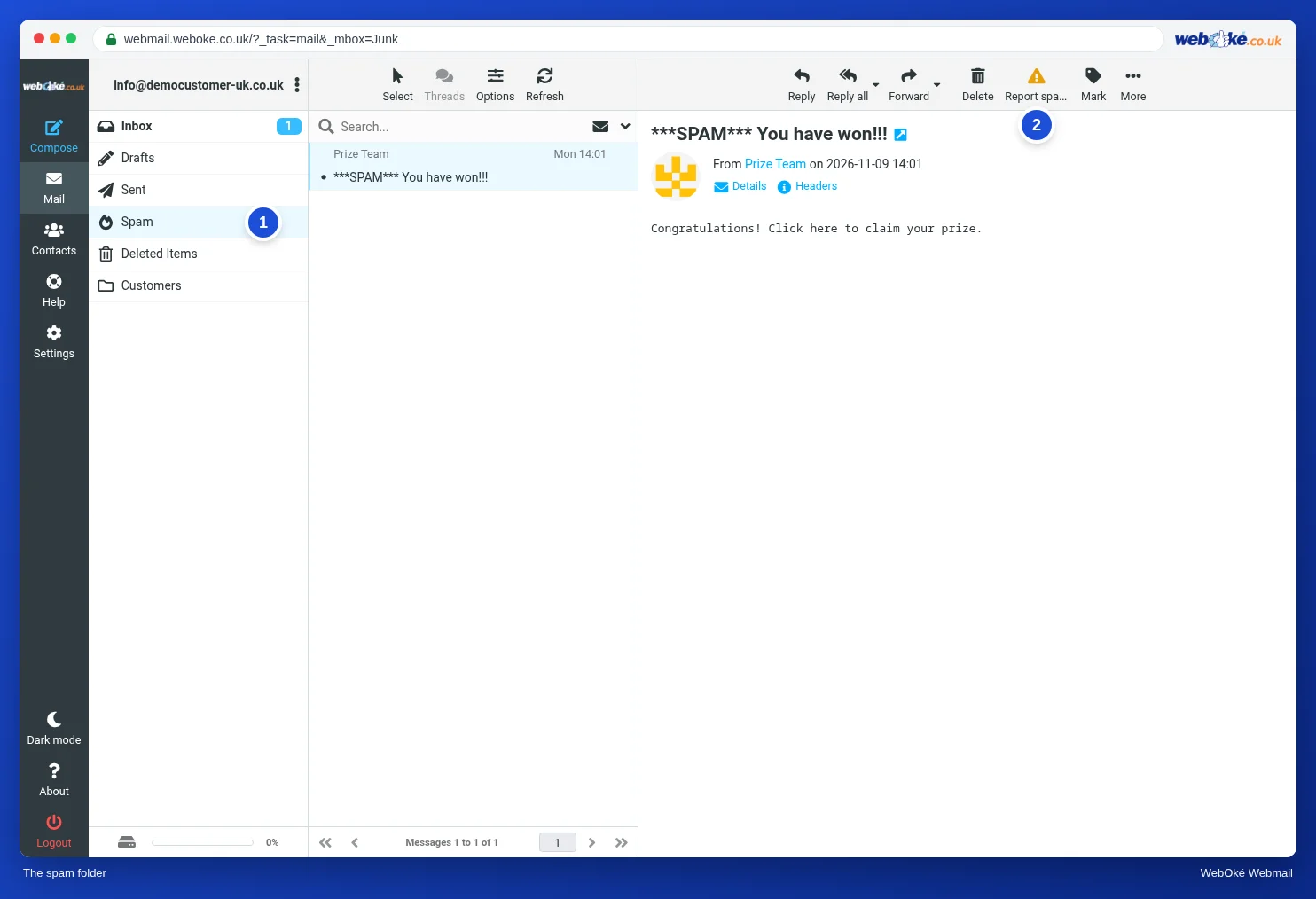
Viewing the spam folder
Click Spam (1) in the folder list. Check it now and then: sometimes a good message ends up there. You can often recognise a message in the spam folder by a word such as SPAM in the subject.
A good message in spam
- Click the message in the spam folder.
- Drag it to Inbox, or choose More, Move to... and then Inbox.
The spam filter learns from what you do. If you move spam from your Inbox to the Spam folder (Report spam does this automatically, see Reporting spam with Report spam), and good mail from the Spam folder back to your Inbox, the filter gets better at recognising both. This only works with the Spam folder, not with a folder you create yourself. See Spam: how WebOké blocks it, and how to train and test the spam filter.
Tip: add the sender of a good message to your address book. Then you will recognise them straight away next time.
Emptying the spam folder
Spam counts towards your mailbox storage. Click the Spam folder, then the three dots next to your email address above the folders, and choose Empty.
Can't see a Spam folder?
The Spam folder is always in your folder list. If you still can't see it, go to Settings, Folders and check that the switch is on (see Creating and managing folders). If spam never arrives there, the spam filter may be set to leave spam in your Inbox or to delete it straight away. You set this under SpamAssassin in DirectAdmin. See SpamAssassin Setup.
Tip: on the server, the spam folder is called Junk. Your mail program shows the same folder as Junk, Junk E-mail or Spam. Read more in the article about the folders in your mailbox.