
Module 8 · 8.2
Spam and the Junk folder
Module 8: Safe and worry-free · Reading time: 9 minutes
Learning objective: After this lesson you can explain how a spam filter decides, where spam ends up, how you teach the filter, and when to report, unsubscribe or move a message back.
Key concepts: spam filter, spam score, threshold, spam folder (Junk, Spam, Junk Email), false positive, training (spam and not spam), Report spam, unsubscribe, spam test
How a spam filter decides
A spam filter doesn't simply say "yes" or "no". It gives every message points. Each suspicious feature adds to the total: a sender that fails the SPF or DKIM check, a link to a known spam domain, words that often appear in spam, a message that is only an image, a server without a proper name. Good features can subtract points. The total is called the spam score.
The filter then looks at a threshold. Say the threshold is 5. A message with 2 points goes straight to your Inbox. A message with 7 points is treated as spam. How strict the threshold is gets set by the administrator of the domain. At WebOké you do this in the control panel of your package. The lower the threshold, the more spam is caught, but also the more good mail is caught by mistake.
The filter can do three things with spam: mark the subject (for example with SPAM in front of it) and leave the message where it is, move it to the spam folder, or delete it straight away. Moving it to the spam folder is usually the best choice: you lose nothing, and your Inbox stays clean.
One folder, three names
On the server, the spam folder has a fixed name: Junk. That's no coincidence. The IMAP standard for special folders (RFC 6154) gives the folder a fixed attribute, \Junk, so every program knows which folder is the spam folder. Each program then shows that folder in its own words:
| Where | Name you see |
|---|---|
| On the server | Junk |
| In the webmail | Spam |
| In many mail programs | Junk, Junk Email or Junk Mail |
So it's one and the same folder. If you put a message in Spam in the webmail, it shows up in Junk Email on your phone. If you see two spam folders on a device, that program is using its own folder instead of the standard one. In that program, set Junk as the spam folder.
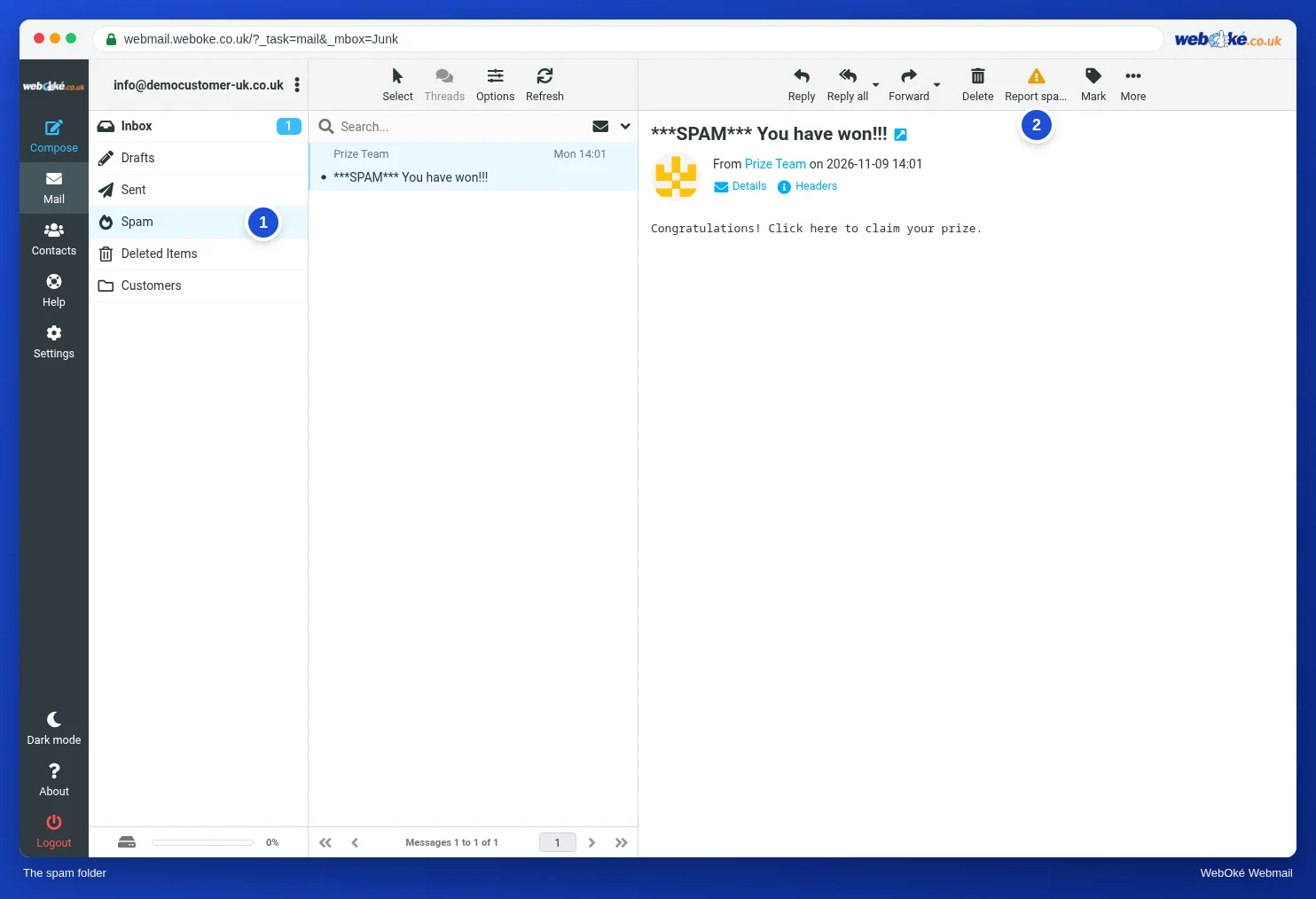
The image shows the Spam folder in the webmail, with a spam message and the Report spam button.
The filter learns from you
A good spam filter doesn't just follow fixed rules, it also learns. It does this by watching what you do with your mail:
- If you move a message from the Inbox to the spam folder, the filter learns: this is spam.
- If you move a message from the spam folder back to the Inbox, it learns: this is not spam.
This only works with the real spam folder. If you create your own folder called "Rubbish" and drag spam into it, the filter learns nothing. Dragging spam to the Trash doesn't help either: deleting is not a verdict.
An example. Emma Smith gets an email every week saying "Your parcel is waiting for you" from a domain she doesn't know. She clicks Report spam. The webmail reports the message and moves it to Spam. On the same day, Tom finds an order confirmation from a supplier in his spam folder. He drags it back to the Inbox. Both actions make the filter a little better.
Report, unsubscribe or move back?
Not every unwanted email is spam. The difference decides what you do.
| Situation | What you do | Why |
|---|---|---|
| Spam from an unknown sender | Report spam, or drag it to the spam folder | The filter learns from it |
| A newsletter you once signed up for | Unsubscribe via the link in the newsletter | It isn't spam; reporting it teaches the filter the wrong things and harms an honest sender |
| A good email in the spam folder | Move it back to the Inbox | The filter learns that this is not spam |
| Phishing (fake bank, fake parcel service) | Don't click, report it as spam, and if needed report it to the real organisation | Lesson 2.4 |
An important trap: with real spam, never click an unsubscribe link. A spammer treats a click on unsubscribe as proof that your address exists and is being read. You're more likely to get more spam afterwards. Only unsubscribe from senders you know.
False positives: check your spam folder now and then
No filter is perfect. A false positive is good mail that still ends up in the spam folder: an invoice from a new supplier, a reply to a quote, an email from someone with a badly configured domain. So check your spam folder now and then, for example once a week, and especially when someone tells you they've emailed you.
Spam counts towards your mailbox storage (lesson 5.4). So empty the spam folder from time to time too. In the webmail, under Settings > Preferences > Server Settings, you can choose to have messages in Spam deleted straight away. Only do that if you're sure you'll never miss good mail, because deleted spam can't be checked afterwards.
Test where spam ends up
Not sure whether your spam filter is on and where spam goes? Then you can test it. WebOké has a spam test: you enter your email address, and one test message is sent to it that the spam filter sees as spam. Then you check where the message ended up. This only works for mailboxes hosted at WebOké. Similar tests exist for other mailboxes; ask your email provider.
Here's how to read the result:
- In the spam folder: the filter works and moves spam correctly. Delete the test message. Don't drag it to your Inbox, because then the filter learns that this is good mail.
- In the Inbox, perhaps with a mark in the subject: the filter does recognise spam, but doesn't move it. Or the filter is switched off. You change this in the control panel of your package.
- Nowhere: wait a few minutes and check the spam folder too. If the filter is set to "delete spam straight away", you'll never see the test message.
In practice: how it works in the webmail
The spam folder appears in the folder list as Spam. With the Report spam button in the toolbar you report a message and move it to Spam; you drag a good message back to the Inbox or move it via More > Move to... You can see which folder serves as the spam folder under Settings > Preferences > Special Folders. The steps are in the Roundcube manual (11.1 and 11.2). Other webmail works in a similar way: there the button is often called "Spam" or "Junk", and so is the folder.
Summary
- The spam filter gives points; above the threshold a message is spam and goes to the spam folder.
- On the server the spam folder is called Junk (RFC 6154); the webmail shows it as Spam, mail programs often as Junk Email. It's one folder.
- The filter learns when you move spam to the spam folder and move good mail back out, but only with the real spam folder.
- Report real spam, unsubscribe from newsletters you know, and never click unsubscribe in real spam.
- Check the spam folder for false positives now and then, and use the spam test to see where spam ends up.
Quiz
Exercise
Exercise D8.2: Spam test in your own mailbox. If your mailbox is hosted at WebOké, do the spam test (https://www.weboke.mt/spamtest): enter your address and after a few minutes check where the test message is, in the webmail and on your phone or in your mail program. Open the Headers of the test message and look for the lines added by the spam filter. Then delete the test message; don't drag it to the Inbox. If your mailbox is hosted elsewhere, open your spam folder and look at the last ten messages. Then move a good message you find in your spam folder back to the Inbox, if there is one. Answer: (1) Where was the test message (or: how many of the ten messages were real spam)? (2) What is the spam folder called in the webmail, and what on your phone? (3) Which message would you report as spam, and for which message would you choose to unsubscribe?
Exercise D8.2: Spam test in your own mailbox
You do this exercise yourself; no one checks it. Tick off what you've done and mark the exercise as done.
The test message belongs in the spam folder: in the webmail and on the server it's called Junk, on a phone often Junk or Spam. Report real spam with Mark as Spam. A newsletter you signed up for yourself isn't spam: unsubscribe from it instead.
Your ticks and notes only stay in this browser; we don't send them anywhere. If you're signed in, we only save in My courses that you've done the exercise.
Further reading
Where steps in the webmail are given, they apply to the WebOké webmail; other webmail works in a similar way.
- Roundcube Webmail 11.1: The spam folder and restoring good mail
- Roundcube Webmail 11.2: Reporting spam with Report spam
- Spam: how WebOké stops it, and how to train and test the spam filter
- Folders in your mailbox: Inbox, Sent, Drafts, Trash, Junk and Archive
- Spam test: https://www.weboke.mt/spamtest
- Free course Email in order: setting up and making sure it arrives properly 4.1: Why mail ends up in spam
- RFC 6154, IMAP LIST Extension for Special-Use Mailboxes: https://www.rfc-editor.org/rfc/rfc6154