
Module 4 · 4.2
A good signature
Module 4: You as the sender · Reading time: 10 minutes
Learning objective: After this lesson you can create a short, useful signature with the correct separator line, you know why mail programs recognise that line, and you make a deliberate choice between a plain-text signature and one with formatting or a logo.
Key concepts: signature (Signature), separator line "-- ", RFC 3676, four-line rule of thumb (RFC 1855), plain text, HTML signature, external image, embedded image, disclaimer
What a signature is for
A signature (in the webmail it is called Signature) is the bit of text that is added automatically below your messages. Its purpose is practical: the recipient should know who you are and how else to reach you, without having to search. Picture someone reading your email about a delivery at 8 in the morning on their phone and wanting to call you. If your number is at the bottom, they call. If it is nowhere to be found, they reply by email and wait.
What belongs in it:
- your name, and your job title if you like;
- the name of your organisation;
- a phone number where you can be reached;
- your website.
What does not belong in it: your entire address history, three phone numbers, five social media icons, a quote of the day and a copy of your email address (that is already in From). The more you put in, the less people read.
The separator line: two dashes and a space
A signature should have a fixed line above it: two dashes and a space, and nothing else on that line.
See you Thursday!
Emma

--
Emma Smith | Example Flower Studio
020 7946 0018 | www.example.com
That line -- is an old convention from Usenet that is also common in email. The standard for plain-text email (RFC 3676, section 4.3) describes it as the separator between the text and the signature. The space is part of it: "--" without a space is just a line with two dashes.
Why does that matter? Because mail programs recognise the line. Many programs show everything below it in a lighter colour, and leave the signature out when you reply to a message. Without that line, the signature ends up in the quoted text again with every round of a conversation. After ten replies, the email contains ten copies of the same signature.
The webmail adds the separator line above your signature itself when you fill it in under Signature. So do not type it again yourself, or there will be two. And be careful when copying from a word processor: it sometimes removes a space at the end of a line.
Short: the four-line rule of thumb
As early as 1995, the netiquette for internet users (RFC 1855) gave a rule of thumb: keep your signature short, no longer than four lines. The reason back then was that people paid per minute for their connection. That reason is gone, but the rule still holds: people read a four-line signature, and skip a twelve-line one.
Four lines is enough if you combine cleverly. Use a separator such as | to put two details on one line:
--
Emma Smith | Example Flower Studio
Flowers for weddings and businesses
020 7946 0018 | www.example.com
That is three lines, with everything Ahmed needs.
Plain text or HTML, and that logo
A signature can be in plain text or with formatting (HTML), just like your messages (lesson 3.2).
A plain-text signature arrives looking the same everywhere, on every phone and in every program. For most people that is the best choice.
An HTML signature can contain bold text, colour, a link behind a word and a logo. That comes with a few pitfalls:
- A signature with formatting is only shown if you also write the message with formatting. If you write in plain text, it appears as ordinary text below your message.
- A logo can be included in two ways. As an external image: a picture with a web address that is already on your website. The email stays small, but many programs do not load external images automatically (just like the webmail itself, lesson 2.2). The recipient then sees an empty box. Or as an embedded image: the picture is sent as an attachment with every email. Then it does show, but every email gets bigger, and some recipients see a paperclip next to every message, as if there were an attachment.
- A 300 KB logo under every email, even under "Fine, see you tomorrow", is a waste of everyone's storage. Keep a logo small, a few dozen KB.
- Never put important details, such as your phone number, only in an image. You cannot copy text from an image and a screen reader cannot read it aloud.
Disclaimers: short and careful
Many business emails end with a long text such as "This email is intended solely for the addressee. If you are not the addressee, you must..." A disclaimer like that has little legal value. The recipient never agreed to it, and it sits below a message that has already been read. A disclaimer also makes an email longer than the email itself, especially in a long thread.
If you still want to include something, keep it to one short, factual sentence, without promises or claims. If you need legal details under business email, such as a registration number, put them in your signature and not in a wall of text.
When your signature is added
Under Settings > Composing Messages you decide how the webmail handles your signature: whether it is always added, including when replying and forwarding, and whether it goes below or above the quoted message. If you write above the quote (lesson 3.2), also choose to have your signature above the quote. Otherwise it ends up right at the bottom, below the old message, where nobody will find it.
If you have more than one identity (lesson 4.1), each identity has its own signature. If you choose a different identity under From, the signature changes with it.
In practice: how it works in the webmail
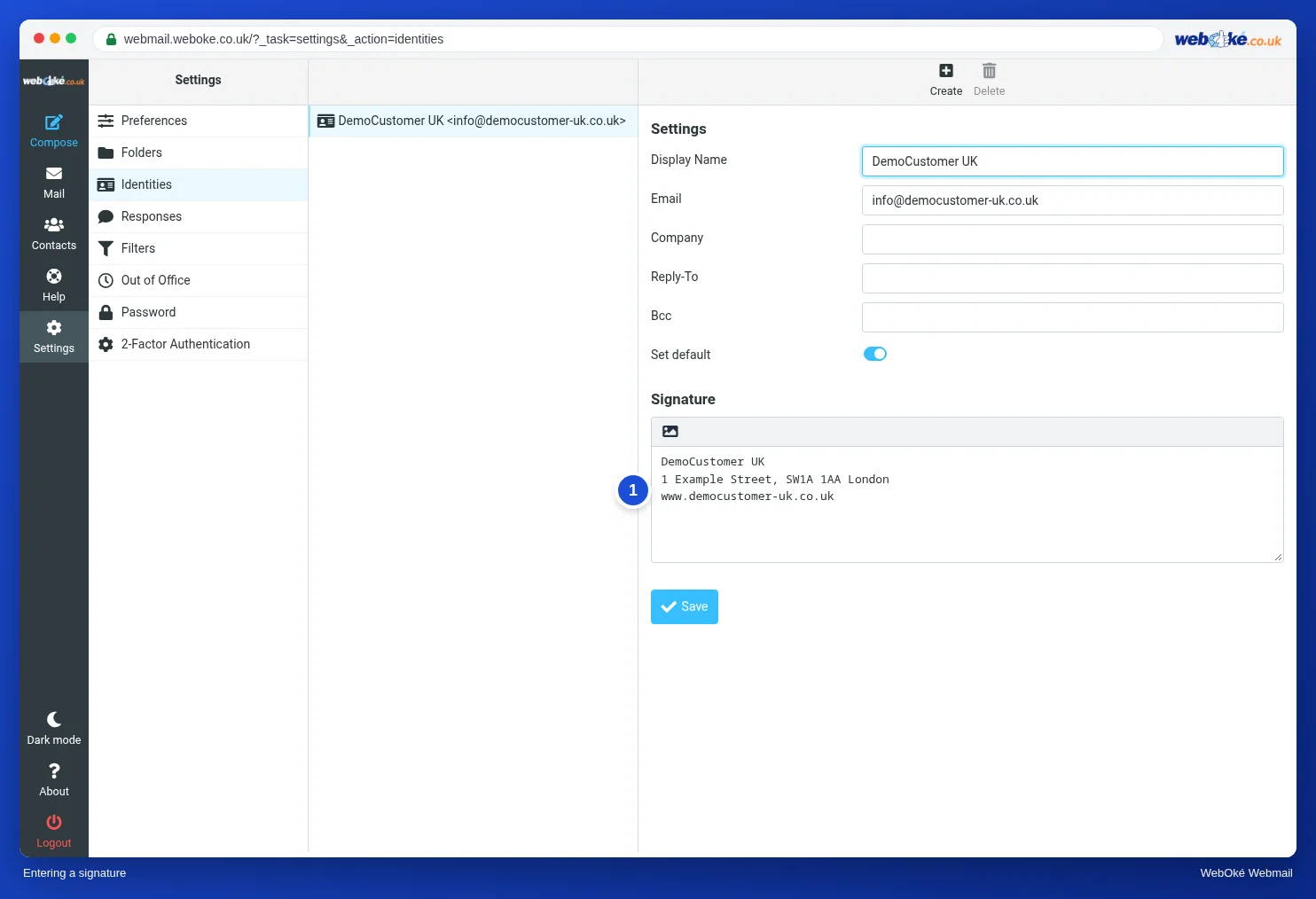
You create the signature under Settings > Identities: click your address and fill in the Signature field. The button with the picture gives you a toolbar for formatting. Under Settings > Composing Messages you set when and where the signature is added. While writing, you add or switch it with the Signature button. The Roundcube manual describes the steps. Other webmail and mail programs work in a similar way, although not all programs add the separator line themselves.
Summary
- A signature gives your name, organisation, phone number and website; nothing more.
- The separator line is exactly "-- " (two dashes and a space, RFC 3676 section 4.3); programs recognise it and leave the signature out when quoting.
- Rule of thumb: four lines at most (RFC 1855).
- Plain text arrives well everywhere; a logo is small, and important details are never only in an image.
- Disclaimers have little legal value: keep them short and careful, or leave them out.
Quiz
Exercise
Exercise A4.2: Have your signature checked. Set up a signature for your identity under Settings > Identities and send an email to yourself with WMC A4.2 in the subject. Open the received email, choose More > Export and upload the .eml file. The program reads the file in memory only and checks: the subject contains A4.2; there is a text part; there is a separator line that is exactly "-- " (with a space: green; "--" without a space: orange; no separator line: red); the signature below the separator line has four lines at most (green), five or six lines (orange) or more (red); the signature contains your name or part of your display name, or a phone number or website; if your message is HTML, it also contains a plain-text version (multipart/alternative); and an image in the signature that is sent as an attachment and is larger than 50 KB gives orange. For each check you see green, orange or red with an explanation.
Further reading
Where steps in the webmail are described, they apply to the WebOké webmail; other webmail works in a similar way.
- Roundcube Webmail 5.2: Creating a signature
- Roundcube Webmail 5.1: Your name as the sender
- Roundcube Webmail 10.1: The most important settings
- RFC 3676, section 4.3 Usenet Signature Convention: https://www.rfc-editor.org/rfc/rfc3676
- RFC 1855, Netiquette Guidelines: https://www.rfc-editor.org/rfc/rfc1855