
Chapter 5 · 5.6
TXT records for verification (Google, Microsoft and others)
Many services want to know that a domain really is yours before you can use it: Google Search Console, Microsoft 365, Google Workspace, Facebook, newsletter services and online shop platforms. They ask you to add a TXT record with a code to your DNS, then check whether that code is there.
Adding a TXT record
- Open DNS Administration and choose the right domain.
- Click ADD RECORD.
- Under Record Type, choose TXT.
- The Name field (1) already contains your domain name followed by a dot, such as yourdomain.com.: that is the domain itself. If the service asks for a TXT record on @ or on your domain, leave it as it is. If the service asks for a name such as _github-challenge-yourcompany, replace the contents with that name, without your domain name after it.
- Leave TXT Record Type (2) set to Plain.
- Paste the code into Value (3), for example google-site-verification=abc123... or MS=ms12345678.
- Click ADD.
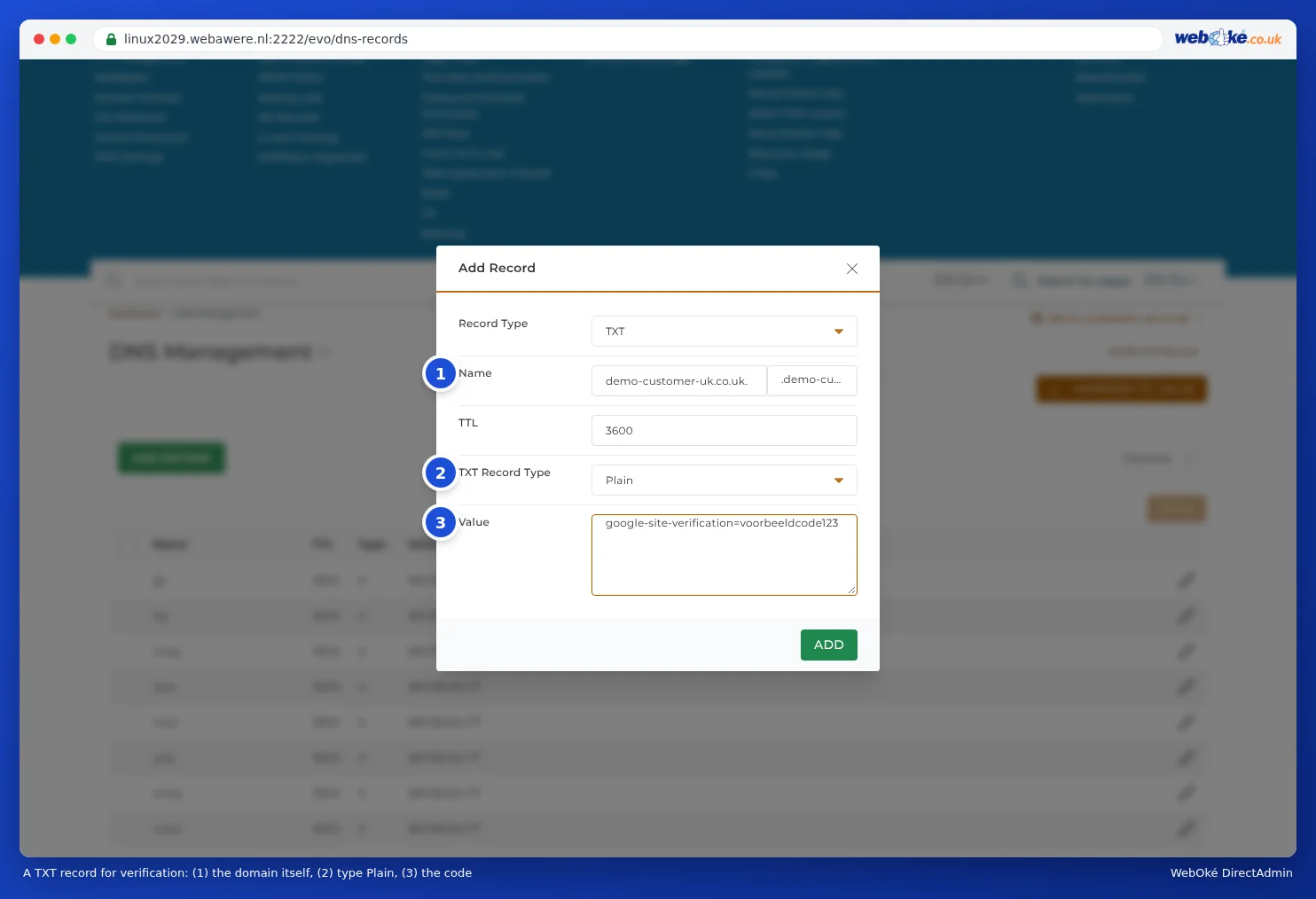
Then go back to the service and click check or verify there. If it doesn't work straight away, wait fifteen minutes and try again.
Good to know
- Multiple TXT records are fine. You can have as many verification records side by side as you like, even with the same name. Only SPF is limited to one (see Setting up and adding to SPF).
- You don't need to type quotation marks. DirectAdmin adds them for you.
- After verification, you can usually leave the record in place. Some services check it again later.
- Does the service ask for a CNAME record instead of a TXT record? Then see CNAME records and the trailing dot.
- Google Search Console: the most common mistakes, such as a wrong name, a record on www or extra quotation marks, are covered in Verifying Google Search Console with a TXT record: how to avoid mistakes.
- Bing Webmaster Tools doesn't ask for a TXT record but for a CNAME record. Use the code Bing gives you as the name and verify.bing.com. as the target (with a dot at the end, see CNAME records and the trailing dot). It's easier to import your site into Bing from Google Search Console. Bing then verifies it itself and you don't need to add anything to your DNS.