
Chapter 5 · 5.5
MX records: where does your email arrive?
Your domain's MX records determine which server your email arrives on. At WebOké, they point to your hosting package's server, for example linux2023.webawere.nl. If you use email from another provider, such as Microsoft 365 or Google Workspace, you'll need to adjust the MX records.
Please note: A mistake in the MX records means you'll stop receiving email. DirectAdmin warns you too: Het wijzigen van de MX records kan resulteren in het niet kunnen ontvangen van e-mail in al uw e-mail accounts.
The MX Records page
In the menu, click MX Records under E-mail Manager. On some servers, you can also click the Modify MX Records button in DNS Administration.
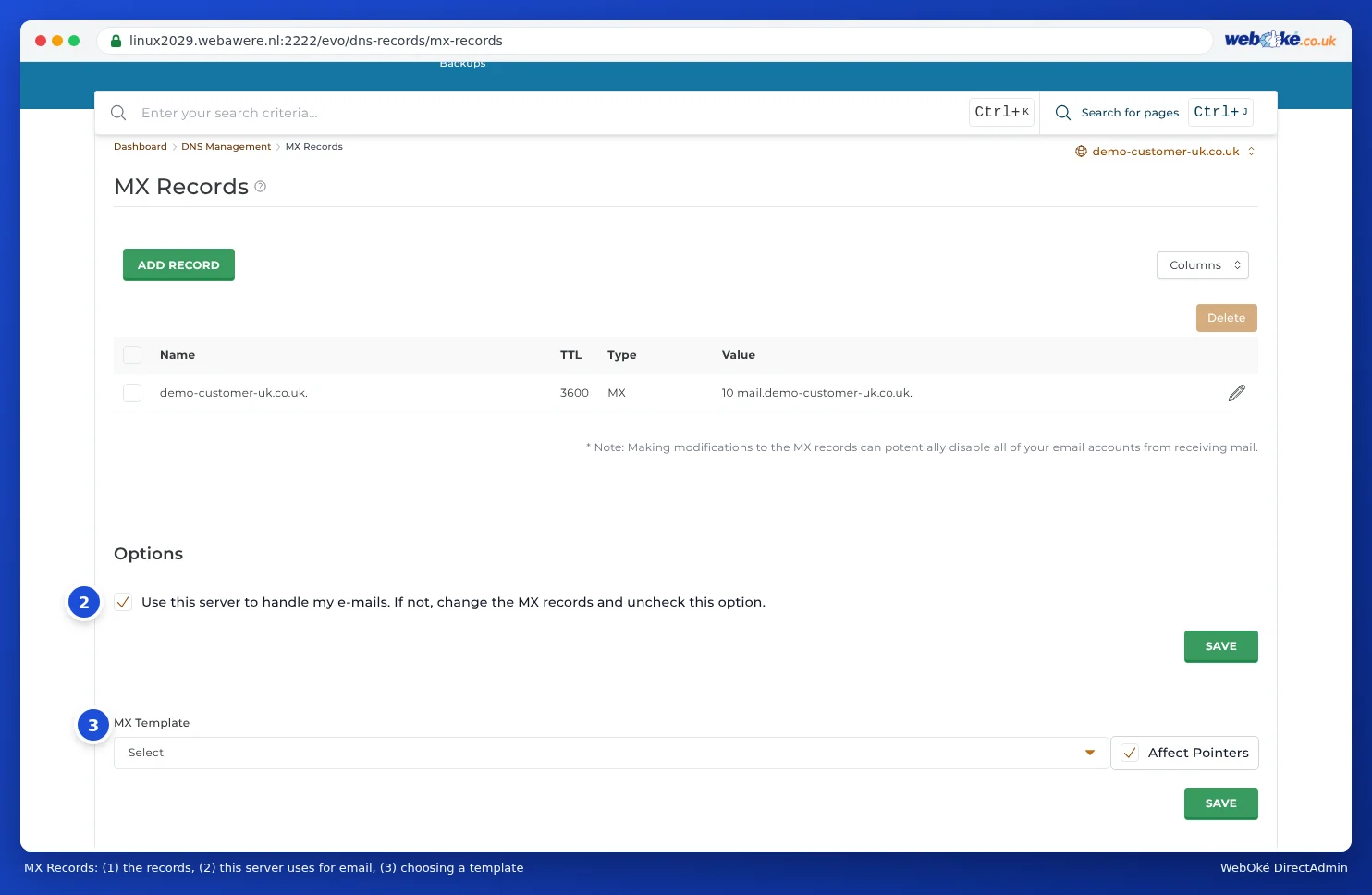
You'll see:
- the MX records (1). At WebOké, there are two by default, with priority 10 and 30;
- under Options, the tickbox Use this server to handle my emails (2). Leave this on as long as your email is with WebOké;
- under MX Template (3), ready-made settings for another mail provider, with Affect Pointers underneath.
Adding an MX record
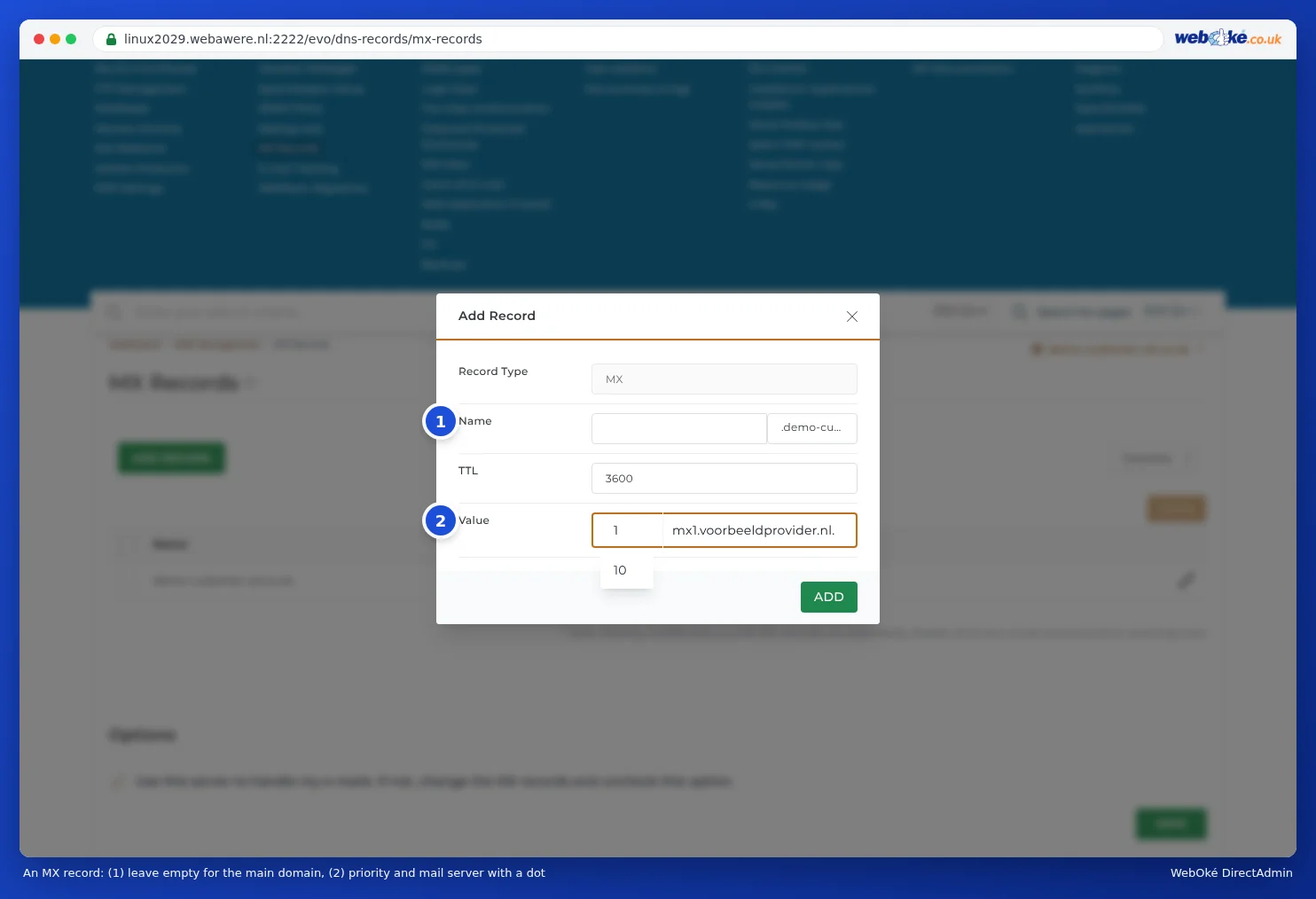
- Click ADD RECORD.
- Leave Name (1) empty: this makes the record apply to your domain itself.
- In Value (2), first enter the priority (the box with 10) followed by the mail server, with a full stop at the end.
- Click ADD.
Priority: what's allowed and what isn't?
The priority is a number. The lower the number, the sooner a mail server gets its turn. If the first server isn't reachable, the sender tries the next one. In DirectAdmin, you type the priority yourself in the box before the mail server. So you can use any number your provider gives you, including 0, 1 or 5. You don't have to choose from fixed values.
- If your provider gives you one mail server, the number doesn't matter. Use what the provider says, or 10.
- If your provider gives you multiple servers with different numbers, copy those exactly as given.
- Remove the old MX records pointing to WebOké if your email is moving to another provider. Otherwise, some of your mail will still arrive with us.
Use this server to handle my emails
This tickbox tells the server whether your email arrives at WebOké.
- On (default): your mailboxes are with us. Mail sent from our server to your own domain, for example from a contact form on your website, is delivered straight to your mailbox with us.
- Off: your email is hosted elsewhere, such as Microsoft 365 or Google Workspace. The server then forwards mail for your domain to the MX records, including mail from your own website.
Please note: If your email moves to another provider and you leave this tickbox on, forms from your website and mail from other sites on the same server will never reach your new provider. If you switch the tickbox off but don't change the MX records, you'll stop receiving mail altogether. So always do both at the same time. After making changes, click SAVE below the tickbox.
Using an MX Template
Under MX Template, you can choose from Local Default, Google Workspace, Microsoft 365 and Zoho Mail.
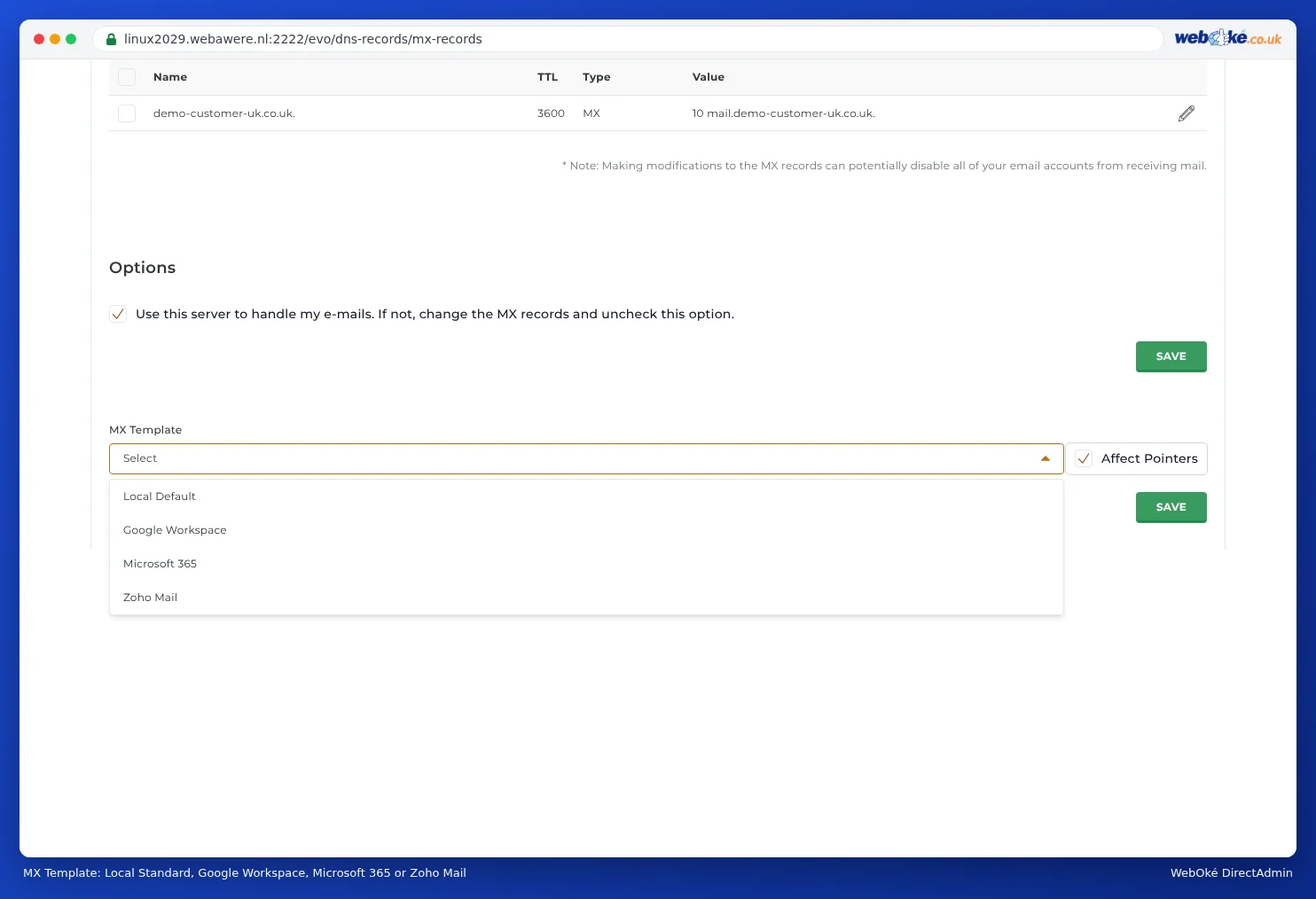
- Local Default: resets the MX records to WebOké. Handy if you're switching back from another mail provider.
- Google Workspace, Microsoft 365 and Zoho Mail: replaces your MX records with those of the provider.
Leave Affect Pointers on if you have domain pointers that should use the same email (see Domain pointers: a second domain name for the same site). Then click SAVE below the template. For step-by-step instructions on moving your email to Microsoft 365 or Google Workspace, see E-mail with Microsoft 365 or Google Workspace, website with WebOké.
Tip: Microsoft 365 provides a unique mail server for each domain, such as yourdomain-com.mail.protection.outlook.com. After choosing the template, check that the MX record exactly matches what Microsoft shows in the admin centre, and adjust it with the pencil icon if needed.