
Chapter 8 · 8.8
Can't send or receive mail: here's how to fix it
Is your mail not working in your mail program or on your phone? Then go through these steps, in this order. Most problems are solved within a few minutes.
Step 1: does webmail work?
Log in at webmail.weboke.nl with your full email address and the password (see Opening webmail).
- Logging in fails: the password is incorrect. Set a new password (see Changing the password of an email address) and enter it on all your devices.
- Logging in works, and you see your mail: your mailbox is working. The problem is in your mail program's settings. Continue with step 2.
- Webmail doesn't load at all (but it does work on your phone via 4G): go to step 3.
Step 2: check the settings
Compare the settings in your mail program with this list:
| Setting | What do you enter? |
|---|---|
| Account type | IMAP (recommended) or POP3 |
| Incoming server (IMAP or POP3) | your domain name, for example yourdomain.com, or your package's server name, for example linux2023.webawere.nl (see All settings at a glance: servers, ports and security) |
| Outgoing server (SMTP) | the same name as the incoming server |
| IMAP port | 993, security SSL/TLS |
| POP3 port | 995, security SSL/TLS |
| SMTP port | 587, security STARTTLS (or port 465 with SSL/TLS) |
| Username (both incoming and outgoing) | your full email address, for example info@yourdomain.com |
| Password | the password for this email address |
| Outgoing server authentication | on, with the same username and password (sometimes called "normal password") |
The mistakes we see most often:
- Using just info as the username instead of the full address.
- No username and password entered for the outgoing server, or authentication turned off. Then you can read mail but not send it.
- A wrong port or security setting, for example 587 with SSL/TLS instead of STARTTLS, or port 25.
- A server name like mail.yourdomain.com, imap.yourdomain.com or smtp.yourdomain.com that doesn't point to your package. Use your domain name or the server name (see All settings at a glance: servers, ports and security).
- Your website is hosted elsewhere, or your domain has moved: then your domain name won't work as a server and you need to use the server name.
Step 3: is your IP address blocked?
After a number of failed login attempts, the server blocks the IP address they're coming from. This is often caused by a single device, for example an old phone or a second computer, still trying to log in with an old password. You'll notice because your mail, webmail, website and DirectAdmin suddenly stop working from your own internet connection, while they still work on your phone via 4G or 5G.
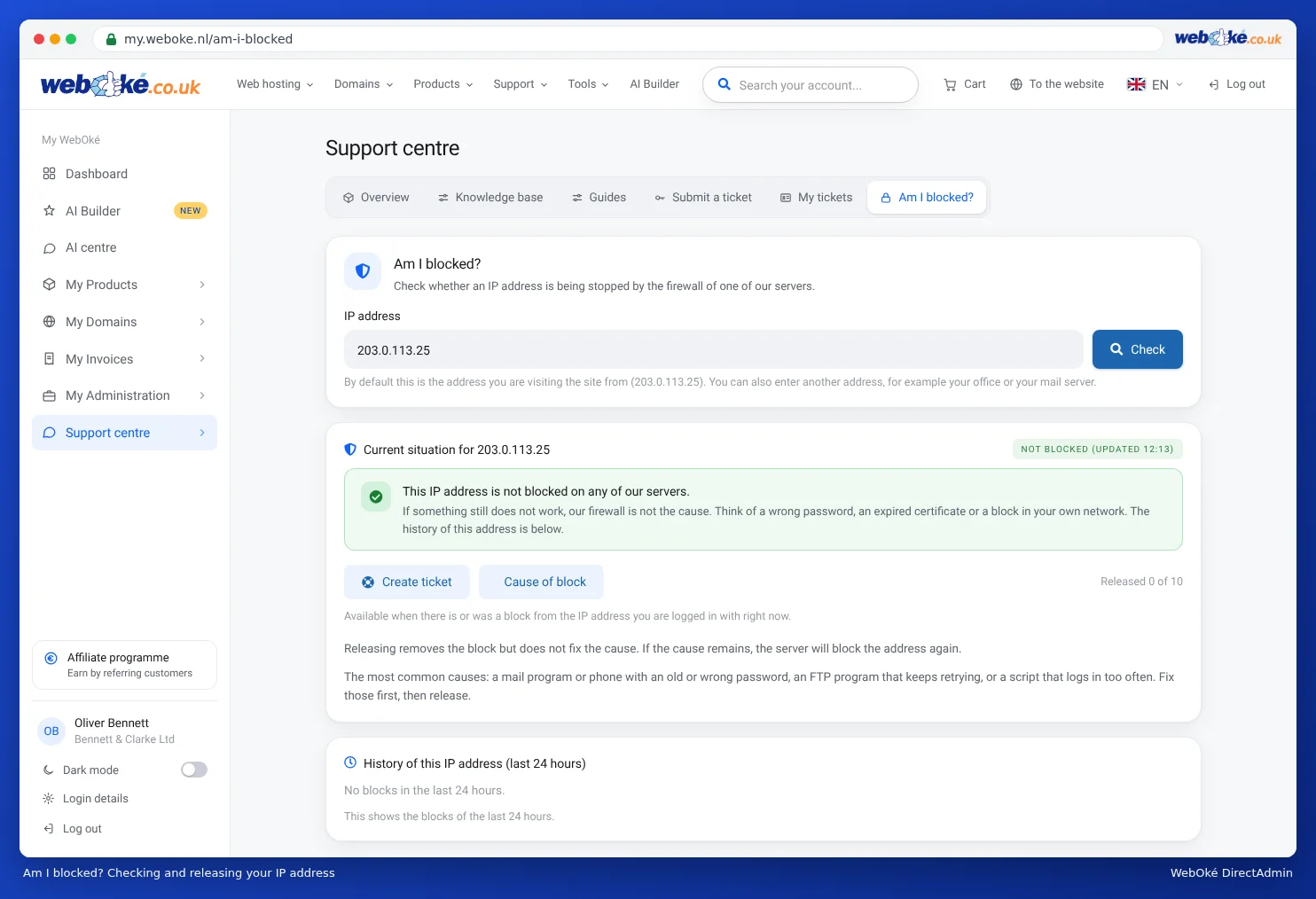
- In My WebOké, go to Support centre and then Am I blocked?.
- Your IP address is already filled in. Click Check.
- If your IP address is blocked, you can unblock it yourself here.
Please note: Immediately afterwards, set the correct password on all your devices. Otherwise you'll be blocked again within a few minutes.
Step 4: a message about the certificate
Getting a message such as "The target principal name is incorrect", "Cannot verify server identity" or "The certificate belongs to a different website"? Then the server name you entered doesn't match the server's security certificate.
- Use your package's server name, such as linux2023.webawere.nl, as both the incoming and outgoing server. This way you'll never get a certificate warning.
- Want to use your own domain name? Make sure your domain points to your package and has a valid certificate (see Requesting a free Let's Encrypt certificate).
- Check the certificate in the message. Does it say your antivirus program's name (for example Norton, Avast, AVG or ESET) under Issued by? Then your antivirus program is replacing the certificate. Turn off scanning of encrypted mail in your antivirus program, or update it.
Don't just dismiss this kind of message with "continue anyway": then you won't notice if something is actually wrong.
Step 5: sending fails
- Check the outgoing server: port 587 with STARTTLS or 465 with SSL/TLS, authentication on, full email address and password.
- "Account ... can not send emails from ...": you're sending from a different address than the mailbox you're logged in with. This is only allowed from a forwarder that forwards to your mailbox (see Forwarders: forwarding mail to another address).
- "You have reached your message limit": your package's sending limit has been reached (see Send limits and the 'message limit reached' message).
- In webmail: "SMTP error (535): Authentication failed", even though logging in worked: log out and log back in. Webmail sends through the same server you're logged in on, even if you've filled in the Server field. If the message persists, please get in touch (see Opening webmail).
- Your mail is rejected or ends up in the recipient's spam folder: see My mail ends up in the recipient's spam folder and Sending refused: blacklists and limits.
Step 6: receiving fails
- Is the mailbox or your package full? Then new mail is rejected (see Storage per mailbox and what happens when it's full).
- Is mail for your domain arriving with us at all? If your MX records point to another provider, such as Microsoft 365 or Google Workspace, mail arrives there and not in your mailbox at WebOké (see MX records: where does your email arrive?).
- Is it a problem with a single sender? Use E-mail Tracking in DirectAdmin to check whether the mail arrived or was rejected (see E-mail Tracking: where did my mail go?), and check your spam folder.
- Are you using POP3 on another device? Then that device may be collecting the mail before you see it (see IMAP or POP3: what's the difference?).
More causes are listed in I'm no longer receiving email and I can't send email.
Can't work it out?
Ask the AI assistant in My WebOké, or create a ticket via Support centre. Mention which email address is involved, which program or phone you're using, which settings you've entered and the exact error message (a screenshot helps). Never include your password. See also Asking for help: what should you tell support?.