
Chapter 3 · 3.1
Make one page landscape in a portrait document, like in Word
A wide table or schedule won't fit on a portrait page, but the rest of your document needs to stay portrait. In Word you do this with section breaks and the orientation setting. You can do the same in LibreOffice and Euro-Office. Only the steps are different.
In LibreOffice Writer
In LibreOffice, the page style decides whether a page is portrait or landscape. A Landscape style already exists. You insert one page break before the landscape part and one after it.
- Place the cursor at the start of the text that should go on the landscape page.
- Choose Insert > More Breaks > Manual Break.... The Insert Break window opens.
- Choose Page Break and under Page Style select Landscape. Click OK. From here on, the pages are landscape.
- Place the cursor at the start of the text that should be portrait again.
- Choose Insert > More Breaks > Manual Break... again, choose Page Break and under Page Style select Default (or the style the rest of your document uses). Click OK.
You can see which style a page uses at the bottom of the window, in the status bar.
In LibreOffice 26.8, the same menu also has Insert Landscape Page Break. The method above works in every version and lets you choose where the landscape part ends.
Please note: headers and footers belong to a page style. If your document has a footer with a page number, turn it on in the Landscape style as well: on the landscape page, choose Insert > Header and Footer > Footer > Landscape and insert the page number again (see Adding headers, footers and page numbers). If the numbering should continue, make sure you didn't tick Change page number when inserting the page break.
Want the whole document in landscape? Choose Format > Page Style..., go to the Page tab and under Orientation select Landscape.
In Euro-Office
- Place the cursor at the end of the page before the page that should become landscape.
- Go to the Layout tab, click Breaks, choose Insert section break and then Next Page.
- Click Orientation and choose Landscape.
- At the end of the landscape page, insert another Next Page section break, and on the page after it set the Orientation back to Portrait.
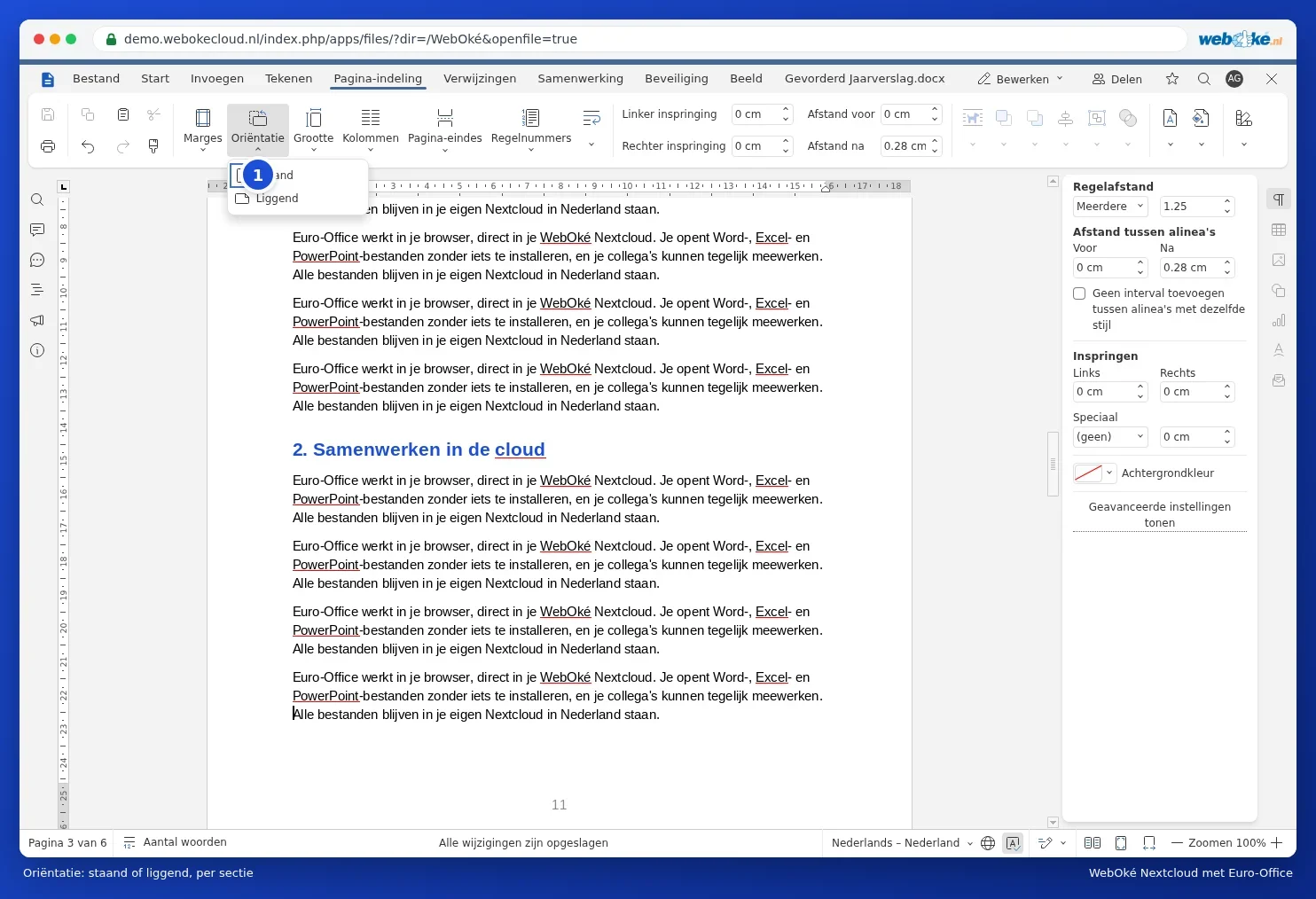
This works just like in Word. For more details and common pitfalls, see One landscape page in a portrait document. Seeing an empty page afterwards? Read A blank page at the end that won't go away.
Tip: a docx from Word with a landscape section stays landscape in LibreOffice and Euro-Office. The same applies the other way round.