
Error 500 or "critical error" on your website (even after a WordPress update)
Seeing a white screen, a 500 Internal Server Error or, in WordPress, There has been a critical error on this website? Then the code of your website is crashing. The server itself is usually working fine. With the steps below, you can find the cause yourself in most cases.
First: what just changed?
An error 500 almost never comes out of nowhere. Did you just update a plugin, theme or WordPress, change the PHP version or edit something in .htaccess? Then undo exactly that change first. That's usually the quickest fix.
Check the error log
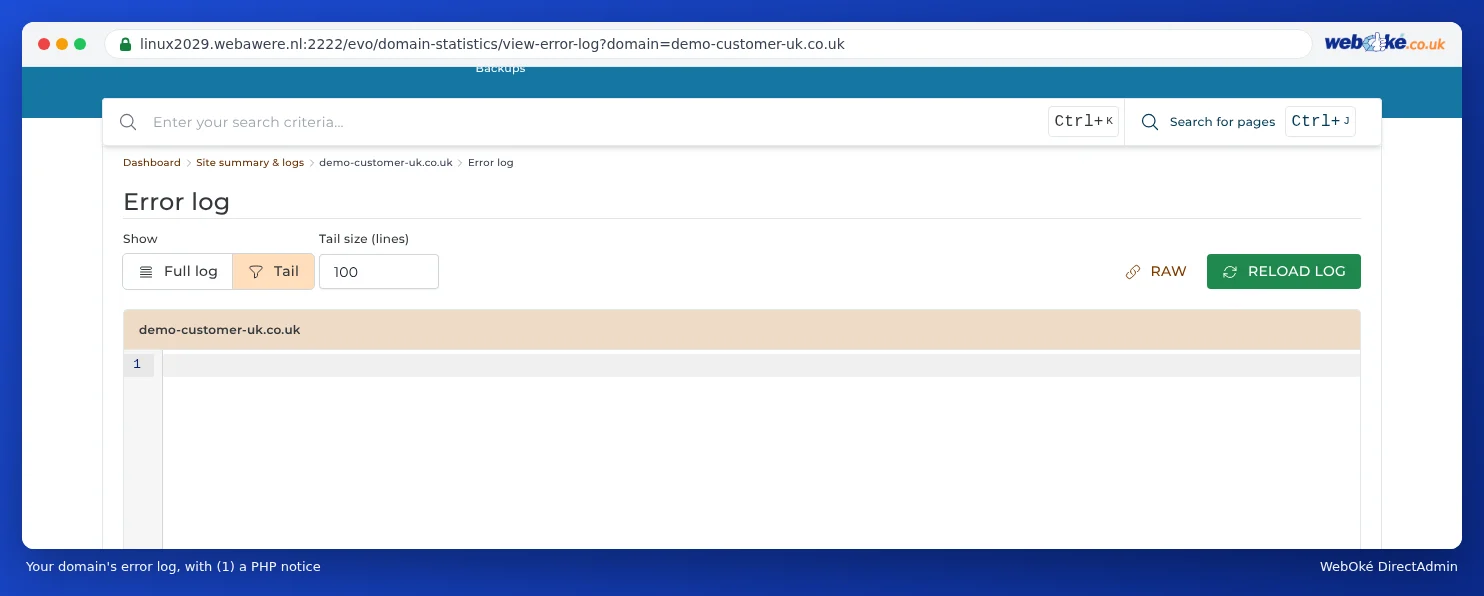
The error log tells you which file and which line is causing the error. Log in to DirectAdmin and open System Info & Files › Site Summary / Statistics / Logs. Choose your domain and open the error log. The bottom lines are the most recent. If you see, for example, PHP Fatal error with a path to wp-content/plugins/plugin-name, you know which plugin is the culprit.
Nothing useful in the error log? Temporarily turn on the WordPress log
WordPress can write its own errors to a log file. Open wp-config.php in public_html (make a copy first) and put these lines above the line /* That's all, stop editing! */. If there's already a line with WP_DEBUG, edit that one instead of adding it a second time.
define( 'WP_DEBUG', true );
define( 'WP_DEBUG_LOG', true );
define( 'WP_DEBUG_DISPLAY', false );
@ini_set( 'display_errors', 0 );
Reload the page with the error. WordPress now writes the messages to wp-content/debug.log, without showing them to your visitors. That last part is important: error messages on screen reveal paths and other details.
debug.log file is in a folder that your website serves to everyone. Anyone who knows the address can read it. So set WP_DEBUG back to false as soon as you've found the cause, and delete debug.log. Want to keep the log for longer? Then instead of true, give WP_DEBUG_LOG a path outside public_html, for example '/home/user/domains/yourdomain.nl/wp-debug.log'.WordPress: critical error after an update
After an update of a plugin, a theme or WordPress itself, this is by far the most common cause. Can't get into the WordPress dashboard anymore? Then do this:
- Check your inbox. When a critical error occurs, WordPress often sends an email to the admin address with a link to recovery mode. This lets you log in while the faulty plugin or theme is temporarily disabled, so you can deactivate or roll it back yourself.
- No email? Disable the plugins via DirectAdmin. Open File Manager and go to
domains/yourdomain.nl/public_html/wp-content. Rename thepluginsfolder to something likeplugins-off. WordPress will then disable all plugins. - Is your site working again? Rename the folder back to
pluginsand reactivate the plugins in WordPress one by one until the error comes back. Then you know which one it is. If you already know from the error log, just rename the folder of that one plugin. - Is the theme the problem? Then rename the folder of your active theme in
wp-content/themes. WordPress falls back to a default theme, if one is still installed. - Just changed the PHP version? Change it back in Select PHP version. Read Changing the PHP version and PHP settings.
Back to a working version
Can't figure it out, and the site was still working yesterday? Then restore a backup.
- WebOké Backups: in My WebOké, choose a point in time from before the error and restore only your website's folder and, if needed, the database. Read WebOké Backups: viewing, restoring or downloading a backup.
- Installatron: if Installatron made a backup before the update, restore it under My Backups. Read Creating and restoring backups in Installatron.
Check your .htaccess
A single wrong line in .htaccess immediately causes an error 500 for the entire site. A well-known example is a line left behind by a security plugin, such as php_value auto_prepend_file with a path to a file that no longer exists.
- In DirectAdmin, open System Info & Files › File Manager.
- Go to
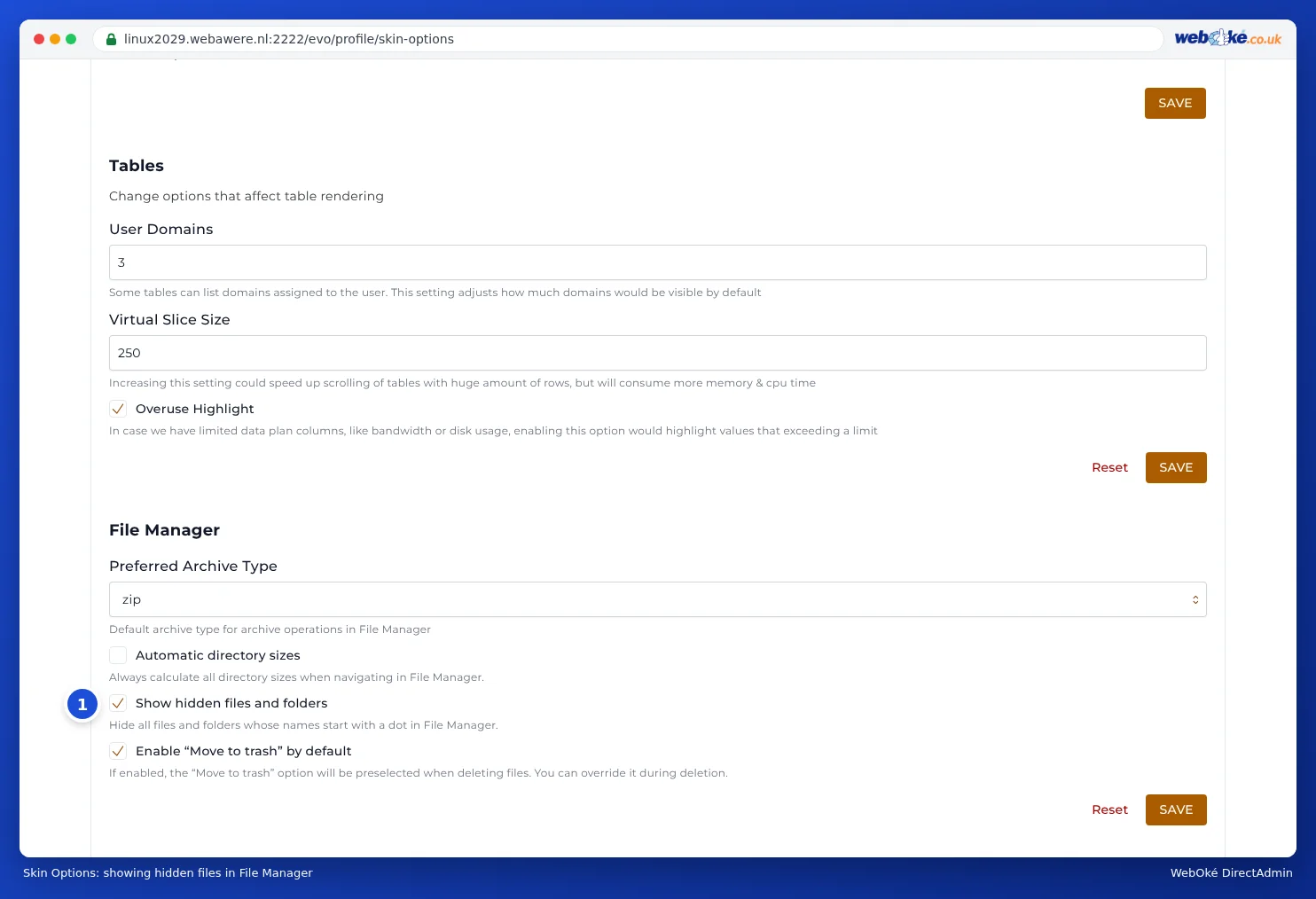
domains/yourdomain.nl/public_html. Don't see a .htaccess? Files starting with a dot are hidden. Turn on showing hidden files in File Manager. - Rename
.htaccessto something like.htaccess-old. - Reload your website. If the error is gone, the problem is in the .htaccess. Remove the faulty line and rename the file back.
Other causes
- Not enough memory: if the error log says
Allowed memory size ... exhausted, increasememory_limitin Select PHP version. - Wrong file permissions: folders should be set to 755 and files to 644. Never set anything to 777: it doesn't fix anything and makes your site vulnerable.
- Storage full: if your package is full, your website can't write anything anymore. Check Disk Space on the DirectAdmin dashboard.
With Domain health you can see at a glance whether your domain, website and SSL certificate are in order.
See also in the DirectAdmin manual: Showing and editing hidden files such as .htaccess and Site summary and logs: the error log and the access log.
Detailed explanation with screenshots: My website is white or shows an error 500 in the DirectAdmin manual.
Want to learn more? Take the free WordPress course, lesson 5.4 Less is more: cleaning up and resolving conflicts or lesson 7.2 Keeping up with updates.