
Chapter 3 · 3.7
Changing or forgetting your password
Changing your password
Do you still know your password and want a new one?
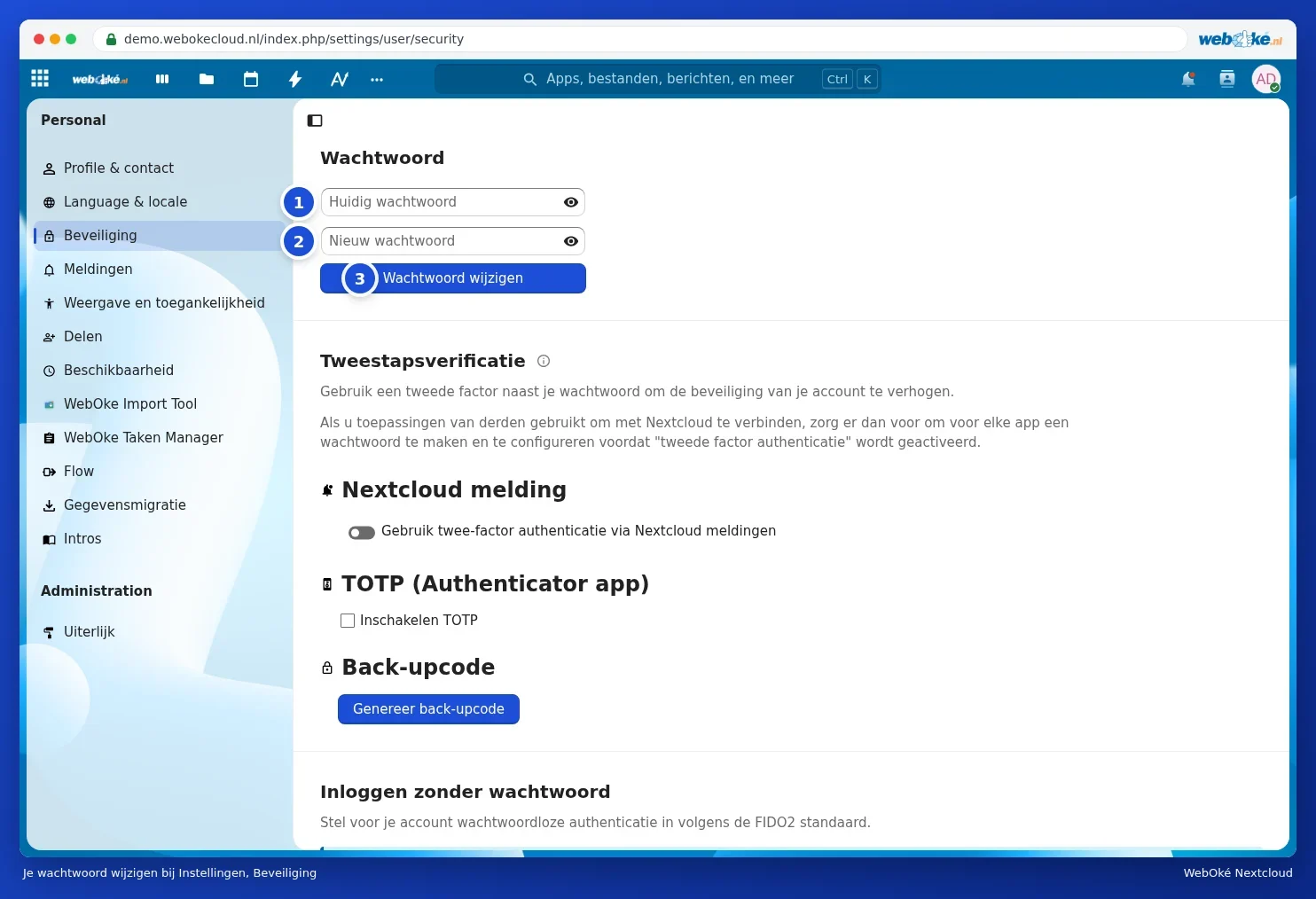
- Click your profile photo or initials in the top right.
- Choose Settings.
- Click Security on the left.
- At the top, enter your current password under Password (1).
- Enter your new password (2). Use the eye icon to see what you're typing.
- Click Change password (3).
What should a password look like?
- at least 10 characters;
- at least one capital letter and one lowercase letter;
- at least one number;
- at least one special character, such as ! ? # or %;
- not a commonly used password and not a password known from a data breach.
If your new password doesn't meet these requirements, your Nextcloud will tell you what's missing.
Tip: these are Nextcloud's requirements, but our advice goes further. Choose at least 15 characters: length makes a password far stronger than extra characters. Let a password manager generate a random password, or pick five or six random words and add a capital letter, a number and a character, such as Lamp-cloud-Rhythm-cheese-tile-7. A sentence about yourself or a word with a year, such as Summer2026!, is easy to guess. Don't use the password anywhere else.
After changing it, your apps with an app password, the desktop app and the mobile app will keep working as normal. Think someone else knew your password? Also check Devices & sessions (Viewing, revoking, or remotely wiping devices and sessions).
Forgotten password
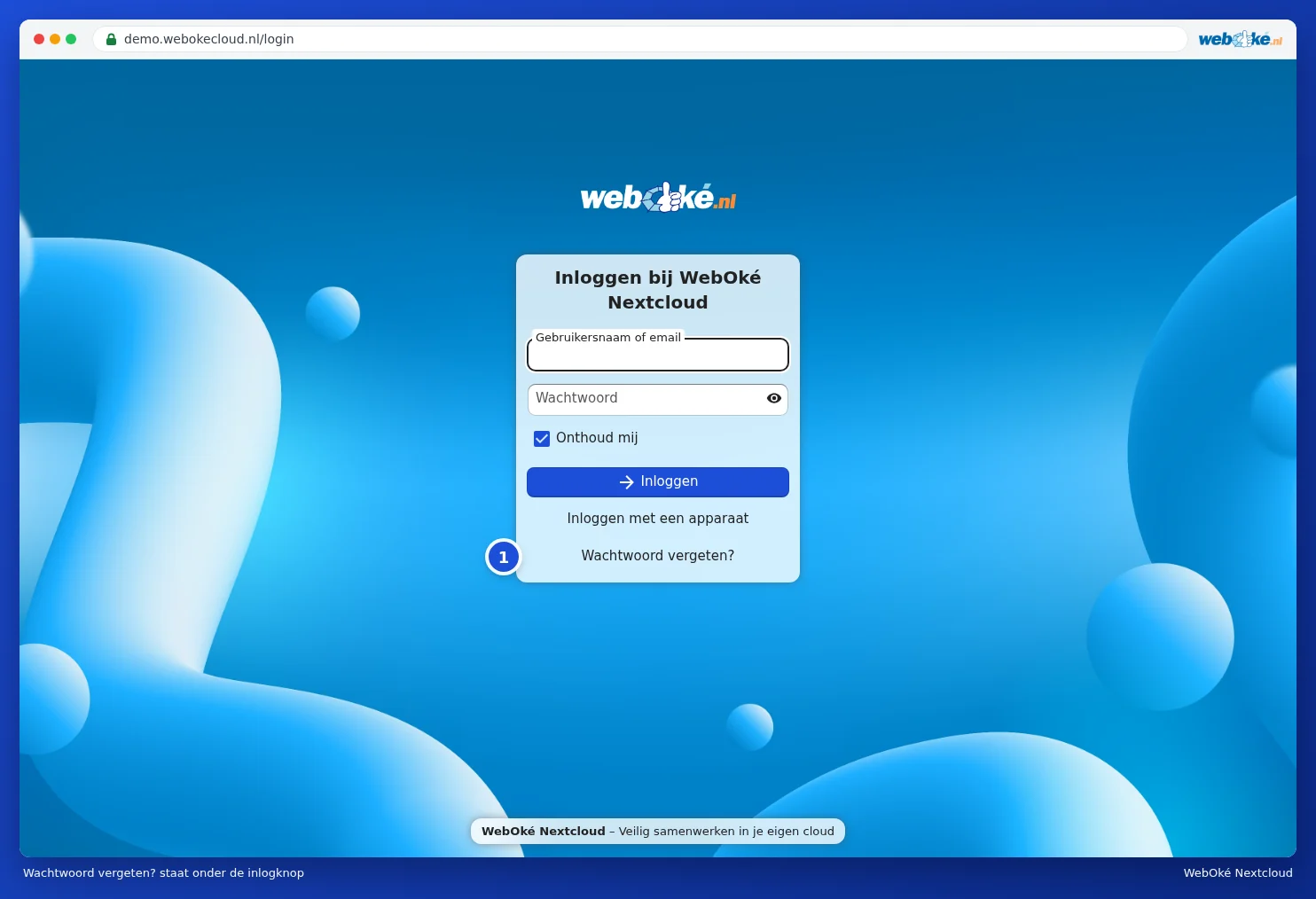
- On the login screen, click Forgot password? (1).
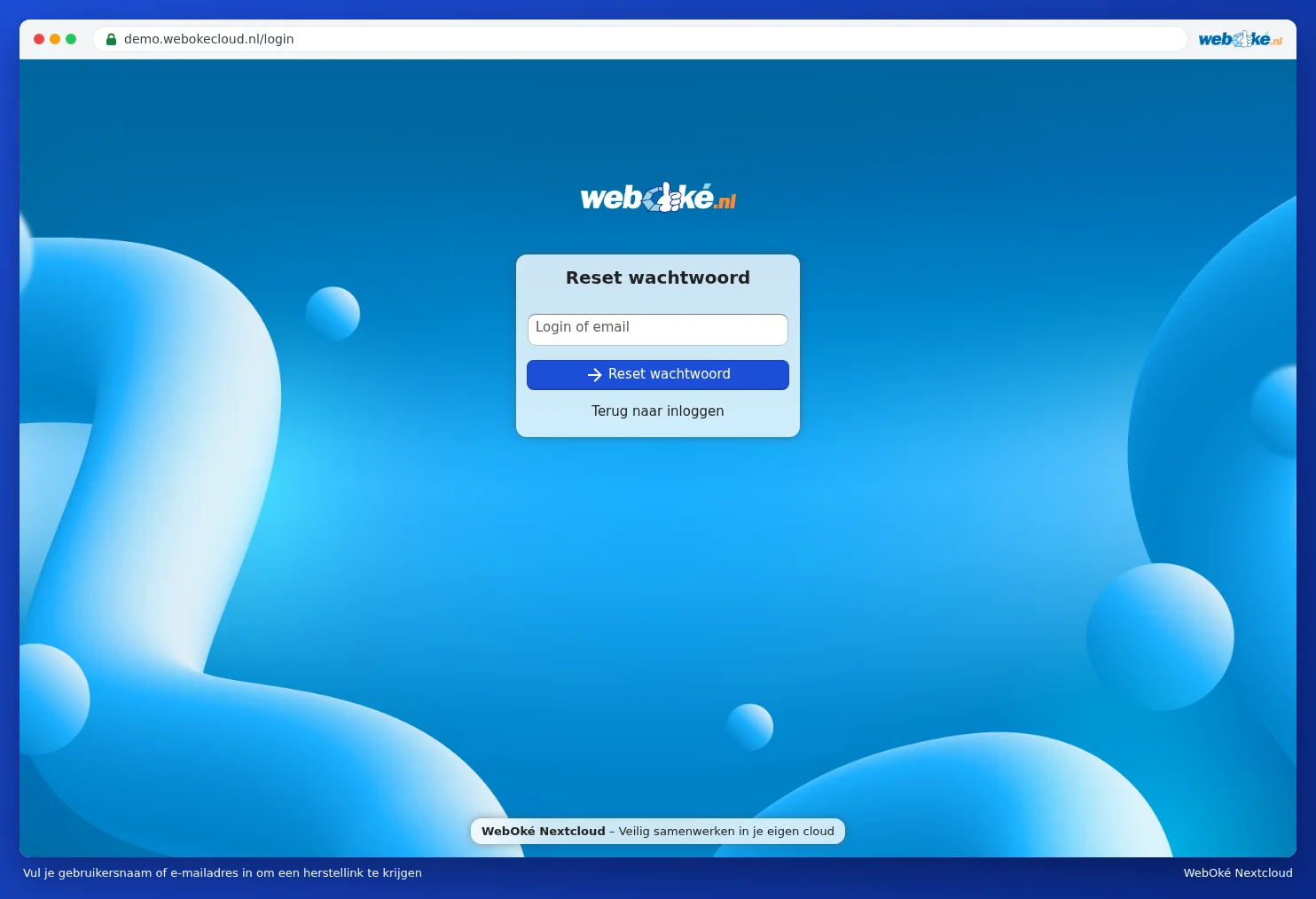
- Under Login or email, enter your username or email address and click Reset password.
- You'll receive an email with a link. Click it and choose a new password.
- Log in with your new password and the code from your email.
Your Nextcloud doesn't reveal whether the account exists, to keep intruders none the wiser. You'll always see a confirmation, even if you made a typo.
Haven't received a recovery email?
The recovery email goes to the email address in your Nextcloud profile. First check your junk mail folder. If your profile has no email address or an outdated one, the email won't arrive. In that case, your package's administrator can help.
Setting a new password as administrator
Are you the administrator of a Personal, Family or Max package? Then you can set a new password for a user via Mijn WebOké:
- Log in to Mijn WebOké and go to My Products.
- Open your Nextcloud package.
- Find the user under User management and choose Change password from the menu next to the user.
- Type a new password or click Generate (1) for a strong password, then click Change password. If you type your own password, keep all the requirements above in mind, including the capital letter and lowercase letter.
- Pass the password on to the user in a secure way, for example verbally or in two parts. No email is sent to the user.

You can read all about user management in Creating, editing, disabling and deleting users. Are you the owner yourself and can you no longer access your own Nextcloud account? Then contact WebOké. With Nextcloud Free, you always use Forgot password?.