
Setting up the Nextcloud app on Android
Installing and setting up the Nextcloud app on Android is quick and easy.
You log in through your Nextcloud's login screen in the app. You don't need to create an app password for this: you use your normal login details and the login code.
Tip: Also install the Nextcloud Talk and Nextcloud Notes apps. You set them up the same way.
Step 1 - Install the Nextcloud app on Android. Click here to go straight to the app in the Google Play Store. If you'd rather not use Google Play, the same app is available on F-Droid.
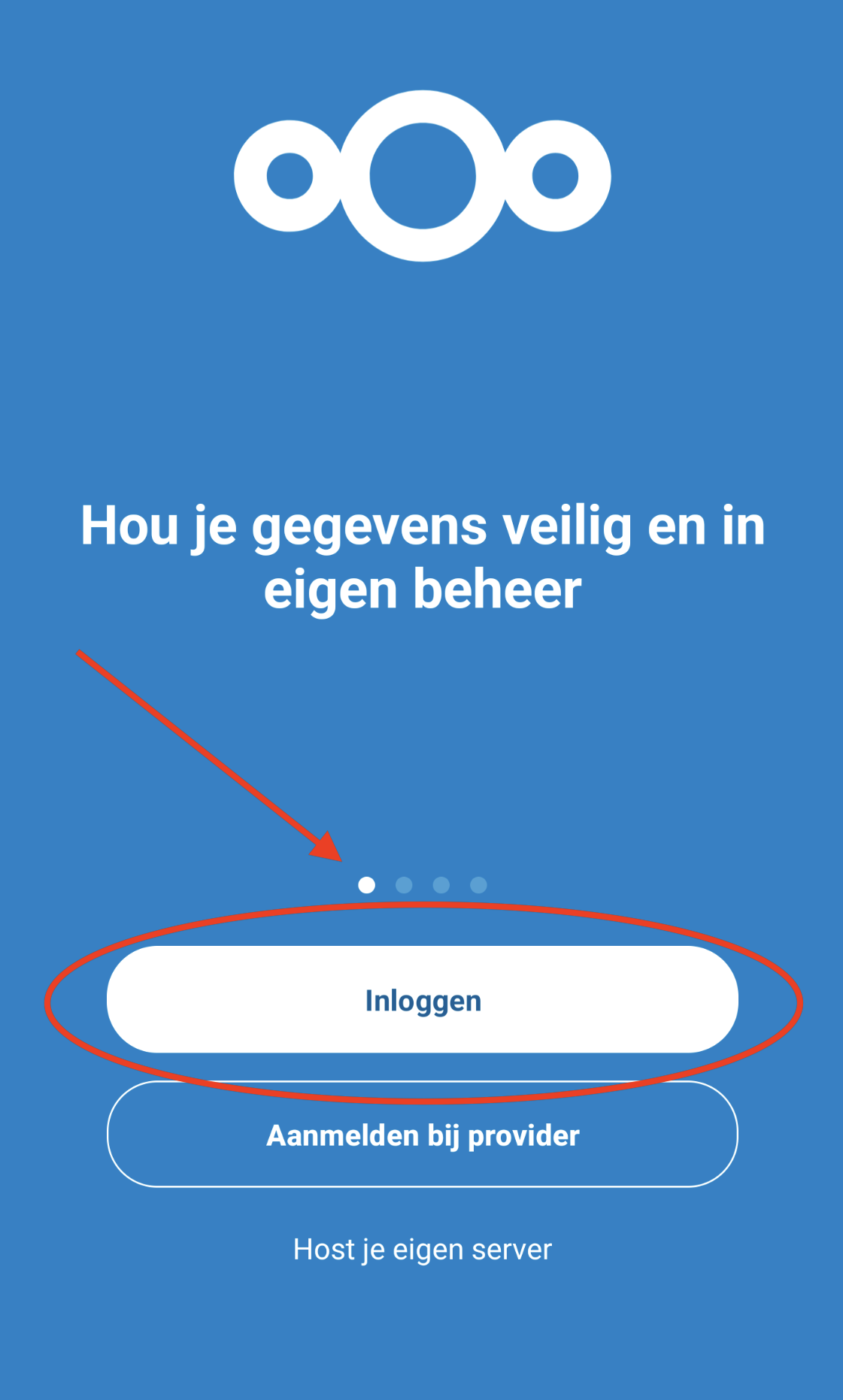
Step 2 - In the app, tap 'Log in'
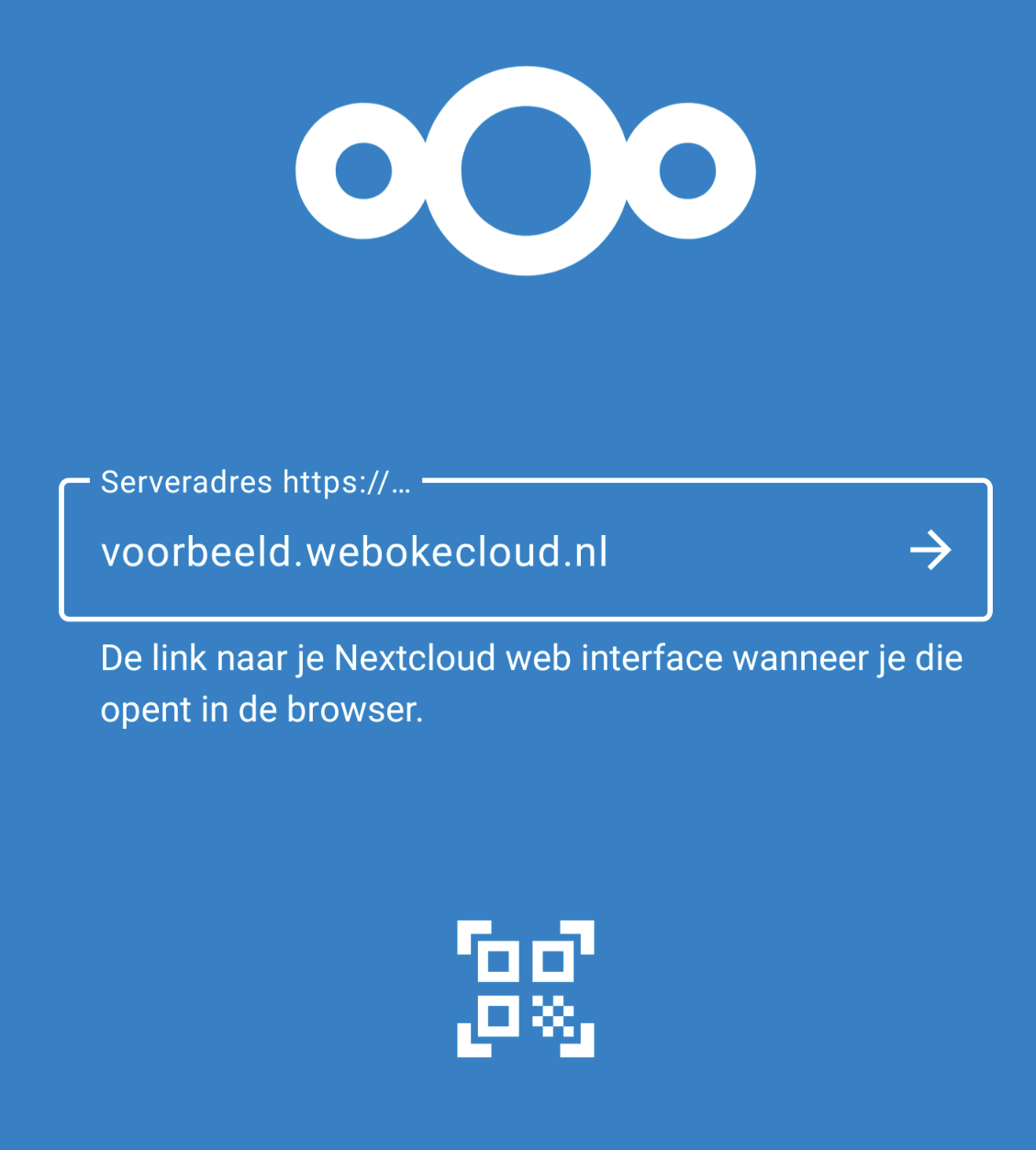
Step 3 - Enter the address of your Nextcloud, for example https://yourname.webokecloud.nl, and continue.
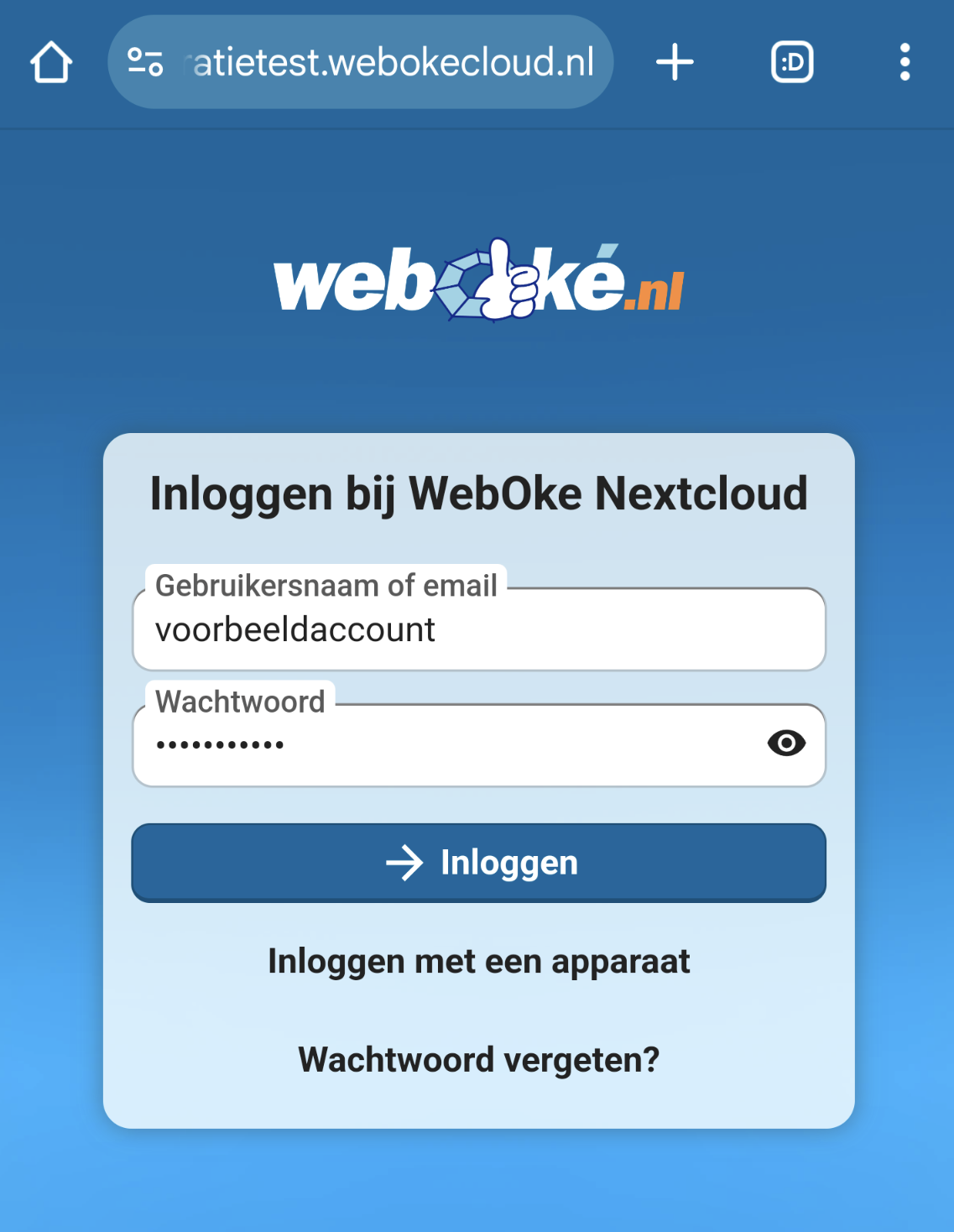
Step 4 - Your Nextcloud's login screen opens: Connect to your account. Tap Log in and enter the username and password of your Nextcloud account.
Step 5 - Enter the login code. By default, you receive it by email. If you've set up an authenticator app yourself, you can choose which method you want to use on this screen. Then tap Grant access.
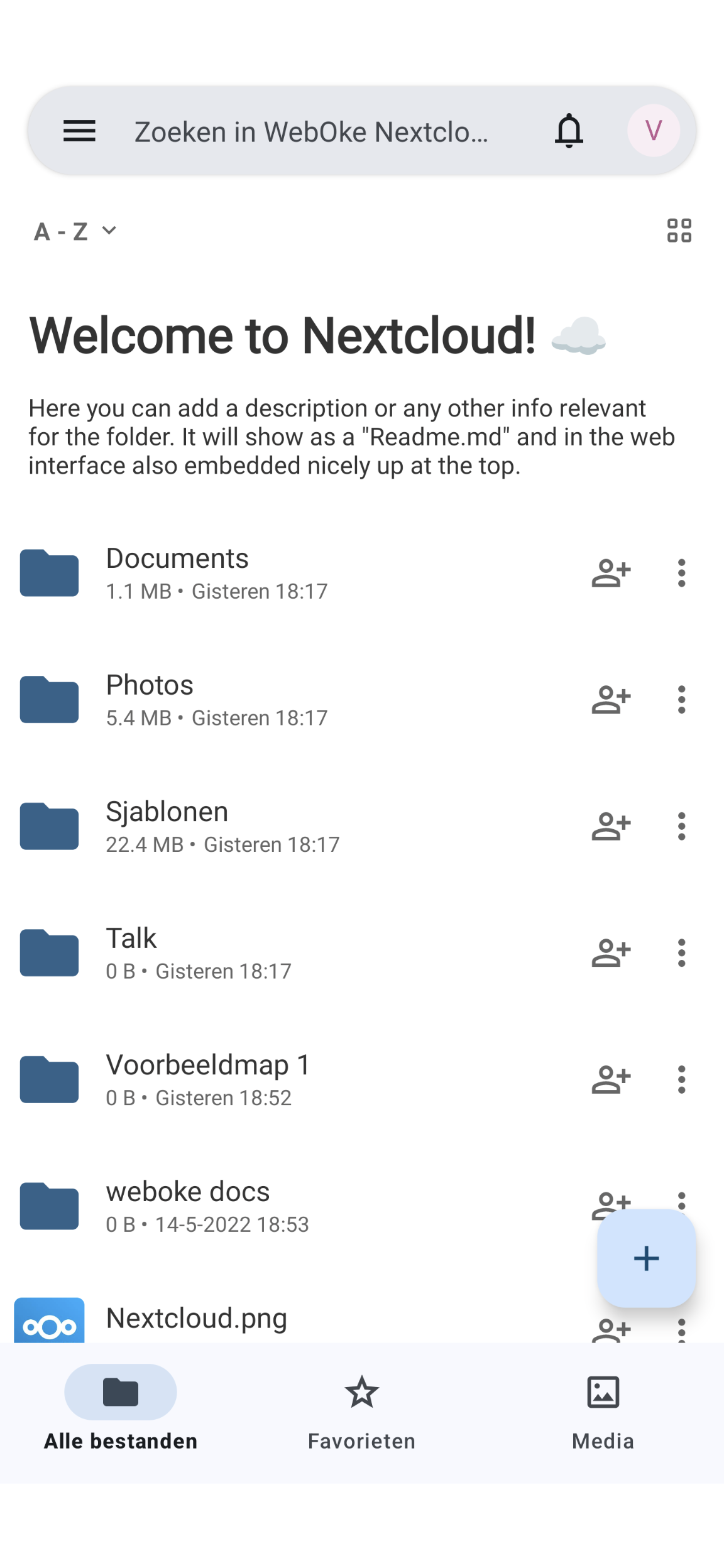
Step 6 - That's it! You're now successfully logged in to your Nextcloud account and have an active connection between your Nextcloud account and your Android phone.
If logging in doesn't work, you can also log in with the QR code of an app password. You can read how to create one in Creating an app password. You connect your calendar and contacts with DAVx5, see Syncing Nextcloud calendar and contacts with Android (via DAVx5).
Detailed explanation: The Nextcloud app on Android in the Nextcloud manual.