
Syncing Nextcloud calendar and contacts with Android (via DAVx5)
We'll get straight to the point:
Unlike iOS, Android doesn't natively support the open protocols CalDAV and CardDAV, which are needed to synchronize your Nextcloud calendars and contacts.
To make this possible anyway, you install the DAVx5 app. On Google Play it's a paid app (a one-time fee of a few euros); via F-Droid it's free. You'll also find the link on our download page, under Nextcloud.
Click here to view the app on Google Play.
In this article, we explain how to set up a CalDAV and CardDAV connection with DAVx5.
Step 1 - Open the DAVx5 app and set your preferences. Give the app all permissions for your calendars and contacts, and let DAVx5 run outside battery optimization if the app asks for it. Otherwise synchronization will stop.
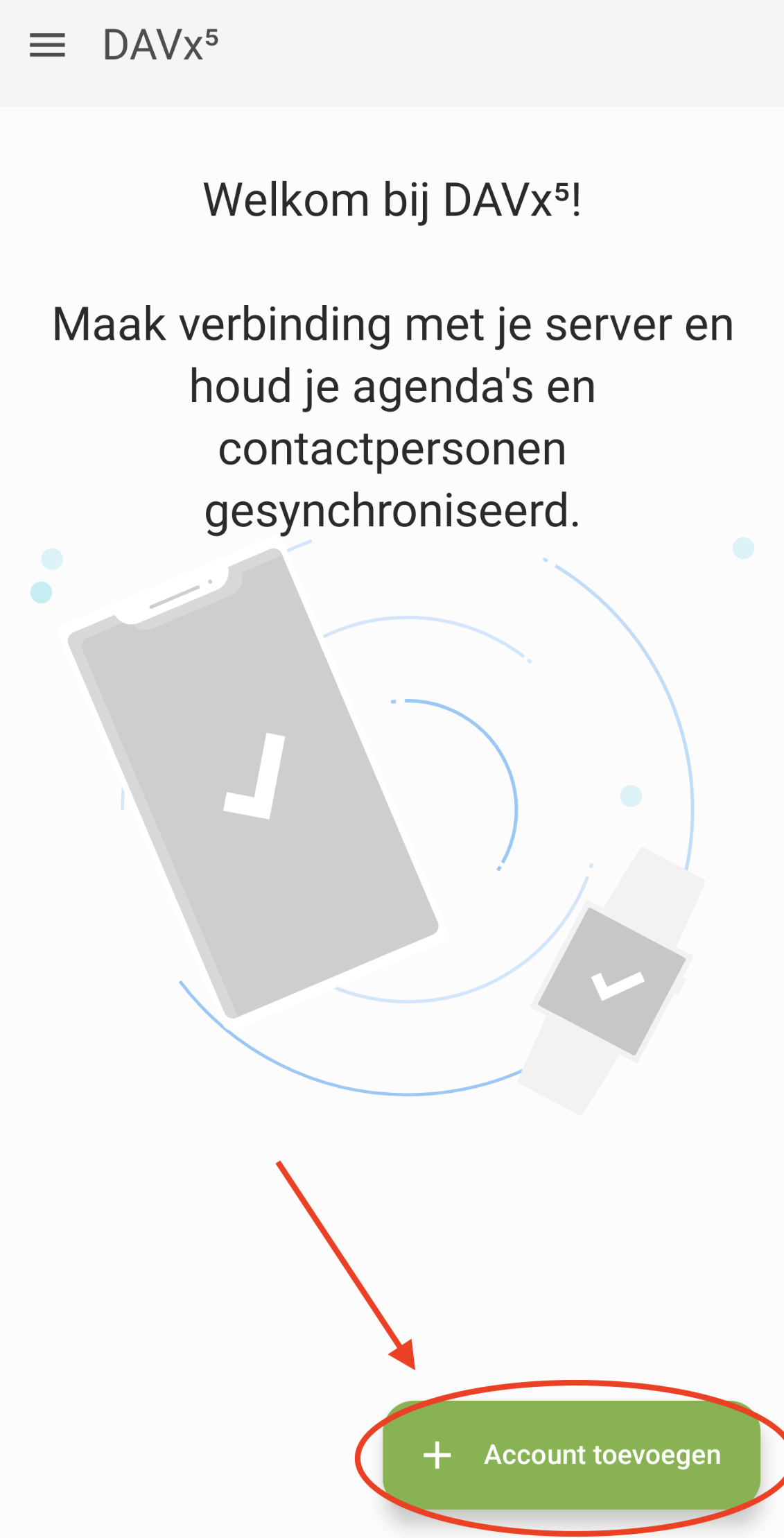
Step 2 - After you've set your preferences, you'll see this screen. Tap 'Add account' (the plus button).
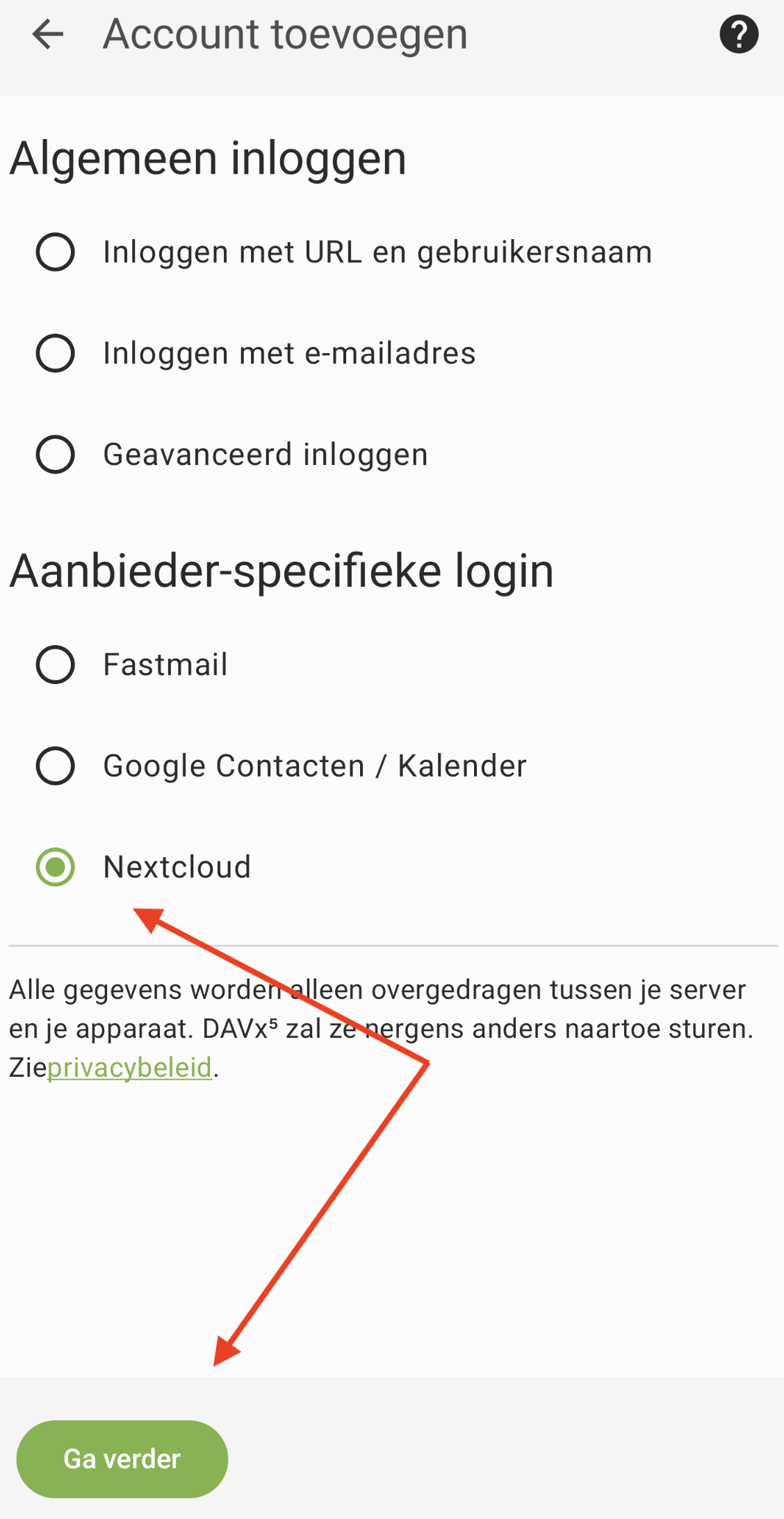
Step 3 - Choose Nextcloud and tap Continue
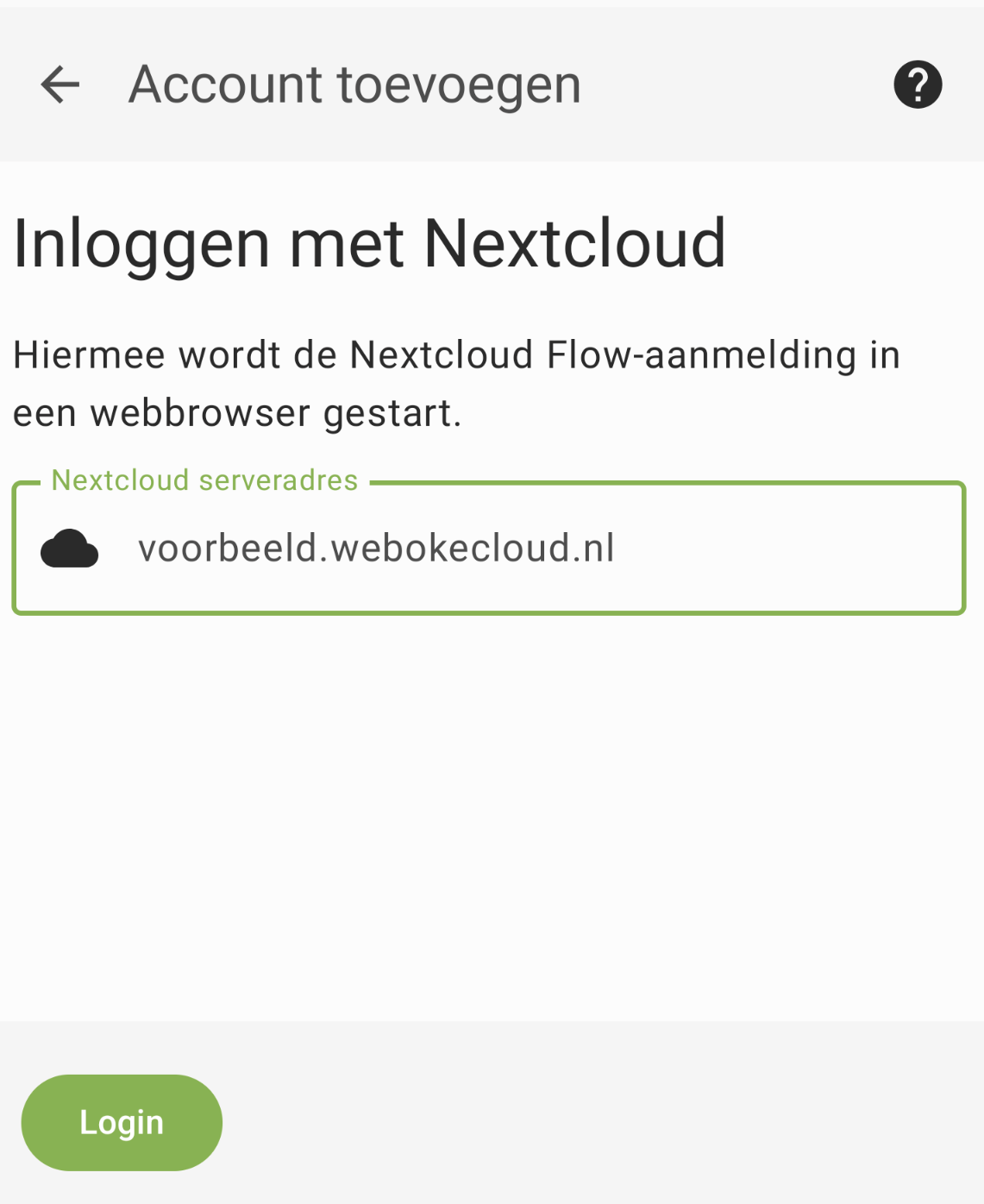
Step 4 - Enter the address of your Nextcloud, with https:// in front of it (for example https://yourname.webokecloud.nl), and tap Login
Step 5 - The browser opens the login screen of your Nextcloud. Log in as you normally would, with your username, your password and the login code. Then choose Grant access, so the app is allowed to connect to your Nextcloud account.
Step 6 - Check the calendars and contact lists you want to synchronize and tap 'Synchronize now'.
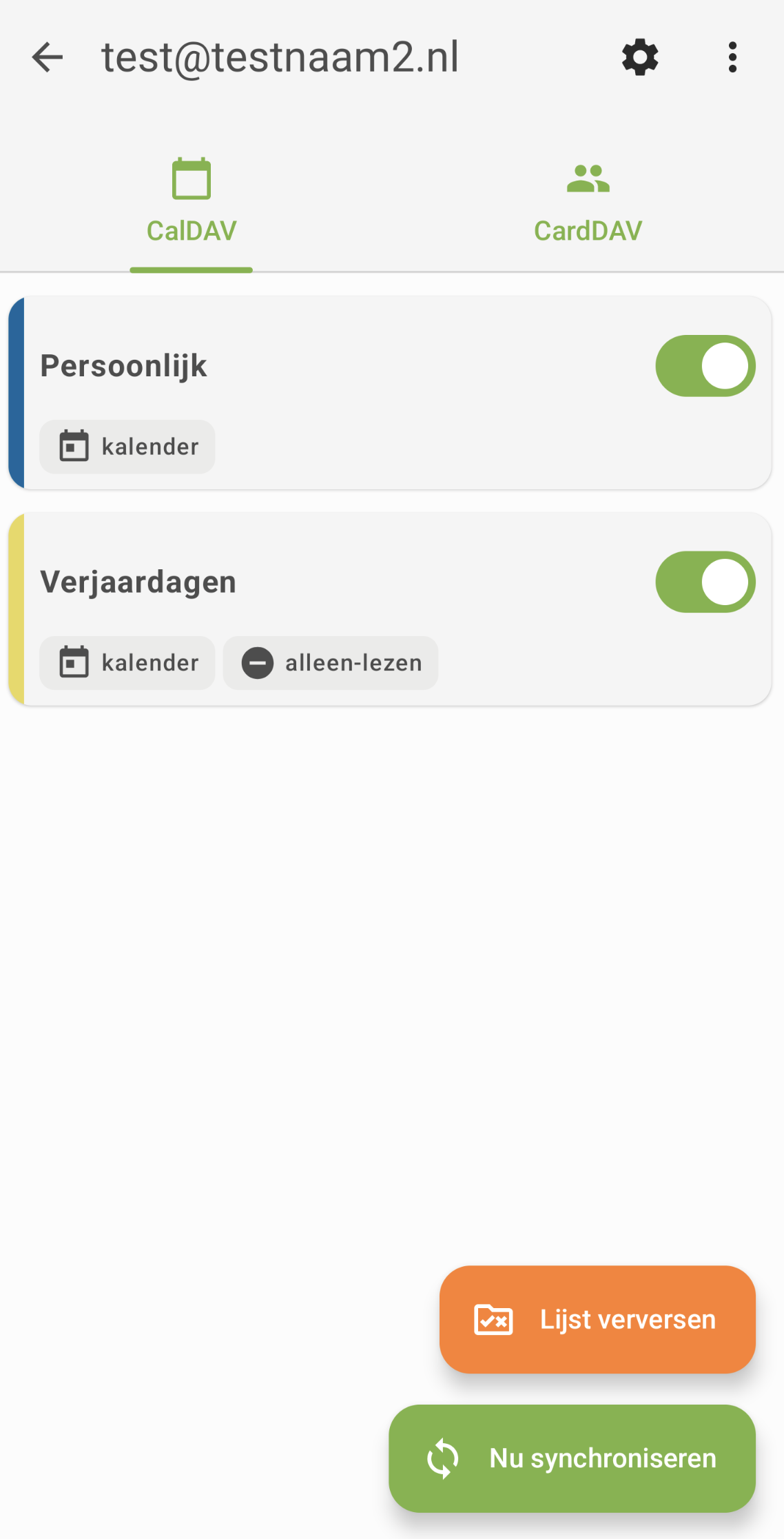
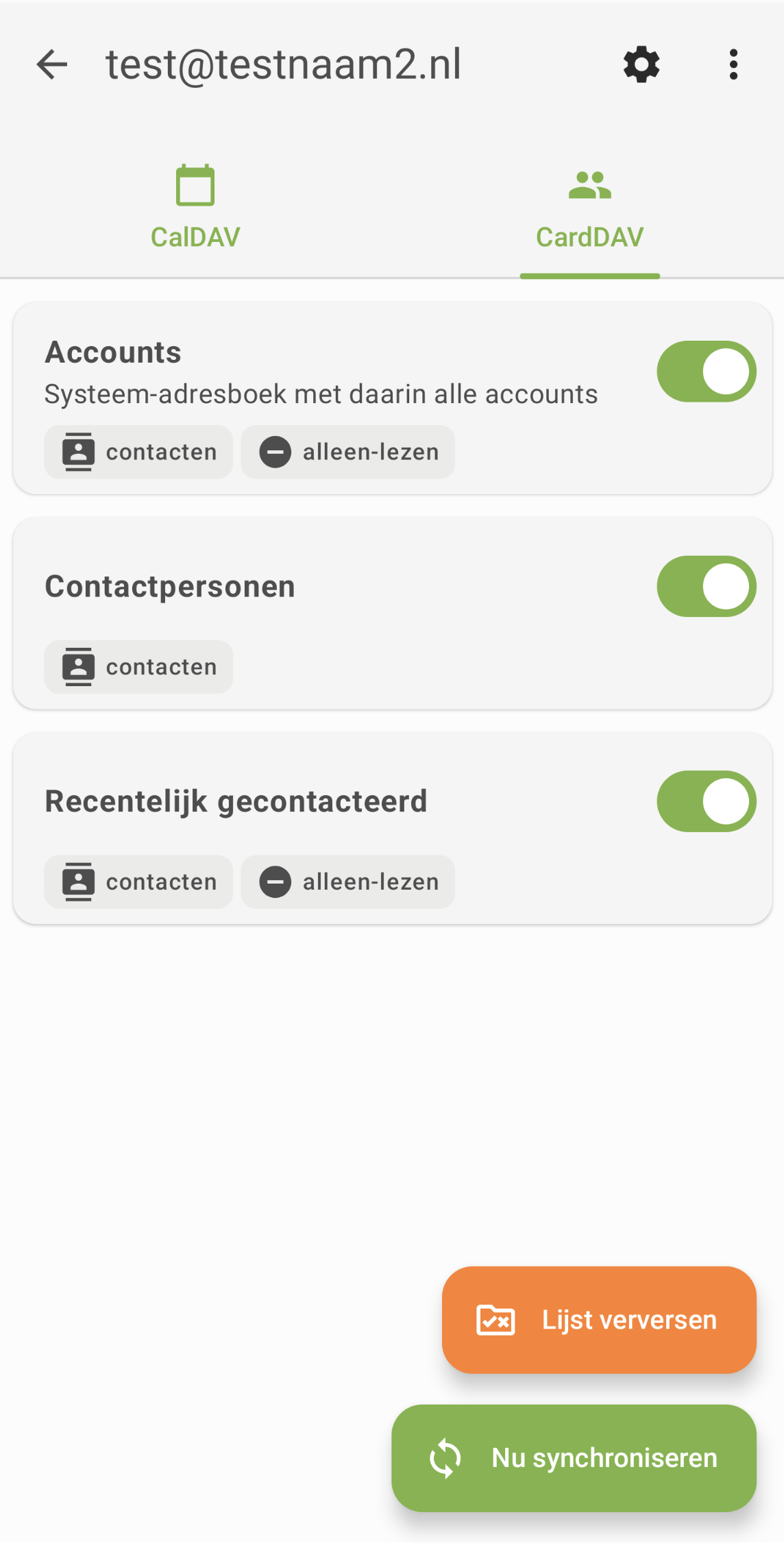
Step 7 - Done! Your calendars and contact lists are now synchronized with your Android device. You'll find them in your regular calendar and contacts app.
Doesn't the browser jump back to DAVx5 after logging in? Then log in with a URL, your username and an app password. You can read how to create one in Creating an app password.
Detailed explanation with screenshots: Calendar and contacts on Android with DAVx5 in the Nextcloud manual.