
How long does a nameserver or DNS change take, and what if you don't see it?
A change to your nameservers or DNS records takes effect immediately on our end, but it takes a while before everyone on the internet sees it. Here you can read how long that usually takes and what to check if your change still isn't visible after that time.
Changing nameservers
A domain always has at least two nameservers linked to it; with us, these are ns1.webawere.nl and ns2.webawere.nl. You change them yourself in My WebOké: go to My Domains, click the domain and change them on the Nameservers card. The change goes straight to the registry. Even so, it usually takes a few hours before everyone sees it; allow up to 24 hours. That's because internet providers keep the old data for a while (caching). As a result, one person may already see the change while another doesn't yet.
Changing DNS records
A change to a DNS record, such as an A or MX record, also takes effect immediately. With us, records have a default TTL of one hour, so the change is usually visible everywhere within an hour. Your own computer also keeps DNS data for a while: if you visited the site just recently, it may take longer for you.
Change still not visible?
Still not seeing your change after a few hours? Go through these points.
- Which nameservers does your domain use? In My WebOké, check under My Domains, on the DNS tab, at the top under Nameservers. If it doesn't show ns1.webawere.nl and ns2.webawere.nl but, for example, those of Cloudflare, then that party controls the DNS and a change on our end does nothing. In that case, change the record there. See Using your own or external nameservers for your domain.
- Did you make the change in the right place? For a domain at WebOké, you edit records on the DNS tab in My WebOké or in DNS Management in DirectAdmin. Both are the same records. See Managing DNS records in My WebOké.
- Check the record for typos. Pay particular attention to the name (www or @) and to the dot at the end. If you point to a full name, as with a CNAME or MX record, add a dot at the end:
mail.yourdomain.nl.. Without the dot, the system appends your domain name once more. - Check it online. With Domain health you can see right away where your domain points to, whether the website and the SSL certificate are in order and how your mail records are set up. An online DNS lookup (as described in Website or email not working after a migration or DNS change) shows what the rest of the internet sees.
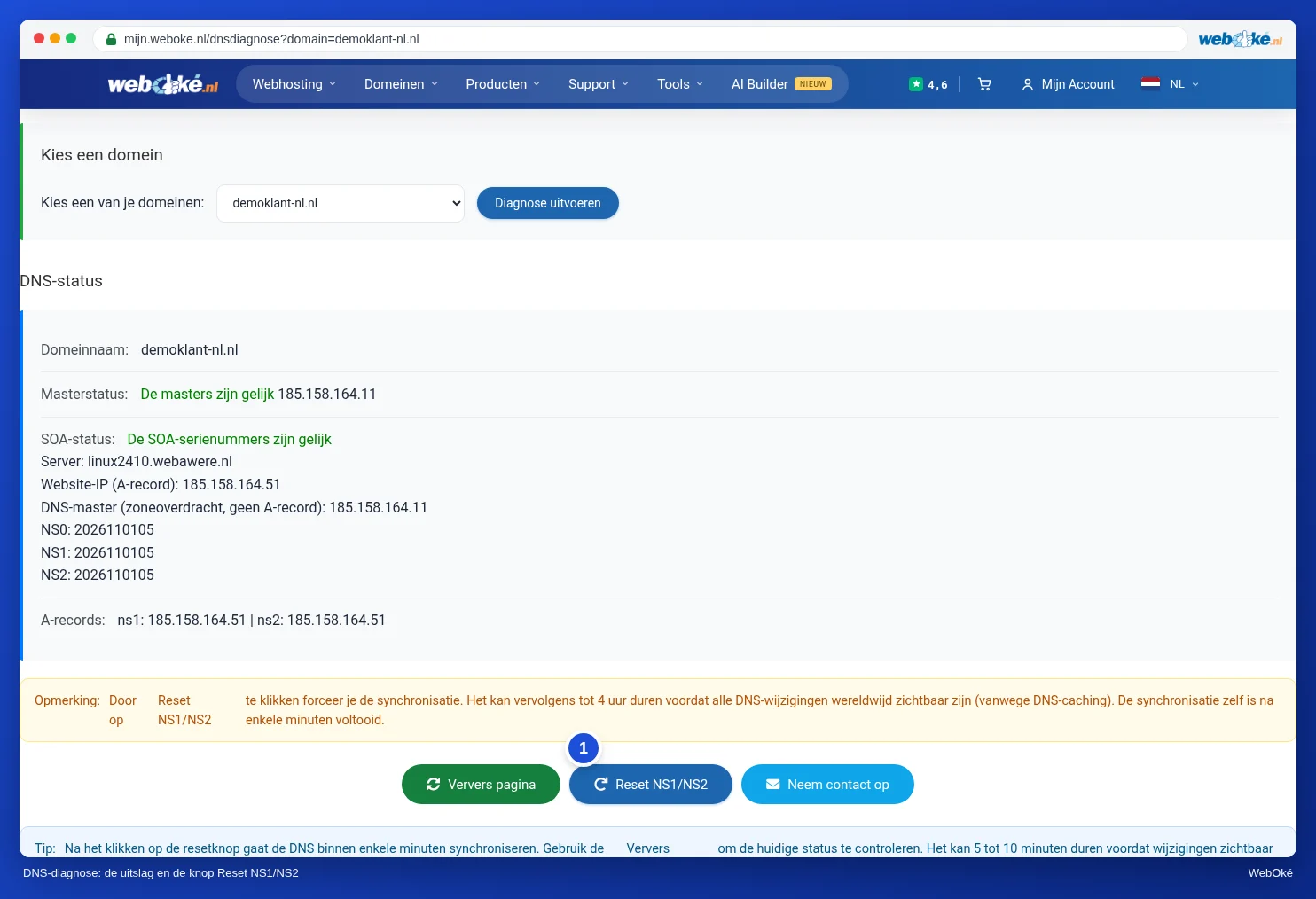
- Use the DNS diagnosis. Log in to My WebOké and open the DNS diagnosis. You can also find it via All features › Tools. Choose your domain and click Run diagnosis. You'll then see whether our nameservers have the same data as your package's server. If they don't match, click Reset NS1/NS2. After a few minutes they'll be in sync again.
- Clear your own cache. Does the online check already show the new data, but you don't see it yet? Then your computer or browser is remembering the old data. Try a private window, or your phone over 4G or 5G. On Windows, you clear the cache with the command
ipconfig /flushdns(in the Command Prompt). Restarting your computer or router also helps.
Still not working after that? Contact us and mention which domain and which record it concerns.
Detailed explanation with screenshots: Changing nameservers and Managing DNS: adding, changing and deleting records in the WebOké manual, and My domain isn't working yet after a migration or change in the DirectAdmin manual.