
Which Nextcloud plan suits me, and how do I upgrade?
WebOké offers four Nextcloud packages: Free, Personal, Family and Max. They all work the same way, but differ in storage, number of users and extras. Here you can read which package suits you and how to expand or switch later.
The packages at a glance
- Free: 5 GB storage, 1 user, an account on our shared Nextcloud. To get acquainted: a few files, your calendar and contacts.
- Personal: 250 GB storage (expandable to 500 GB), 1 user, your own Nextcloud. For one person who wants all their files, photos and calendar in their own cloud.
- Family: 500 GB storage (expandable to 1 TB), 5 users. For a family or small team: everyone gets their own account, and sharing folders, calendars and albums is easy.
- Max: 1 TB storage (expandable to 2 or 5 TB), 10 users (expandable up to 100). For businesses, associations and larger teams.
With Personal, Family and Max you can add Office licenses (Euro-Office, Talk and more). From Family upwards you can use the Nextcloud AI assistant with your own API key. With all paid packages, including Personal, you can put your Nextcloud on your own subdomain for a small extra fee, such as cloud.yourdomain.com. See Your Nextcloud on your own (sub)domain. You can find the current prices at www.weboke.nl/en/nextcloud.
More storage, users or Office licenses
- Log in to My WebOké and go to My Products. Open your Nextcloud package.
- Under Configurable Options, choose what you need: Storage, Nextcloud Office users or (with Max) Extra Nextcloud accounts.
- Click Save Options. You'll see the additional amount you pay for the rest of your period.
- Click Confirm and Pay and pay the invoice.
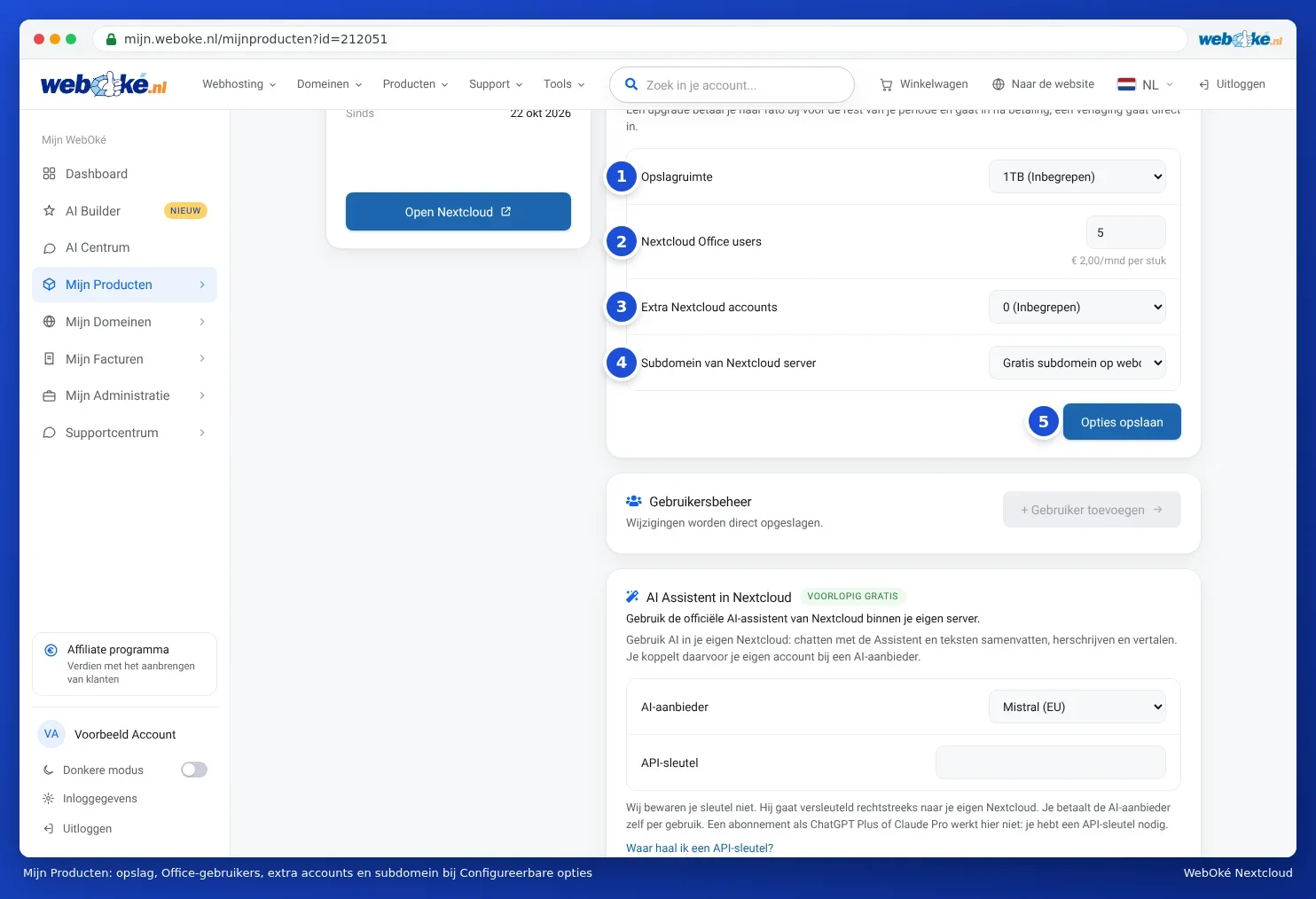
You pay for an upgrade pro rata for the rest of your period. It takes effect as soon as you've paid. A downgrade takes effect immediately. So first check whether your files fit into the smaller storage.
Switching to another package
- Larger package, for example from Personal to Family: on the package page, under Change Hosting Package, choose the new package and click Change Package. This takes effect immediately and you pay the difference pro rata. You keep your Nextcloud with all your files.
- Smaller package: takes effect at your next renewal. Make sure your users and files fit into the smaller package. More than 5 users is only possible with Max.
- From Free to paid: this isn't an upgrade, because you're moving to your own Nextcloud. You order a paid package and then transfer your contacts, calendars and files using Nextcloud Export. Read Transferring data between Nextcloud accounts.
You can read about managing users and licenses in Managing Nextcloud users, teams and shared folders and Ordering an Office Suite license and assigning it to a Nextcloud user.
Detailed explanation with screenshots: Nextcloud Free, Personal, Family or Max: differences and switching and More storage or users, changing or cancelling your package in the Nextcloud manual.