
Migrating from Microsoft OneDrive to WebOké Nextcloud
Coming from Microsoft OneDrive? With Data migration in your WebOké Nextcloud you can move your files, as well as your contacts and calendars from your Microsoft account. This article walks you through it step by step.
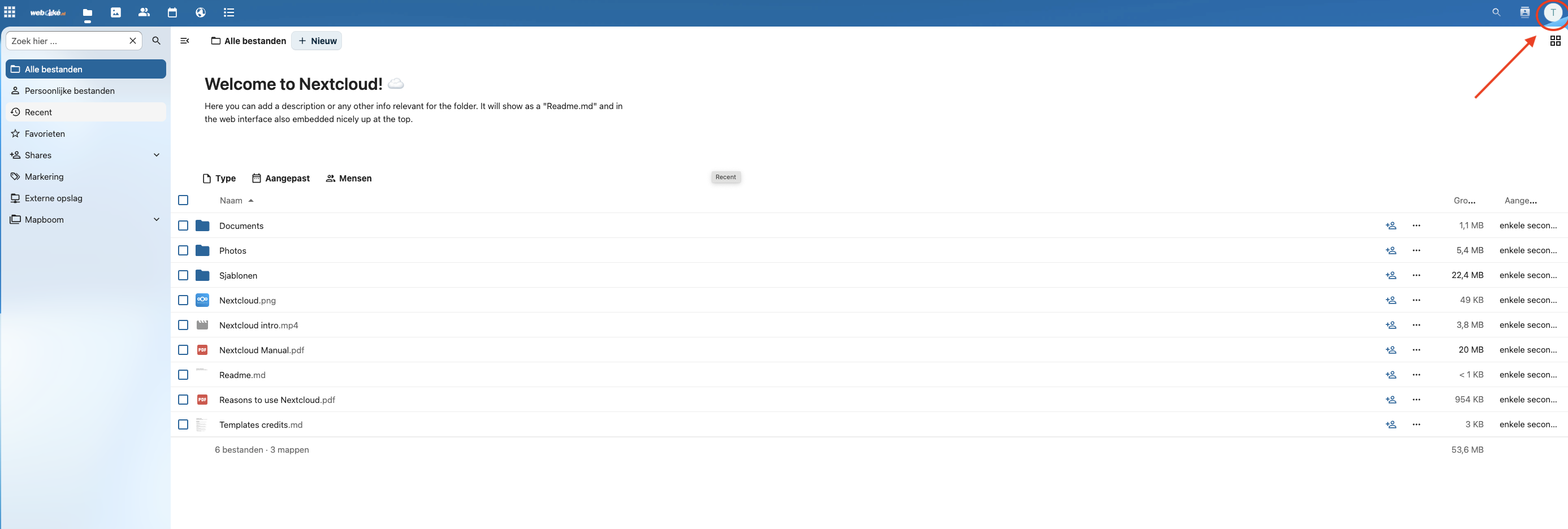
Step 1 - Log in to your WebOké Nextcloud, click your profile picture in the top right and choose Settings.
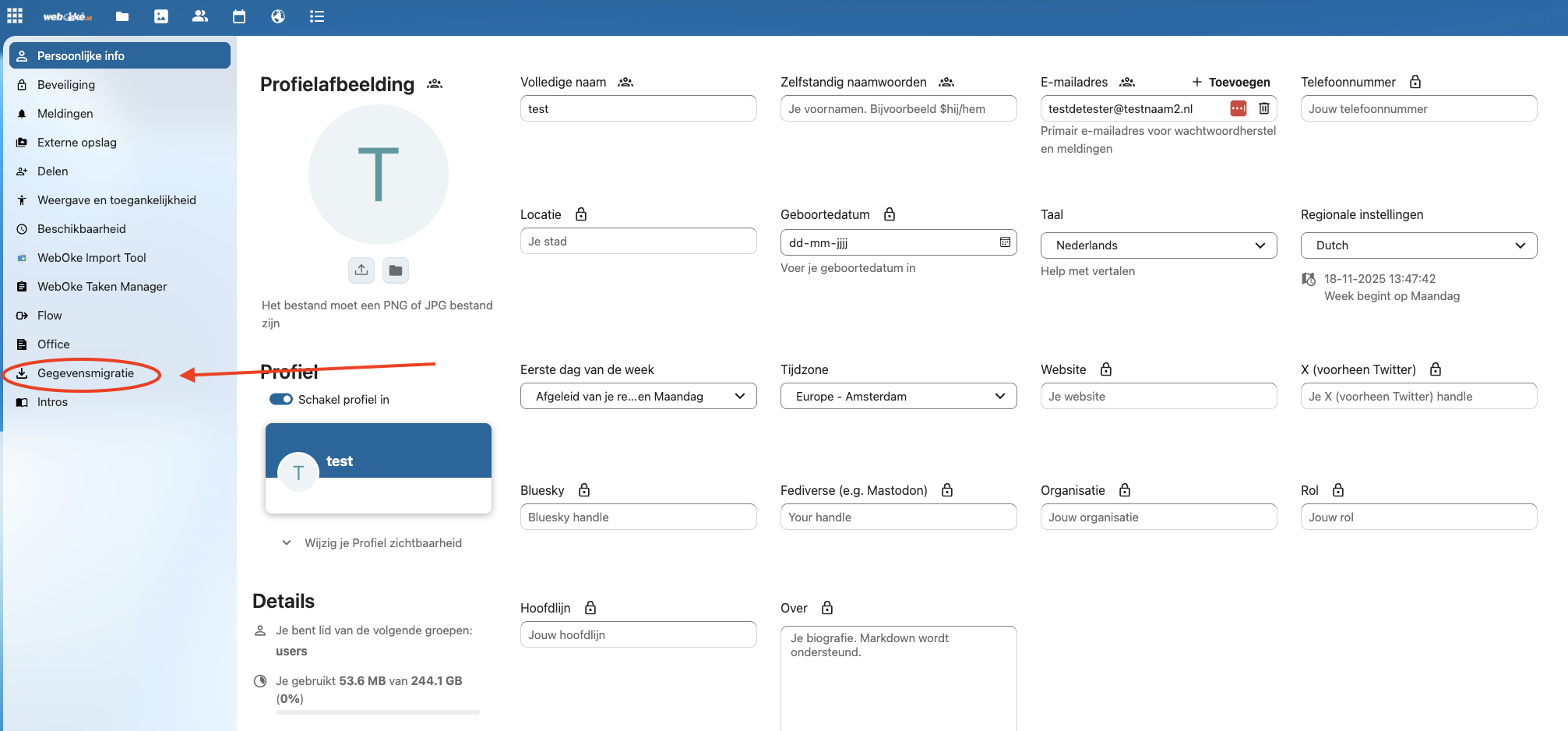
Step 2 - Click Data migration on the left.
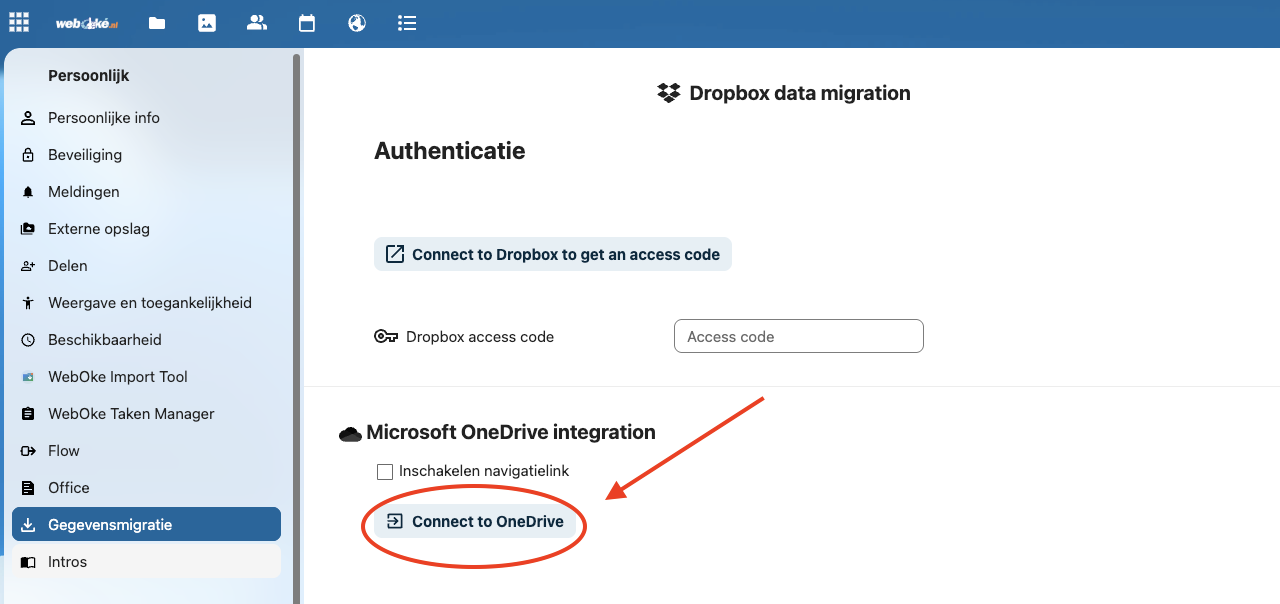
Step 3 - Under Microsoft OneDrive integration, click Connect to OneDrive.
Step 4 - A Microsoft window opens. If you're already logged in to Microsoft, the connection is made right away. If not, log in in that window and grant permission.
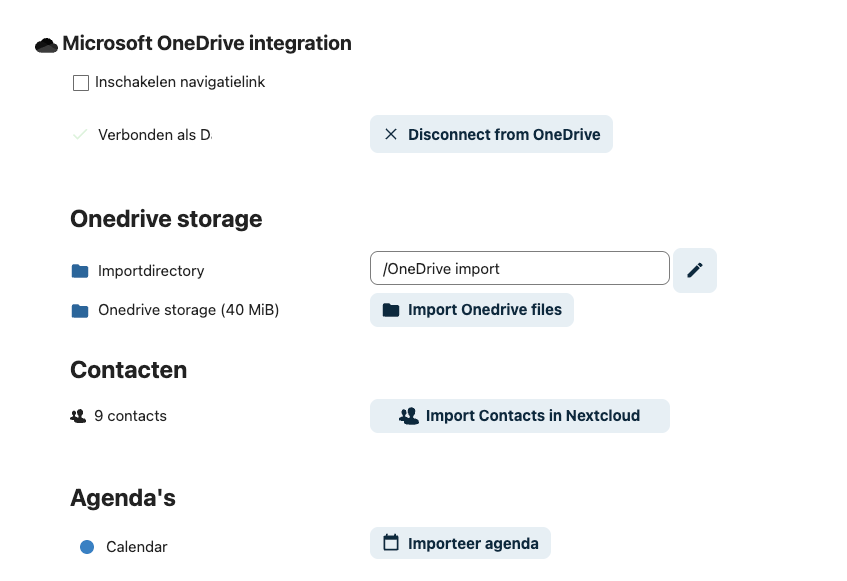
Step 5 - Once your account is connected, you'll see which account you're connected with and what you can move: your files, your contacts and your calendars.
Under Import directory you choose which folder in Nextcloud your OneDrive files will go to. Click the pencil to choose a different or new folder.
Note: Data migration brings over all files from OneDrive. Don't want to bring certain files along? Delete them in OneDrive first.
Click Import OneDrive files to start moving your files. Want to move your contacts and calendars as well? Start that import too; for calendars the button is called Import calendar.
That's it! The transfer is now in progress.
Depending on how much you have in OneDrive, it takes anywhere from a few minutes to a few hours.
Tip: You can close the window and do other things in the meantime. The server keeps working in the background. If you come back to the Data migration page later, you'll see how far along it is.
Once it's done, your files are in your own Nextcloud, on our own servers in the NorthC data centers in Aalsmeer and Oude Meer. Congratulations on your switch to digital sovereignty!
Do you use Microsoft 365? Then you can also move your mail, your documents and your calendar. Read From Microsoft 365 to WebOké: files, documents, mail and calendar.
Detailed explanation with screenshots: Moving OneDrive with Data migration in the Nextcloud manual.
Want to learn more? Take the free course Switching to a European cloud, lesson 6.1 Moving files from Google Drive, OneDrive and Dropbox.