
Migrating from Google Drive to WebOké Nextcloud
Have your files been sitting in Google Drive for years, and do you want to move them to your own WebOké Nextcloud? With the WebOke Import Tool you can transfer Google Drive, Google Photos, Google Calendar and Google Contacts. You do it right in Nextcloud, and the transfer runs in the background.
Please note: Google only lets our app work for Google accounts that we have registered in advance. Want to use the Import Tool? Create a ticket in the Support Center of My WebOké with the email address of your Google account. We'll register your account and let you know when you can continue. Do this for every Google account you want to transfer.
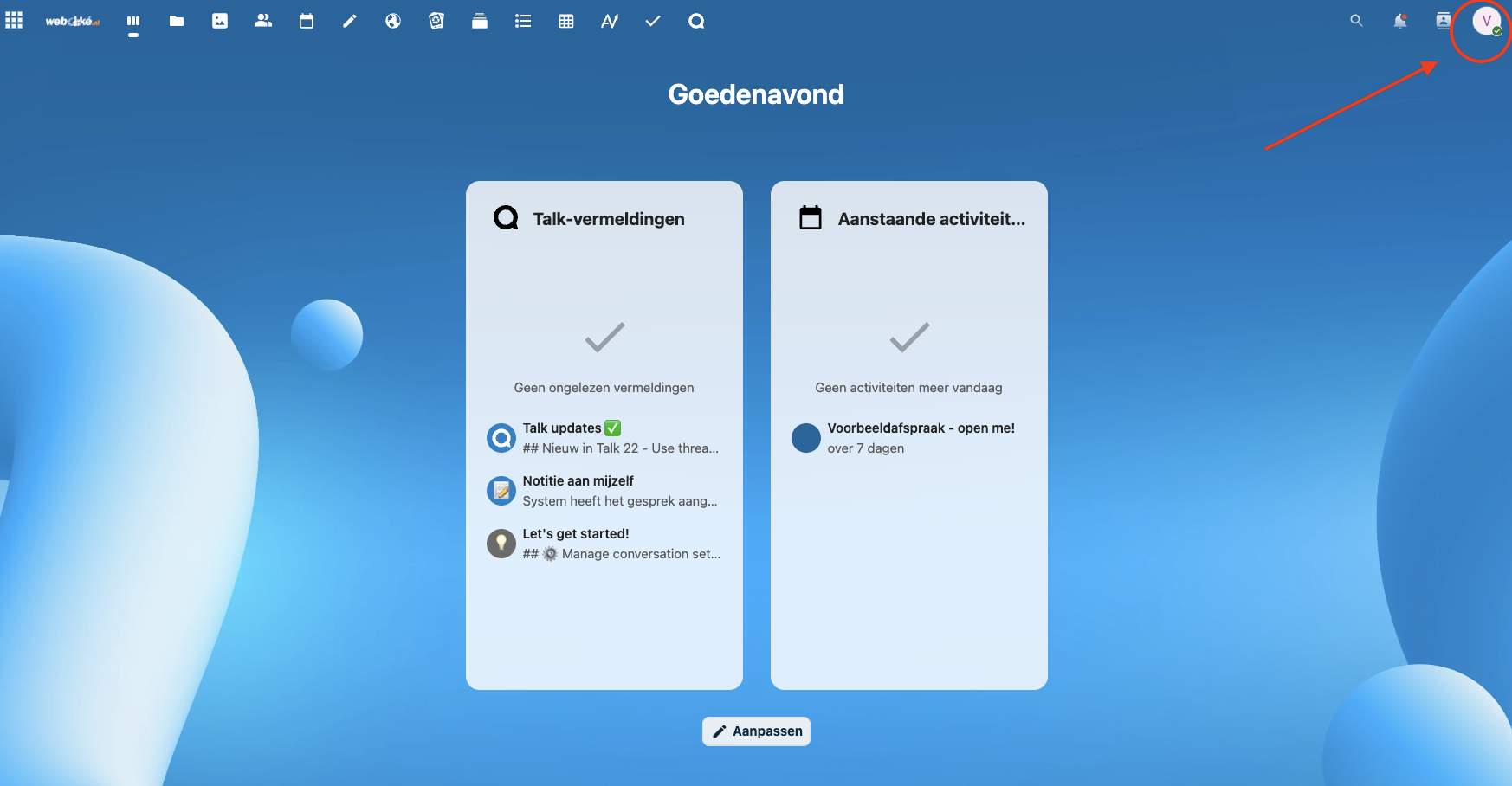
Step 1 - Log in to your WebOké Nextcloud and click your profile picture in the top right.
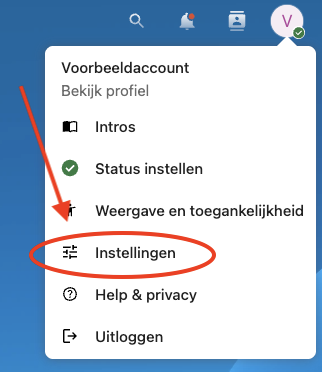
Step 2 - Click Settings.
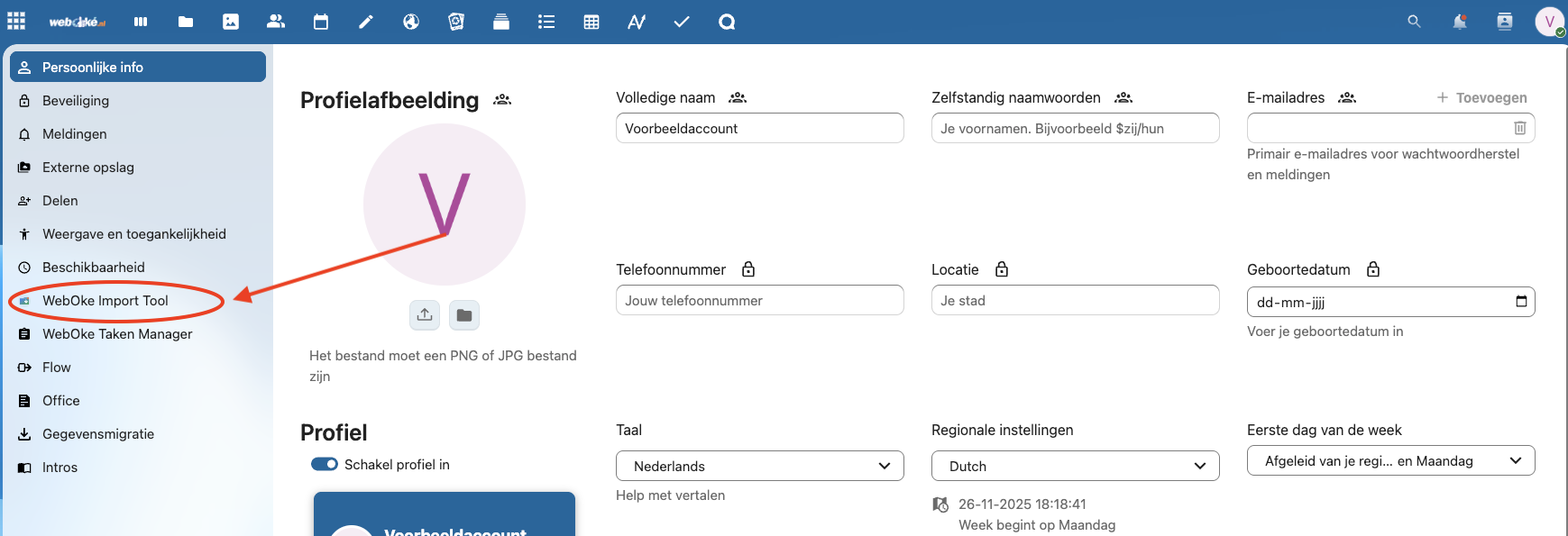
Step 3 - On the left, click WebOke Import Tool.
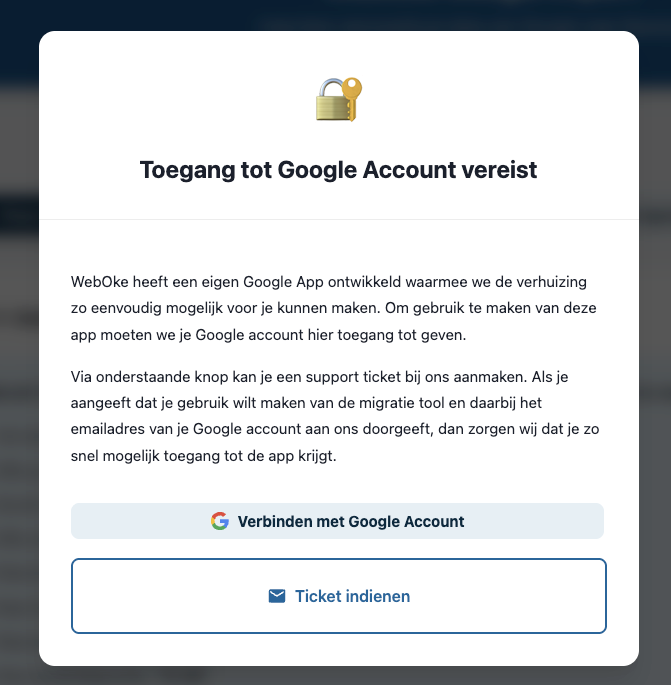
Step 4 - When you open the Import Tool for the first time, you'll see this message. If you've already been given access, click Connect with Google Account (or Sign in with Google) and go to the next step.
Haven't sent us the email address of your Google account yet? Then click Submit ticket. Once you have access, come back here and log in to your Google account.
Step 5 - Log in with the Google account you gave us and click Continue on the following screens.
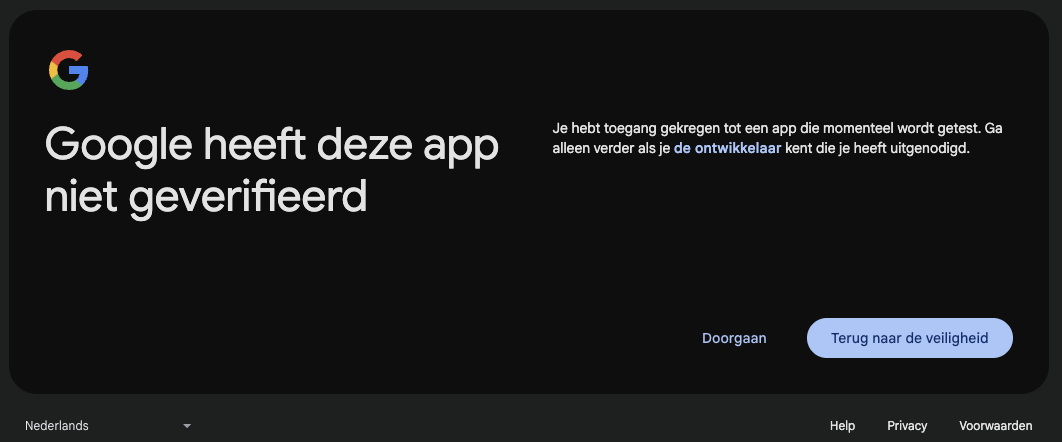
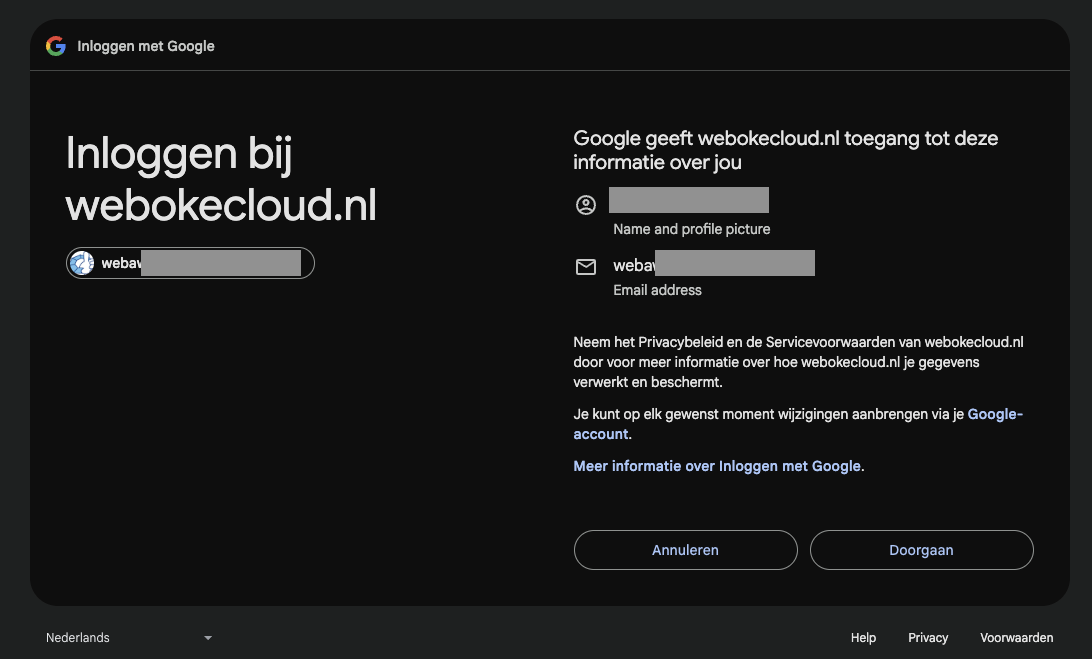
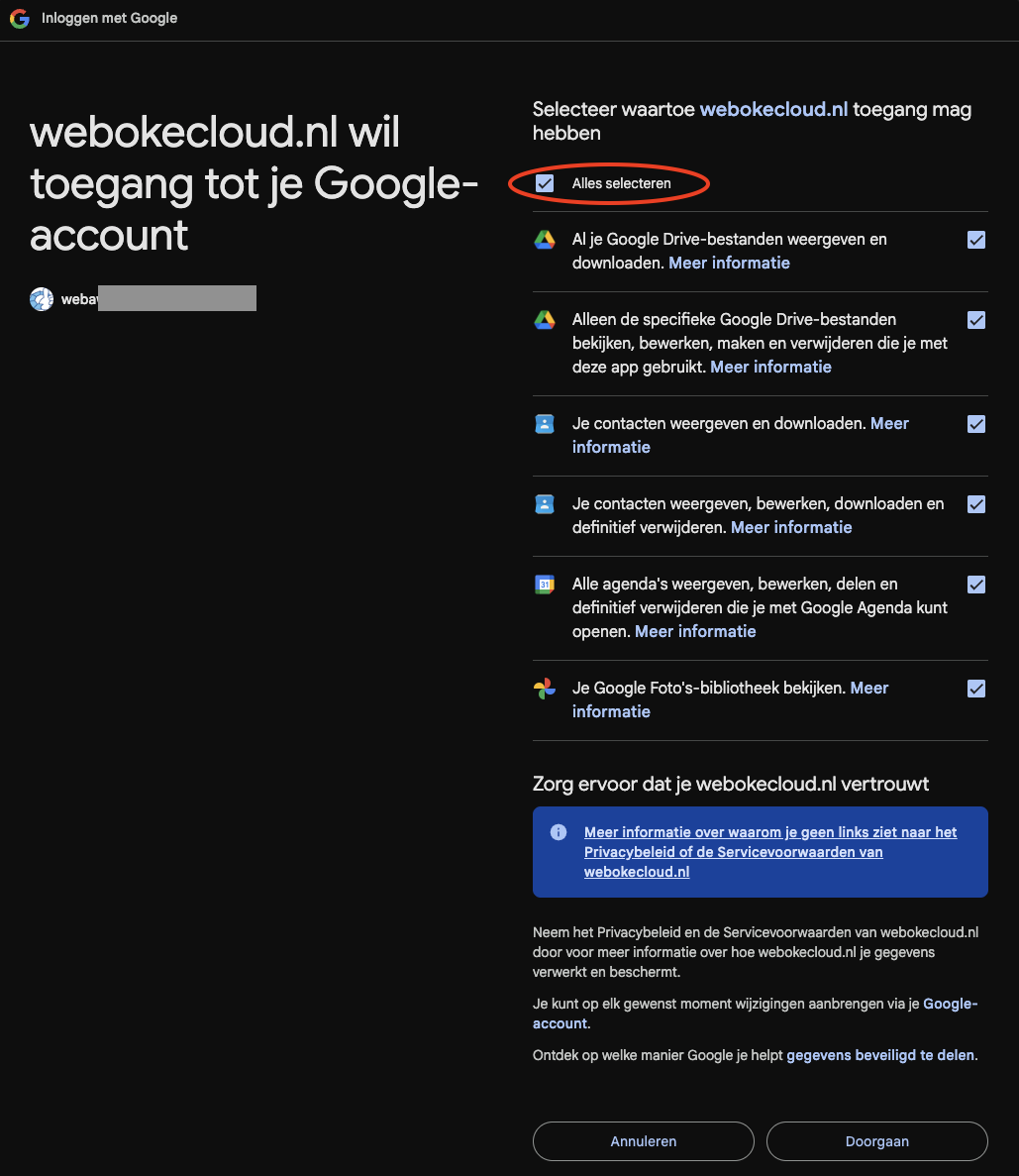
Step 6 - Click Select all and then Continue.
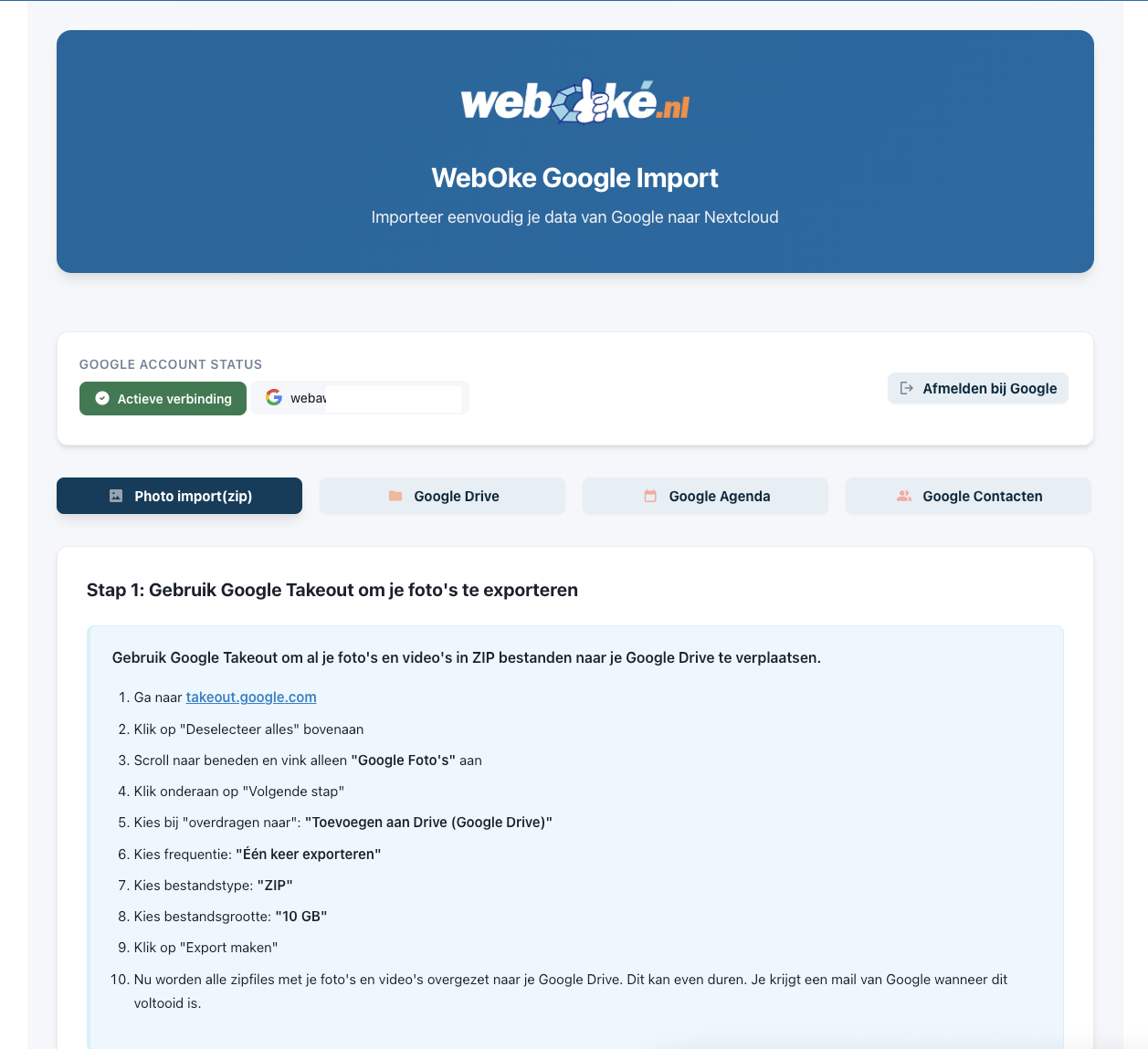
Step 7 - Your Nextcloud is now connected to your Google account. In the Import Tool you'll see four sections:
Photo import(zip) - Google only delivers your photos as zip files via Google Takeout. That's why photos go in three steps: exporting from Google, bringing the zip files into Nextcloud and unpacking them. The step-by-step plan is in the Import Tool. The date taken, the location and your device details are preserved.
Google Drive - You can transfer your folders from Google Drive in a few clicks. See below.
Google Calendar - You can easily transfer your Google calendars here. See below.
Google Contacts - You can also transfer your contacts in a few clicks. See below.
Transferring files and folders from Google Drive
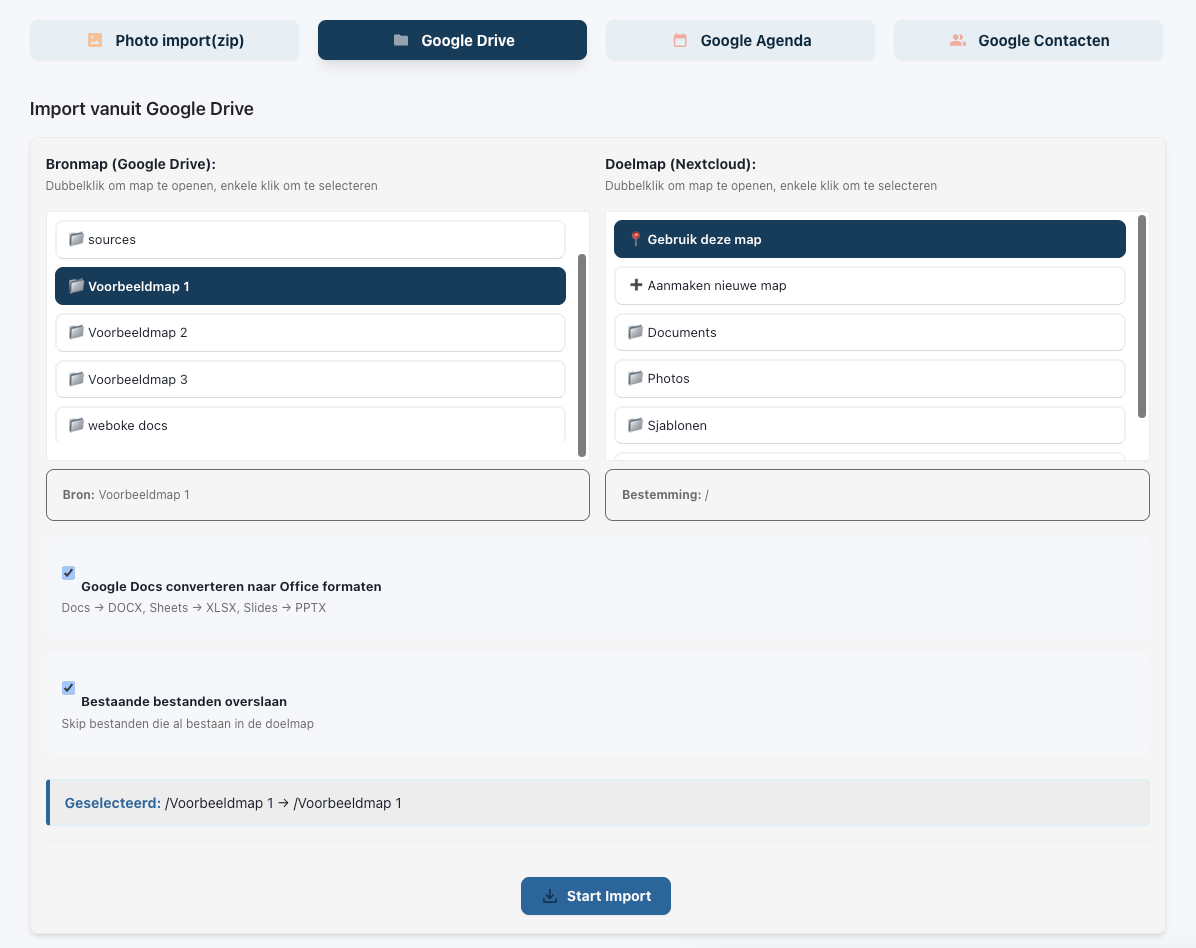
In the Import Tool, click Google Drive. On the left you'll see the contents of your Google Drive.
Under Source folder, choose the folder you want to transfer to Nextcloud. Each task transfers one folder. Have more folders? Then start multiple tasks; they can run at the same time.
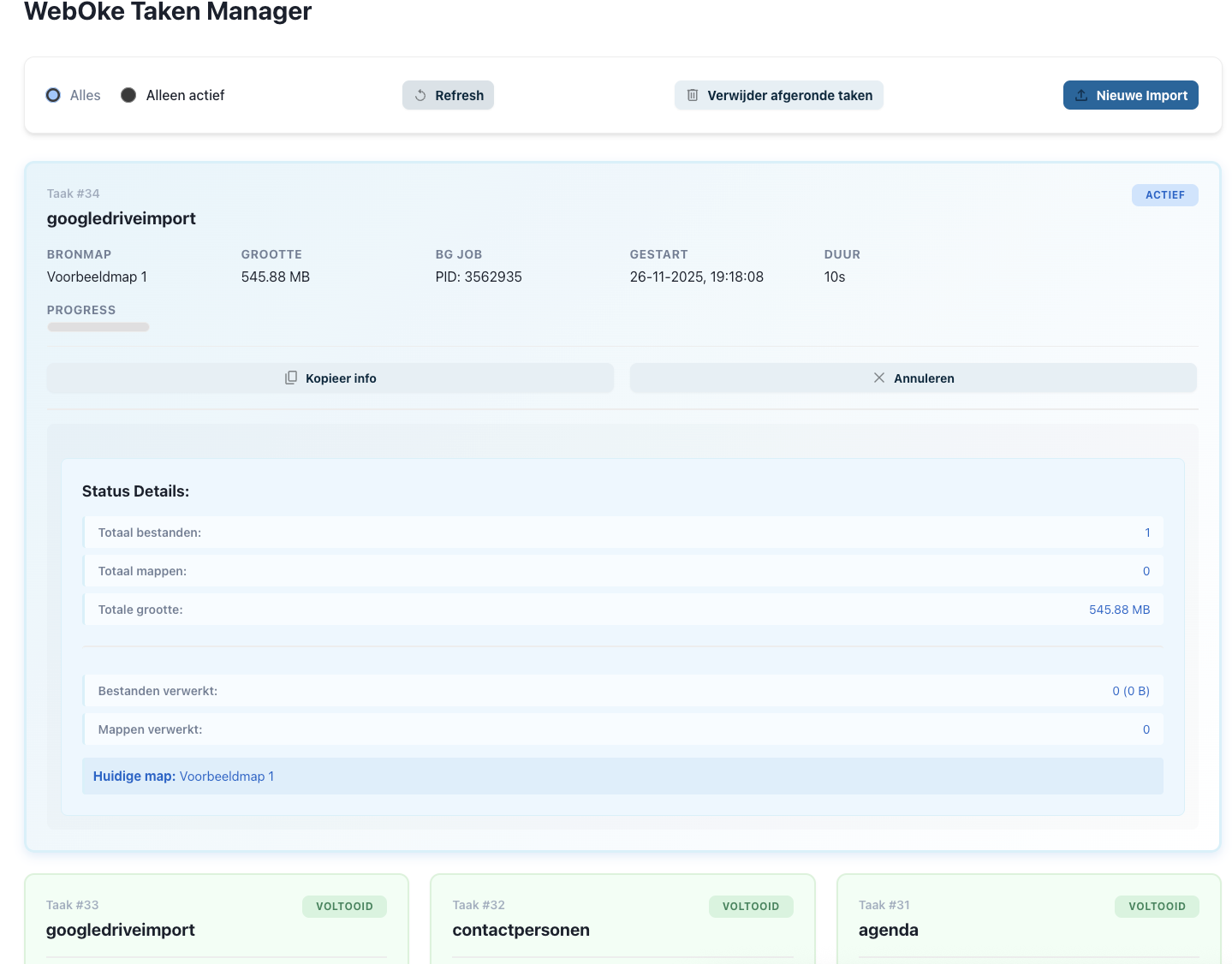
You can follow the progress in WebOke Task Manager, in the settings menu on the left. You'll get an email when the transfer is done.
Depending on how much you're bringing over, this takes anywhere from a few minutes to a few hours. You can close the window; the task keeps running.
Transferring calendars to Nextcloud
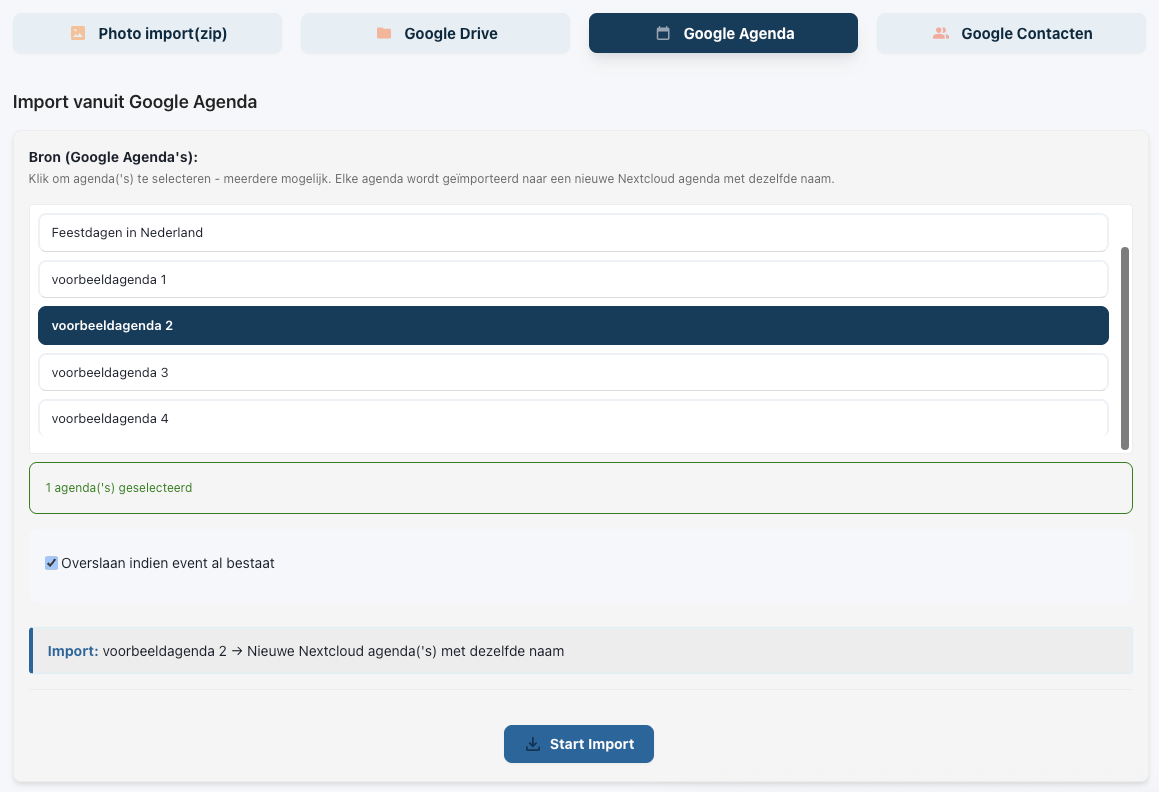
In the Import Tool, click Google Calendar. You'll see all your Google calendars. Choose one or more and click Start import. This is usually done within a few minutes. You can follow the status in WebOke Task Manager.
Transferring contacts to Nextcloud
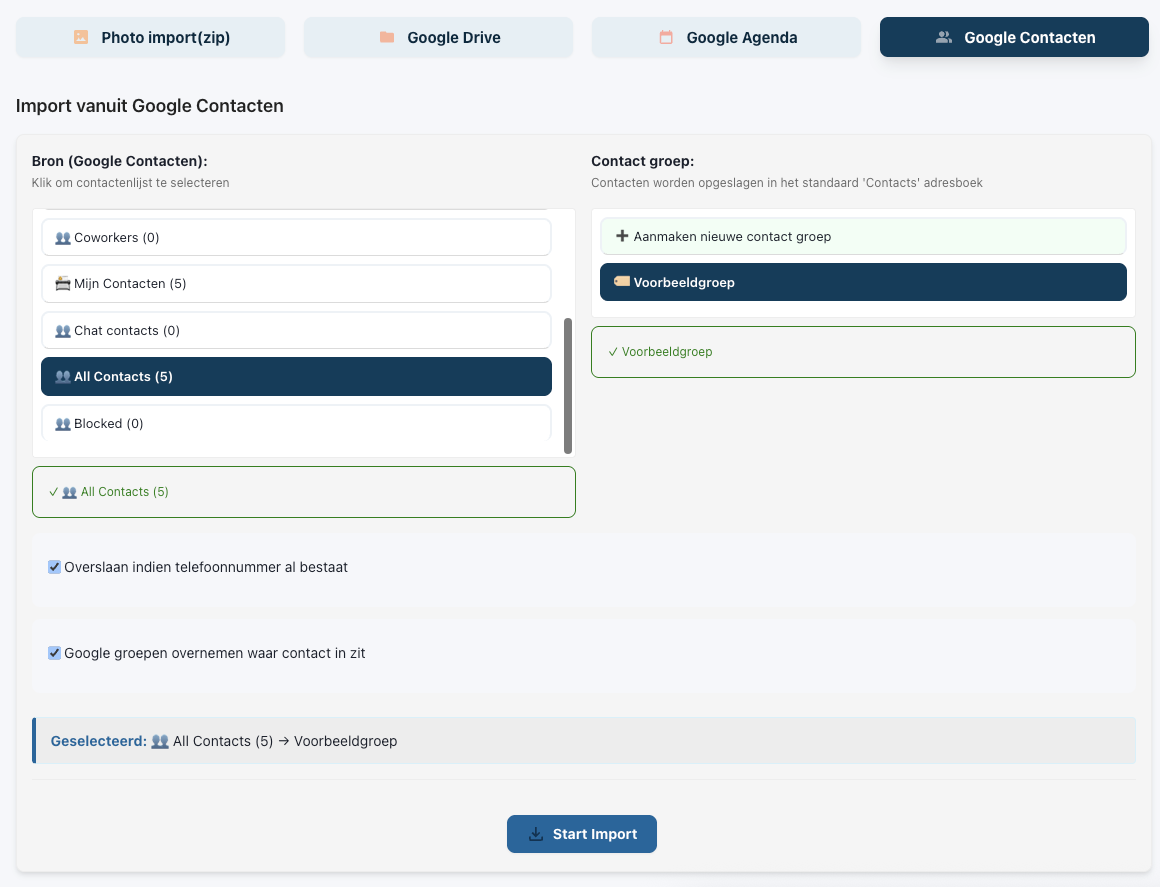
Go to Google Contacts. Under Source you'll see the contact groups you have at Google. Choose one or more.
On the right, under Contact group, choose which address book in Nextcloud the contacts should go to, and click Start Import at the bottom. You can follow the status in WebOke Task Manager.
Detailed explanation with screenshots: Transferring Google Drive, Photos, Calendar and Contacts with the WebOké Import Tool in the Nextcloud manual.
Want to learn more? Take the free course Switching to a European cloud, lesson 6.1 Transferring files from Google Drive, OneDrive and Dropbox.