
SSH access and the Terminal in DirectAdmin: which packages include it and how to log in
With SSH or the Terminal you work on the command line of your package, for example for Composer, WP-CLI or importing a large database. In this article you'll read which packages include SSH, how to open the Terminal and how to log in with your own SSH client.
Which packages include SSH?
The Terminal and SSH are included in Power Webhost Three and Four, AI Wordpress Three and Power Reseller. The other packages, such as Webhost One, Webhost Two, AI Wordpress One and Two, don't include SSH.
Want SSH? Then switch to a package that includes SSH: in My WebOké go to My Products, open your package and choose a different package on the Change hosting package card. If you don't see SSH Keys and Terminal in DirectAdmin, SSH isn't included in your package.
Opening the Terminal in your browser
With the Terminal in DirectAdmin you work on the command line directly in your browser. You don't need an SSH client or a key.
- Log in to DirectAdmin: in My WebOké go to My Products and click DirectAdmin next to your hosting package.
- Under System Info & Files, click Terminal.
- After a few seconds you'll see Terminal (Active). You're logged in as your DA user, in your home directory.
- Done? Click Disconnect.

Logging in with your own SSH client
At WebOké you log in with an SSH key, not with a password. This is what you need:
- Server: the server name of your package, for example servernaam.webawere.nl. See Finding your server name and DA username.
- Port: 1967 (not the default port 22).
- Username: your DA username.
- Login: only with an SSH key.
- Create a key pair on your own computer, for example with ssh-keygen -t ed25519. The private key stays on your computer. Never share it.
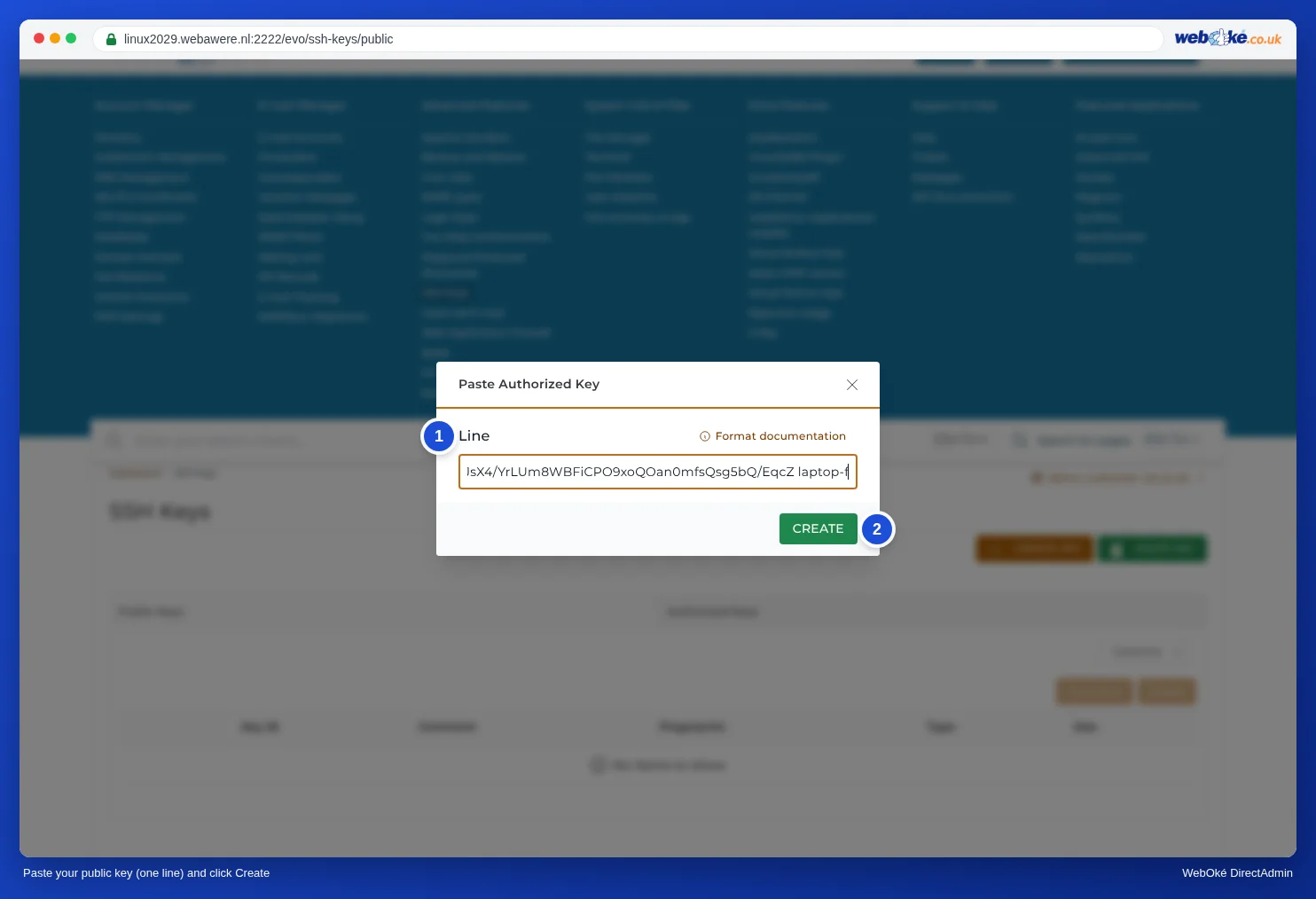
- In DirectAdmin, under Advanced Features, click SSH Keys and then PASTE KEY.
- Paste your public key (the contents of the .pub file) as a single line in Line and click CREATE.
- Connect from your terminal (Mac, Linux or Windows Terminal):
ssh -p 1967 gebruikersnaam@servernaam.webawere.nl
The first time, your computer asks whether you trust the server: type yes. If you use PuTTY or FileZilla (SFTP), also choose port 1967 and your private key.
Can't log in?
- Getting Permission denied (publickey)? Check that you're using port 1967, that your public key is listed under Authorized Keys and that your client is using the matching private key.
- After a few failed attempts your IP address may get blocked. You can check this in My WebOké under Am I blocked?. See Troubleshooting login problems.
- Does DirectAdmin say your key is invalid? Paste the public key, not the private key, and make sure it's a single line.
See also in the DirectAdmin manual: SSH Keys and logging in with SSH.
Detailed explanation with screenshots: Terminal in your browser in the DirectAdmin manual.