
Creating a vacation message or out-of-office reply
Going away for a while? With a vacation message, everyone who emails you gets an automatic reply. In DirectAdmin you set a start and end date, so the message starts and stops on its own.
- Log in to DirectAdmin: in My WebOké, go to My Products and click DirectAdmin next to your hosting package.
- Under E-Mail Manager, click Vacation Messages.
- Click Set Vacation Message.
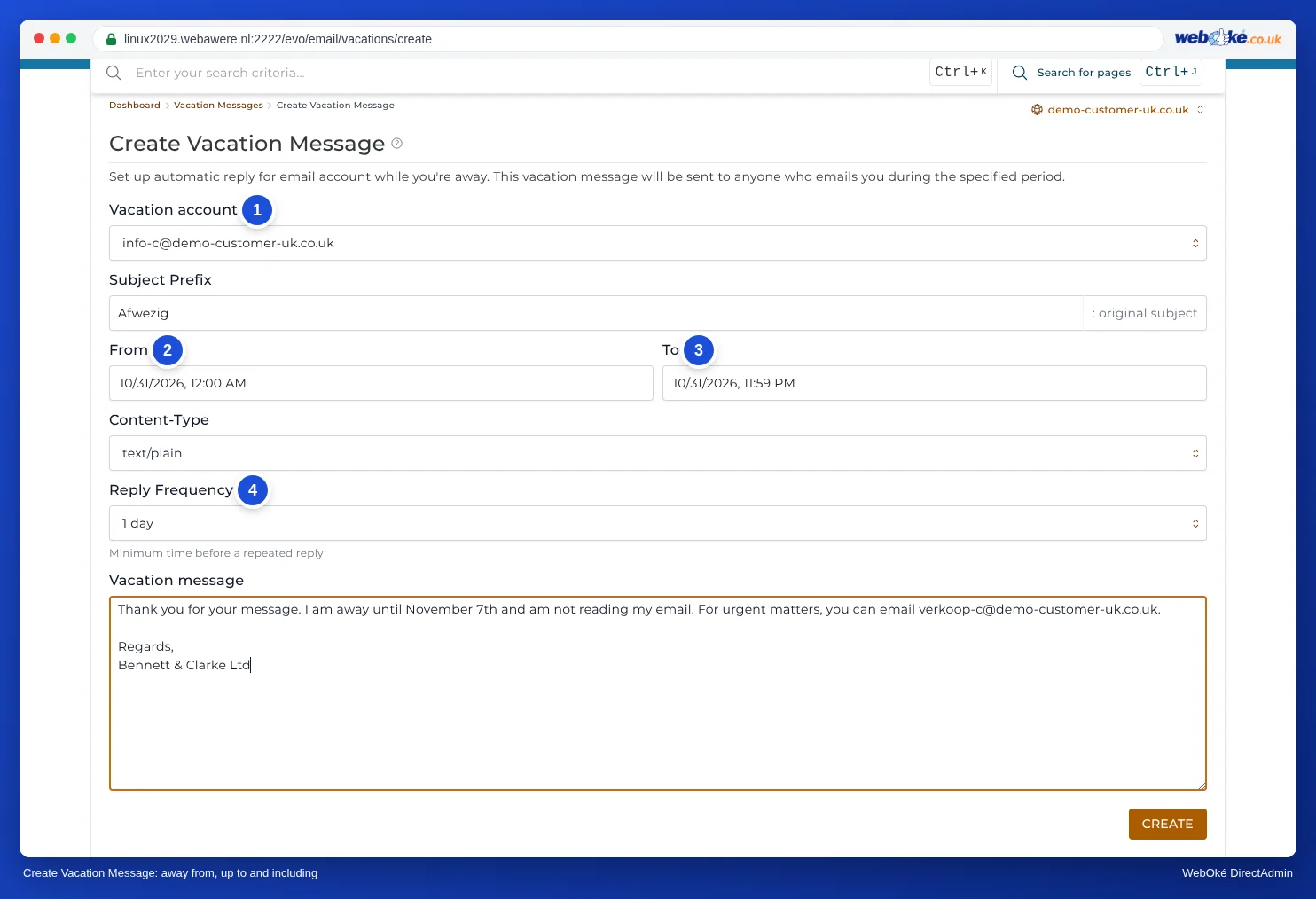
- Under Vacation Account, choose the mailbox, and under From and To, choose when the message starts and stops.
- Under Reply Frequency, choose how often the same sender receives the message, for example once a day.
- Under Subject Prefix, enter a word, for example Out of office. This field is required.
- Type your text under Vacation Message and click Create.
Want an automatic reply without an end date, for example a confirmation of receipt for info@? Then use Autoresponders.
Or in webmail
Don't have access to DirectAdmin, for example because you only have a mailbox? Then you set up the out of office message yourself in webmail.
- Log in to webmail with your email address and your mailbox password.
- In the menu, click Settings and then Out of Office.
- Fill in the Subject and enter your message under Body. Include when you'll be back and who people can contact in the meantime.
- Enter the dates under Start time and End time. The message will then switch on and off automatically.
- Set Status to On and click Save.
To turn it off, set Status to Off. Set up the message in one place only: in DirectAdmin or in webmail, not both. Otherwise people will get two automatic replies.
Detailed explanation with screenshots: Setting up an out of office message in the webmail manual.
See also in the DirectAdmin manual: Autoresponder or vacation message: which should you choose?.
Detailed explanation with screenshots: Vacation Messages in the DirectAdmin manual.